PIX
PIX provides an extensive array of monitoring, performance and debugging tools to assist Xbox One developers improve their title.
PIX supports both Direct3D 11.x and Direct3D 12.x. PIX is a complex tool that presents a lot of data to the developer. The following diagram shows the main components.
Figure 1. A typical development environment
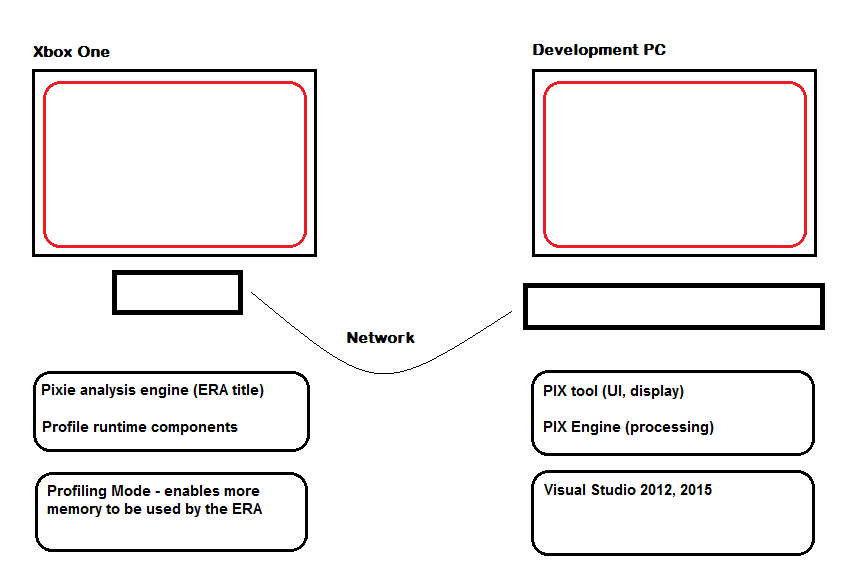
There are three main components to PIX. An analysis engine running on the console (called “pixie”) that handles the capturing of data, an out-of-proc PIX engine on the development PC that handles all the actual analysis, and the PIX tool itself that runs on the PC and displays the data. Communication between the development PC and console is handled using normal networking.
Up to July 2015 the development tool for the console is Visual Studio 2012. From July 2015 Visual Studio 2015 is also supported.
Profiling Mode (mentioned in the setup documentation for the XDK) is not strictly part of PIX, but is a mode that reserves additional memory for the ERA titles when the console boots (pixie runs as an ERA title). Some PIX tasks, especially CPU captures, will still work even if this additional memory is not available, pixie will simply run more efficiently if it is available.
The following sections describe the features of PIX.
In this section
PIX setup
Setup PIX, and use it to capture frames and analyse draw calls. This section covers the setup, system monitor, capturing a frame, and the first steps in analysing data.
Using PIX for GPU performance
View and analyse a GPU capture, optimize ESRAM usage, and get help from Dr PIX.
Using PIX to examine GPU resources
View resources and resource usage in PIX. This section covers the Resource Browser, GPU state, and the Mesh Viewer.
Using PIX with shaders
Use PIX to analyse and debug shader performance. This section covers shader profiling, shader optimization, shader register lifetime, shader instruction trace, custom visualizations, and the edit and continue feature.
Using PIX for general title performance
This section covers the PIX captures you will find most useful when analyzing your title: timing, function summaries, callgraphs, memory usage, file IO, hardware instructions, trace logs and counters.
Using PIX for advanced scenarios
Covers advanced scenarios such as using the PIX API calls to program a capture, isolating transient spikes, analzying the build log, and customizing memory and timing captures.
PIX options and layout
Customize the use and appearance of PIX. This section covers the window arrangement, settings and options, and keyboard shortcuts.
PIX API Reference
There is a small API for PIX that can be used for a number of tasks, including extracting timing data, providing software counters, configuring the hardware counters, and reporting on the current capture state. See PIX API Reference.