Setting up your Xbox One X Dev Kit
With Xbox One X we have improved the dev kit setup experience by removing many of the hurdles and extra steps that were required in the past. Our goal is to get you up and running quickly and give you the tools to more easily configure all dev kits in your studio.
Important This topic outlines the process for activating your Xbox One X dev kit. To activate an Xbox One S dev kit, see Activating Your Dev Kit.
- Step 1: Activate Your dev kit
- Step 2: Optionally create an Unattended Setup Script
- Step 3: Connect and power-on your Xbox One X dev kit
Step 1: Activate Your dev kit
After an order is completed through the Entertainment Developer Store (EDS), an entitlement will be automatically associated with your publisher account on the Windows Dev Center (WDC) website. Once the kit arrives, you must let Xbox Live know it was received by the party which ordered it. This is achieved by performing one of the activation options listed below.
Option 1: Activate your development kit by using a QR code
This option is the same process you have used to activate dev kit in the past. Activating via QR code is a good option if you are activating a very small number of dev kits, your studio does not have a Windows Dev Center (WDC) account, or your facility/network infrastructure is not supported for Option 2.
For more information, see the Activating Your Dev Kit topic.
Option 2: Activate your development kit by registering your studio IP address(es)
New for Xbox One X, you can activate your dev kits automatically when they are coming from a known/registered IP address that is associated with your studio. The requirements for this option are:
- Your studio/publisher must have an account in Windows Dev Center (WDC)
- Your studio/publisher must have a static IP address that is registered in WDC
Once powered on the dev kit will automatically activate — if the traffic is coming from an IP address that is registered for the UDC account where the console was purchased. No QR scanning is required with this option.
Register your IP addresses with Windows Dev Center (WDC)
IP addresses must be entered into the WDC account that ordered the Xbox One X dev kit hardware units. Registering IP addresses requires an account with the Xbox Devices permission level in WDC.
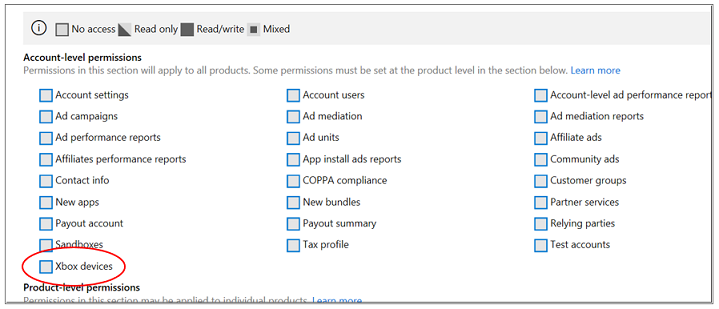
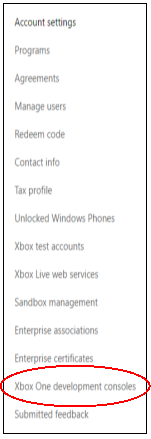
Once an Xbox Devices capable account has logged into WDC, you will find the Console Management Dashboard in the left nav of the account settings pages.
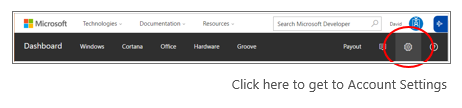
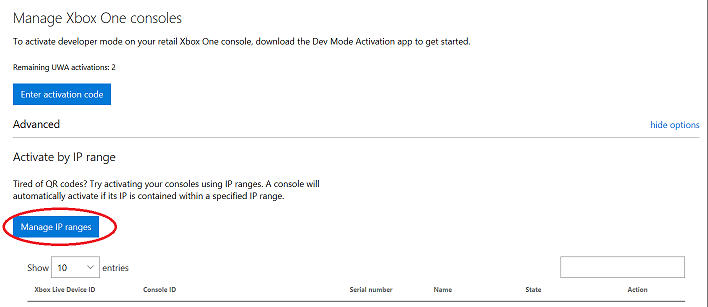
From within the Console Management Dashboard, click on show options to expand the Advanced menu.
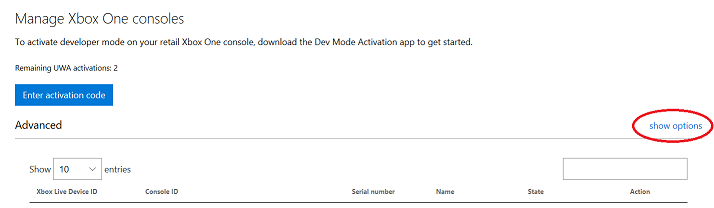
Click on the Manage IP ranges button under the Activate by IP range section to get started with entering your studios IP ranges.
On the Manage IP ranges page enter the IP address range that you desire to allow an activation from and click Create new IP range to save it.
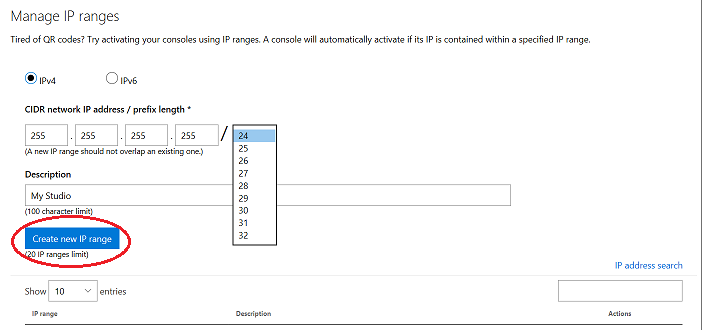
Once saved the IP range will take immediate effect and any device requesting to activate from an allowed IP range will get activated.
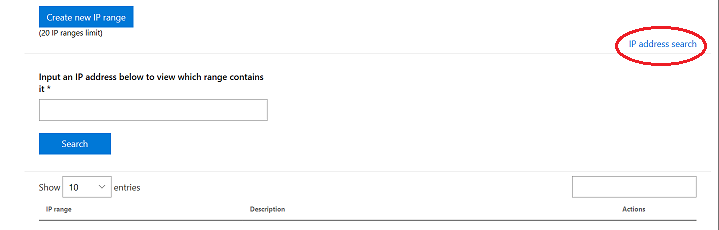
If you are unsure if a certain IP is in you allow list or not, you can use the IP address search function. You can type any IP address and see if any of your ranges cover it or not. Click on IP address search to expand and use this functionality.
Step 2: Optionally create an Unattended Setup Script
During initial setup you can input your preferred settings for the console by authoring an Unattended Setup Script, and loading that onto a USB key. During setup the console will look for a script on the USB key and use that to configure the console.
Configuration scripts can be authored from any Xbox console running the March 2017 recovery or later by accessing the Automation workspace through Device Portal.
Create the script through Device Portal and export the file to your local PC. This file can then be copied onto an NTFS formatted USB key to be utilized during setup.
For more information, see the topic Configuring Your Dev Kit with an Unattended Setup Script.
Step 3: Connect and power-on your Xbox One X dev kit
Xbox One X dev kits should need minimal or no input during initial setup to become a dev kit and get you up and running. Xbox One X dev kits in a lab that are activating by a registered IP address will just need power and networking to get setup.
Plug in the power, primary networking port, and optional USB key (from step 2). The Xbox One X dev kit will download and apply any required updates, configure itself as a dev kit, and finish by landing on Dev Home ready for you to connect via the Tools IP address.