Xbox One X: Using the front panel display
The front panel of the Xbox One X dev kit has a 256×64 pixel OLED display, a directional button that is used for navigation between screens, and five programmable buttons, each with an associated LED.
Figure 1. The Xbox One X front panel display.
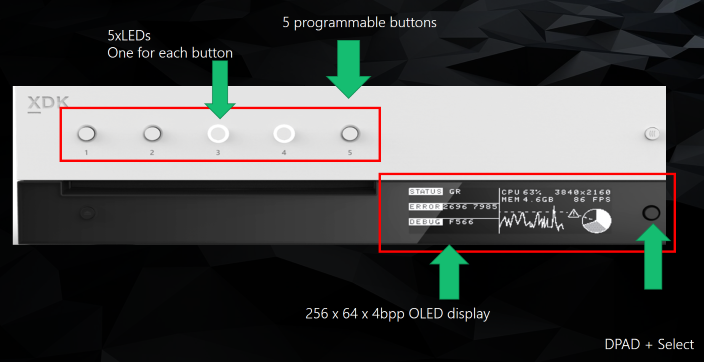
The front panel display is always in one of the following two modes. When your title is running, you can switch modes by long-pressing the directional button (pressing the button in for one second).
- System mode: Contains several built-in screens that provide quick access to important system information and settings. The front panel display defaults to System mode whenever a title isn’t currently running.
- Title mode: Allows your title to programmatically control the front panel display. The front panel display automatically enters Title mode when you launch your title.
System mode
System mode provides several built-in system screens. You can cycle through these screens by pressing up or down on the front panel’s directional button. You can also customize the front panel by mapping custom scripts to the buttons.
The following table describes the system screens that are available in System mode.
| System screen | Description |
|---|---|
| System Identity | Shows the IP address and hostname of the dev kit, which allows you to easily identify a specific dev kit in a lab setting. This is also an easy way to get the IP address that you will need to connect to the dev kit from your computer. Additionally, if you have changed your console mode from the default to either "Scorpio Retail" or "Xbox One S" the current mode is displayed on this screen to remind you that it is applied. |
| System Configuration | Shows the current value of the following system settings:
|
| System Display | Shows the current display resolution and refresh rate, the color depth and space, the HDR mode, and HDCP status. |
| System Performance | Shows a utilization graph of the eight CPU cores, the frame rate of the currently running title (if any), and the Retail HDD read/write speed. |
| System I/O | Shows the read and transmit/write speeds for the System NIC, Wireless NIC, HDD, and NVME drives. |
| System Storage | Shows the capacity and free space of the Internal and Development hard drives. |
| System Actions | Shows the actions that are mapped to the front panel buttons in System mode. These will be updated whenever you remap these actions. |
Mapping custom scripts to the buttons on the front panel
You can create a script to perform a custom action and map it to one of the front panel buttons for use in System mode. These custom actions can be as simple as changing a single setting or more complex like setting the display resolution to 4K, turning on HDR, and registering and launching a daily game build from a remote share, all with a single button press.
You edit and test these scripts using the same tools we introduced for creating unattended setup scripts in the March 2017 XDK. For detailed instructions on creating and editing scripts, see Configuring Your Dev Kit with an Unattended Setup Script.
Once you have created your custom script, you can map it to a front panel button using DevHome or Xbox Device Portal, as shown below:
Figure 2. Setting a custom action in DevHome.
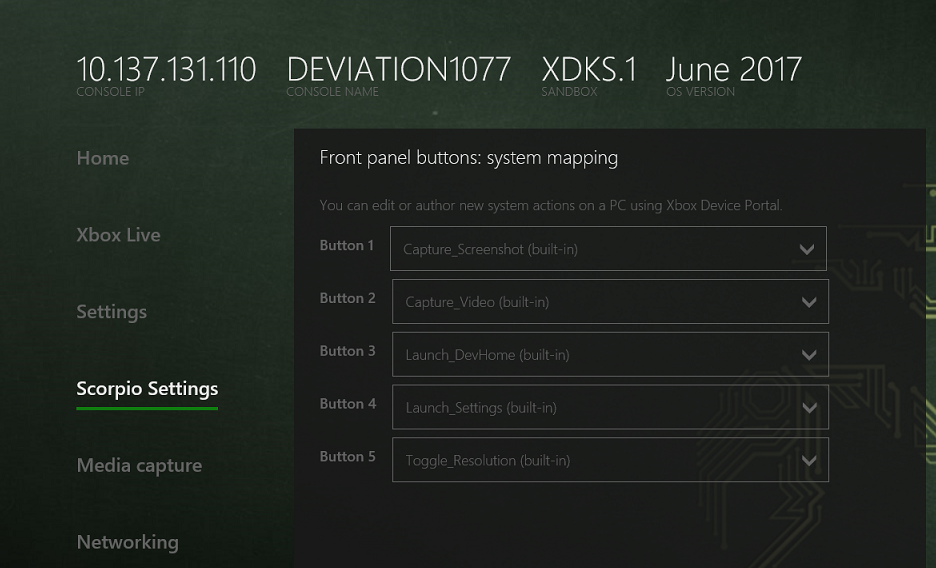
You can share scripts with other members of your team by using the import function. You can also copy the scripts to the \consoleipaddress\SystemScratch\quickactions folder on your dev kit, which is where you will find any custom scripts you have created on the dev kit.
Title mode
Title mode allows your title to programmatically control the front panel display.
Programmatically controlling the front panel display
Your title can use the following members of the low-level IXboxFrontPanelControl API to leverage the front panel buttons, LEDs, and display from your title. You can also download the ATG Front Panel Toolkit, which provides a higher-level API that makes it easier to draw text and track button states.
| IXboxFrontPanelControl member | Description | ||
|---|---|---|---|
| GetButtonStates | Retrieves the current state of all five toggle buttons and the directional button. | ||
| GetLightStates / SetLightStates | Gets and sets the state of the five LEDs that accompany the toggle buttons. | ||
| GetScreenWidth / GetScreenHeight | Retrieves the size of the screen, in pixels. | ||
| GetScreenPixelFormat | Retrieves the pixel format for the screen.
| ||
| PresentBuffer | Draws to the screen. This API takes a memory buffer that sets the state of each pixel in the screen. The buffer size is GetScreenWidth × GetScreenHeight × sizeof(uint8_t).
|
 Note
Note