Configure Events (Service Configuration)
This topic provides procedures for adding and changing events in the service configuration for a title.
For an overall introduction to the various elements of the service configuration, see Introducing Service Configuration.
Sections in this topic:
What is an event?
Anything that happens during play, and that can be captured, can be an event.
A player acquiring a weapon is an example of an event. When the player defeats an enemy using that weapon, that is also an event.
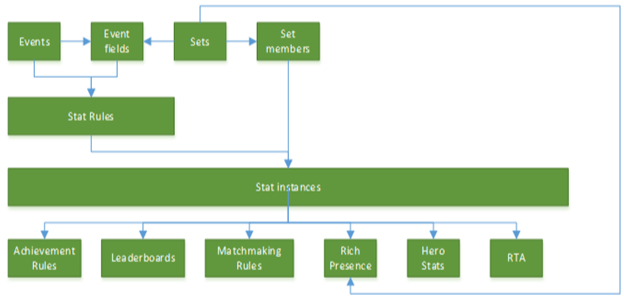
Note Events are generated by a game and sent to Xbox Live. User statistics are records of the events that are transmitted. Other configuration features, like achievements, leaderboards, hero statistics, and so on, are built on these user statistics. For information about theses configuration features, see the “Xbox Data Platform Overview” section under “Xbox Live and Online Services” in the Xbox One XDK documentation.
For more info about events, see the “Events” section under “Xbox Live and Online Services” in the Xbox One XDK documentation.
Create an event
To create a new event
- On the Service Configuration Tasks page, click Events & Stat Rules.
- On the Events & Stat Rules page, if the Add New Event dialog box is not already displayed, click New under Events to display it.
- In the dialog box, specify the values that you want for the fields described in the following list.
- Base Event - Select the base event from the drop-down list on which you want to build your new event.
The base event that you select will control the default fields with which your new event is prepopulated.
You can add any other fields that you want, but the default fields can’t be removed. - Event Name - Enter a name that characterizes the event, and that you will easily remember and recognize.
The event name isn’t required to match the name of the base event that you selected for the new event.
Event Names aren’t displayed to the gamer. They are internal to the code and game studio only.
For requirements about event names, provider names, and field names, see the “Xbox Data Platform: Event Design Best Practices” topic under “Xbox Live and Online Services” in the Xbox One XDK documentation.
Event names must be unique within a provider namespace. That is, a single provider can’t have two conflicting event names. - Description - Enter a brief description of the event.
This text is not visible to the gamer, and entering a description is optional. - Event Fields - The fields in this list represent the data that will be captured in connection with the new event.
To add an event field, click Add Event Field, specify the Field Name, the Data Type, and optionally a Set Name, and then click Add Event Field to add the field and close the dialog box.Note You can only specify a Set Name if the publisher has specified it and the set has already been created. If so, select it from the drop-down combo box.
The new event field is displayed in the list, with controls for editing and deleting the event field and also for moving the field up and down in the list.
Note You can’t move an added event field up into (or above) the list of default, prepopulated event fields.
- Base Event - Select the base event from the drop-down list on which you want to build your new event.
- When you have all of the fields and values for your new event the way that you want them, click Add Event to create the event and close the dialog box.
Your new event is now listed on the Events & Stat Rules page.
There are character limits on the different types of fields. The limits are as follows:
- Achievement name: 44
- Locked description: 100
- Unlocked description: 100
- Achievement rule name: 44
- In-app reward name: 57
- In-app reward description: 90
- Art reward name: 57
- Art reward description: 90
- Rich presence: 44
- Hero stat name: 44
Change an event
After a title passes Final Certification, existing events in that title can no longer be changed except to add new event fields.
To make changes to an existing event:
- On the Events & Stats page, under Events, click the Edit icon for the event that you want to make changes to.
- In the Edit Event dialog box, make the changes that you want.
Note It is possible to delete custom event fields, but not to delete the default event fields that were provided automatically when the event was created.
- When all of the options are the way that you want them, click Save Event, and then click the Close button in the upper-right corner of the dialog box.
Delete an event
After a title passes Final Certification, existing events in that title can no longer be deleted.
To delete an existing event:
- On the Events & Stats page, under Events, click the Delete icon for the event that you want to delete.
- In the Delete Event dialog box, confirm the deletion by clicking Delete Event.
Important You can delete events while your game is in development. You can’t delete events after you have exited final certification (that is, launched your product).
An event can have chained dependencies. When you delete an event with chained dependencies, a dialog appears that indicates all the dependencies for that event that will be deleted along with the event itself before you confirm the delete. Please be sure that you want to delete all of the dependencies in the dialog before deleting the event.
Download Events Manifest
After you finish defining or making any changes to your title’s events, you must publish them to Xbox Live and download the Events Manifest file.
To develop your title, you need to acquire the Events Manifest file for that title.
For info about how to download the Events Manifest file, see Downloading the Events Manifest file.