SmartGlass Studio
The main purpose of the SmartGlass Studio tool is to allow you to develop and test SmartGlass companions in conjuction with an Xbox One console.
SmartGlass Studio has the following displays:
Login
This Login screen is used to sign in a user or specify an anonymous user.
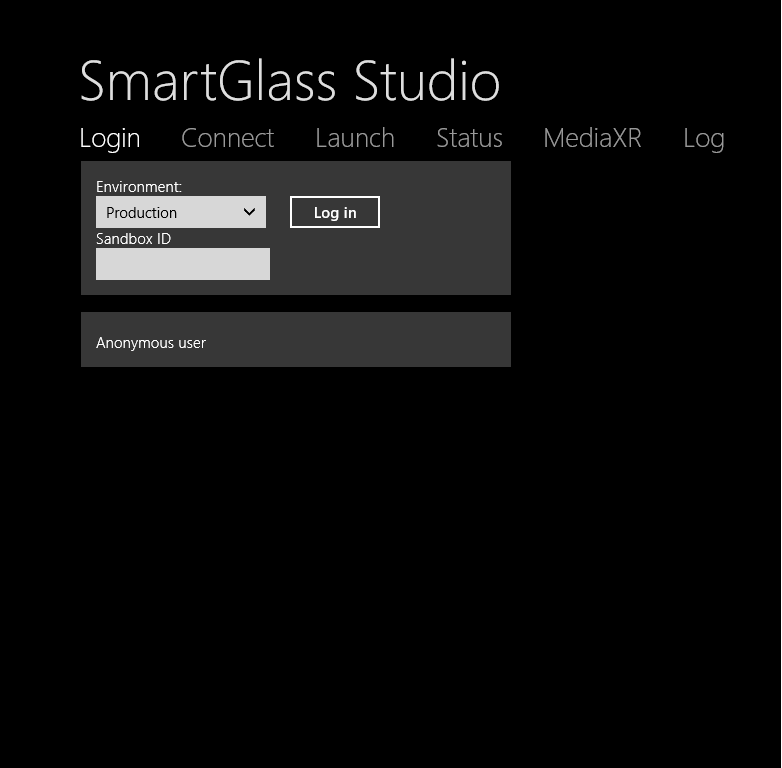
The Login screen has the following controls:
Environment
Specifies the environment to connect to.
Sandbox ID
Specifies the sandbox to connect to.
Log In
Prompts for credentials and attempts to sign in as the specified user in the selected environment and sandbox.
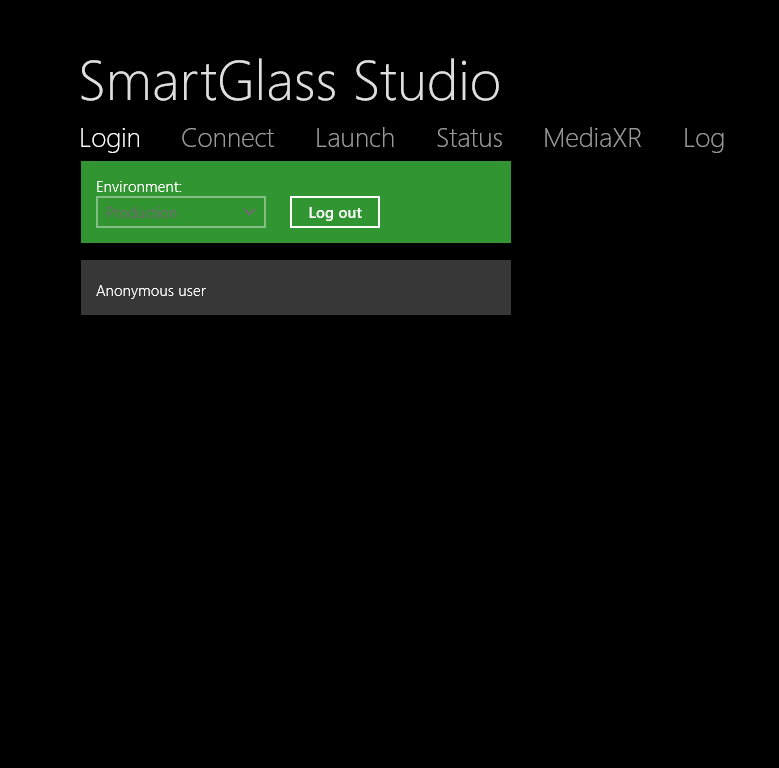
Once the user is signed in, the relevant button will turn green.
Connect
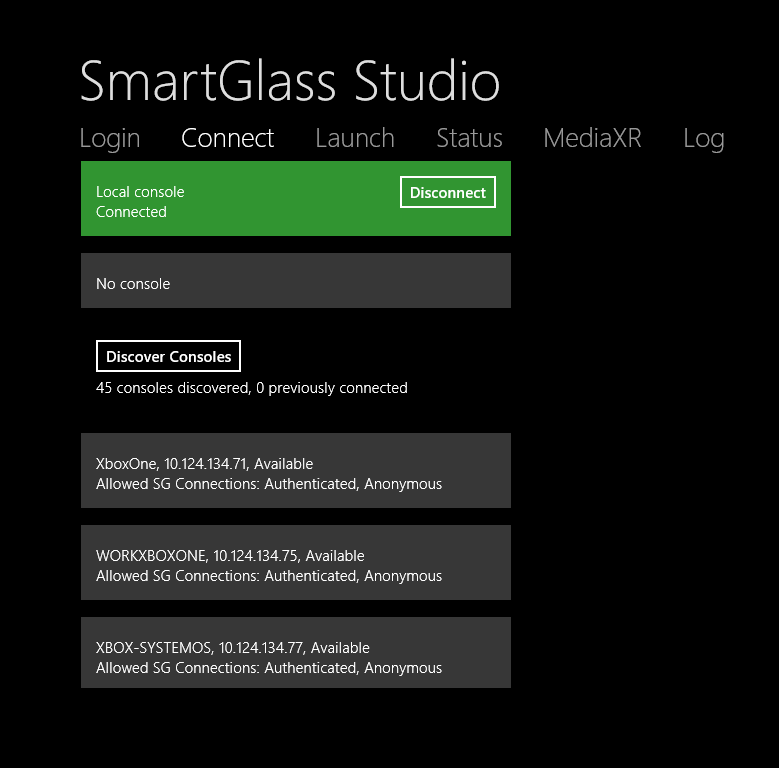
The Connect screen displays a list of available consoles. SmartGlass Studio attempts to auto-discover consoles on the local network and shows them in the Connect screen. Note that in some cases discovery can fail. If you don’t see your console listed you should select Local Console and enter the IP address of your console.
Options to connect to an Xbox One Console:
Local Console
The Local Console button connects over Local connection. The console’s IP address is required when using a local console connection.
No console
Allows the user to bypass the console connection and directly launch a SmartGlass Companion. This allows a user who doesn’t have a console to test the UI/Layout of a SmartGlass Companion.
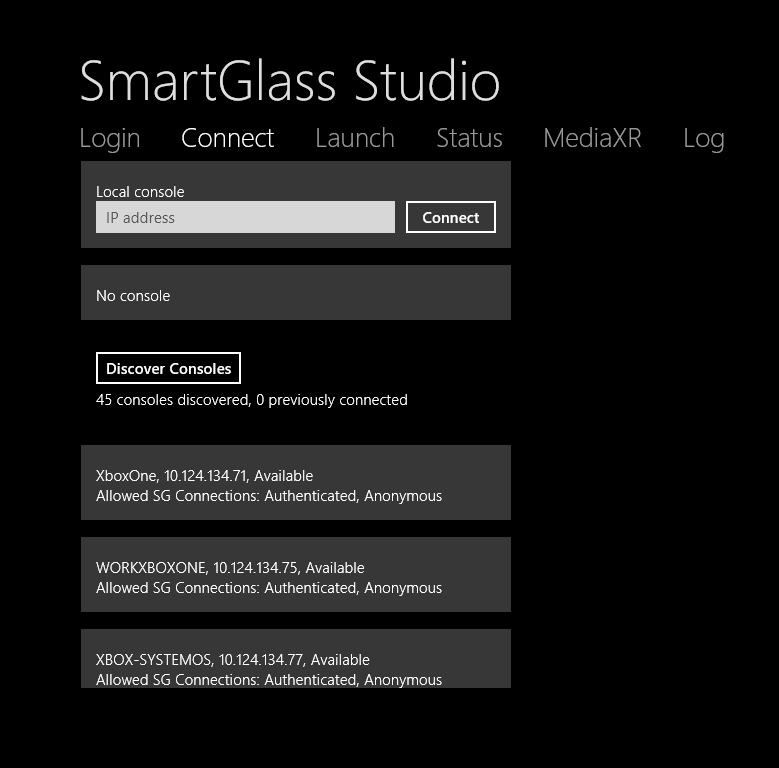
Once SmartGlass Studio has successfully connected to a console, the relevant button will turn green.
Launch
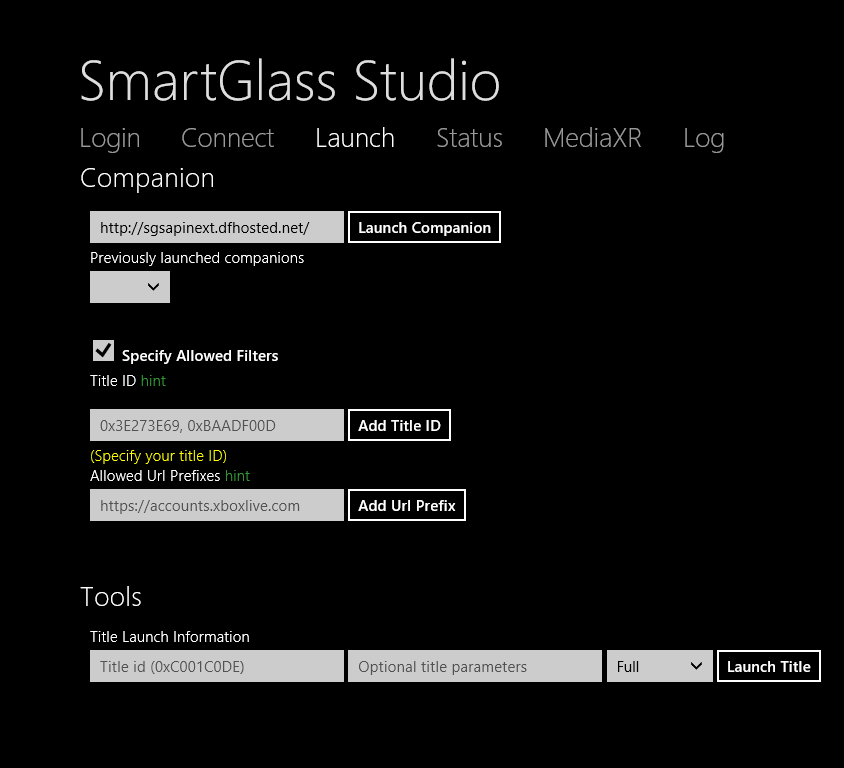
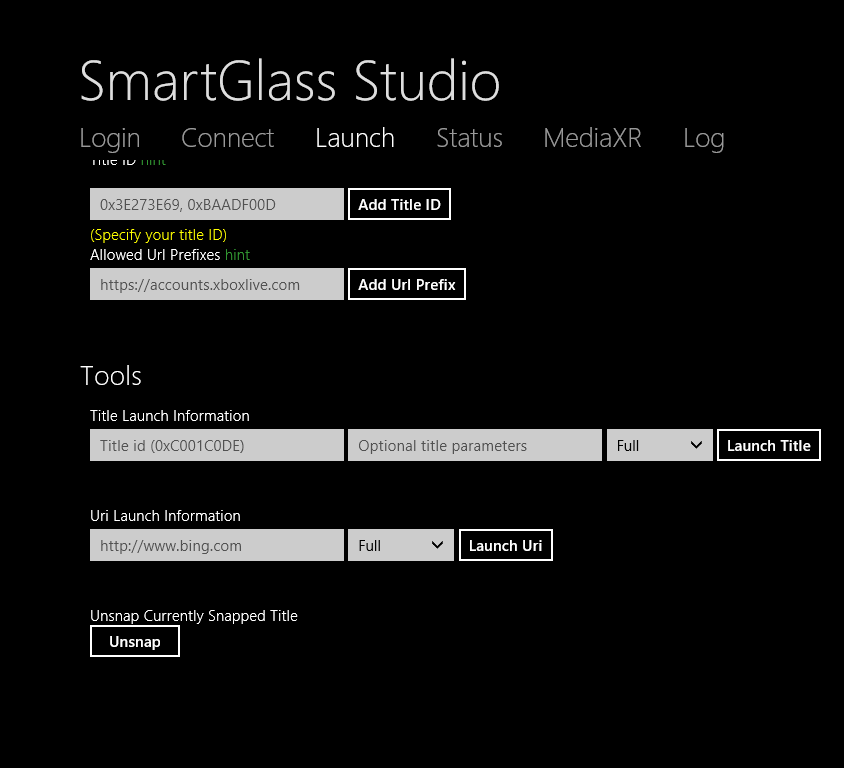
Allows a SmartGlass Companion to be launched by specifying a URL to the SmartGlass Companion.
Note The SmartGlass HTML control across all Windows 8.X devices has a fixed height of 768 pixels. The width is calculated at runtime to ensure the control matches the device aspect ratio, but in practice the width will resolve to 1388px on most devices. The HTML content is then scaled to fit the device’s screen ensuring the best possible end user experience. This final scaling happens at the platform level and it is completely transparent to companion developers.
Status
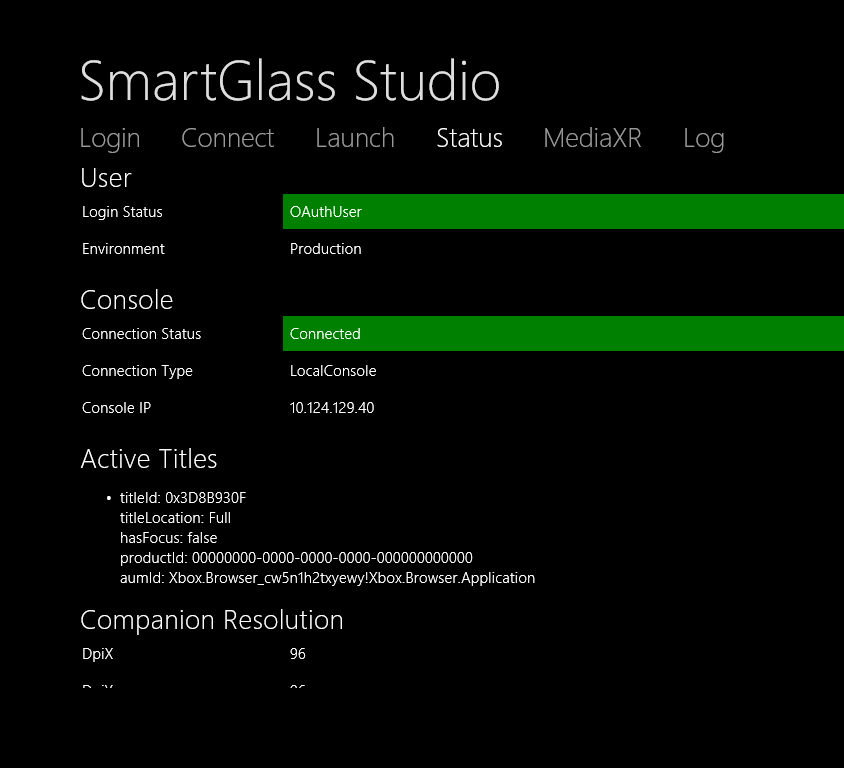
Displays the current user, environment, console, and active titles.
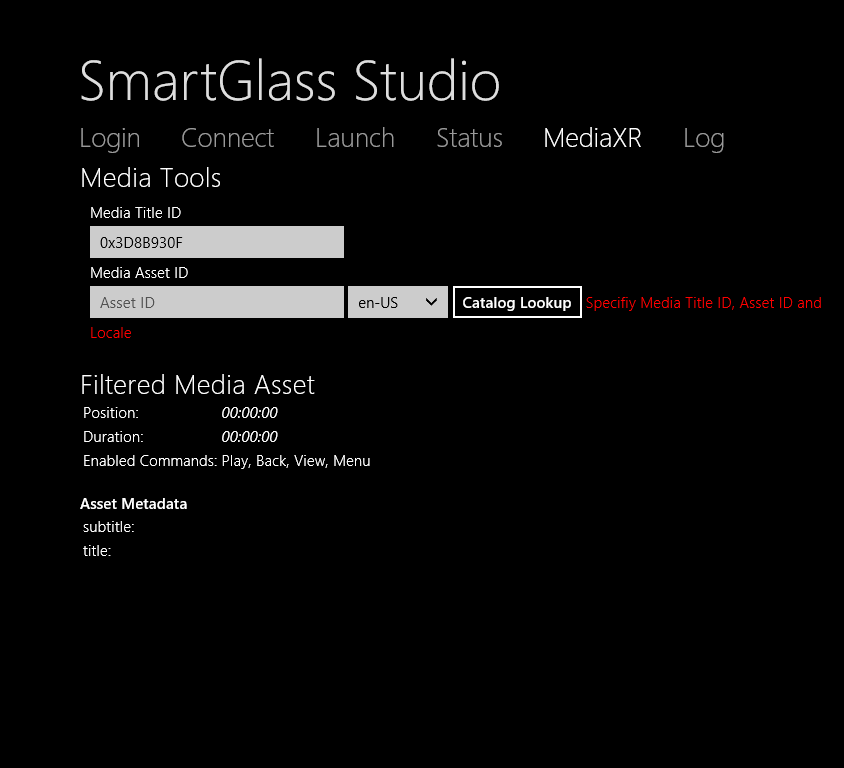
MediaXR
Displays metadata for the media currently playing on the console.
Media Asset ID
Media ID for the content currently playing on the console. Note that currently this value must be manually entered.
Catalog Lookup
Causes metadata to be displayed for the currently playing content.
Log
Displays the SmartGlass Studio log traces. Also allows you to send log traces to the SmartGlass Log Viewer tool. For information about the SmartGlass Log Viewer, see SmartGlass Log Viewer.
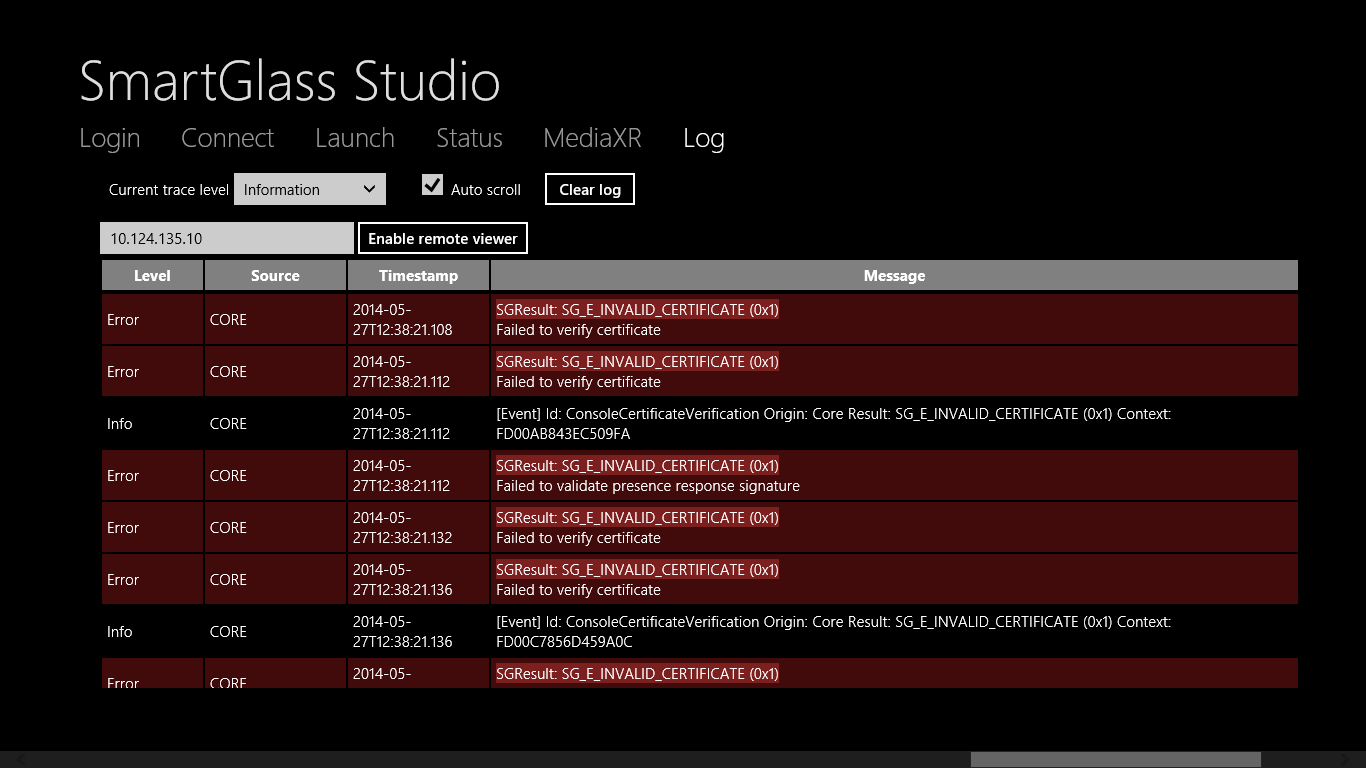
The Log screen has the following controls:
Current trace level
Specifies the level of information to include in the log traces.
Auto scroll
Specifies whether to automatically scroll the log information that SmartGlass Studio displays so that the most current traces are visible.
Clear log
Clears all of the log information from the display.
IP address
Specifies the IP address of the remote computer to which you want to send log traces so that you can view the log data with the SmartGlass Log Viewer tool.
Enable/Disable remote viewer
Turns on or off sending log traces to the remote computer with the specified IP address so that you can view the log data with the SmartGlass Log Viewer tool.
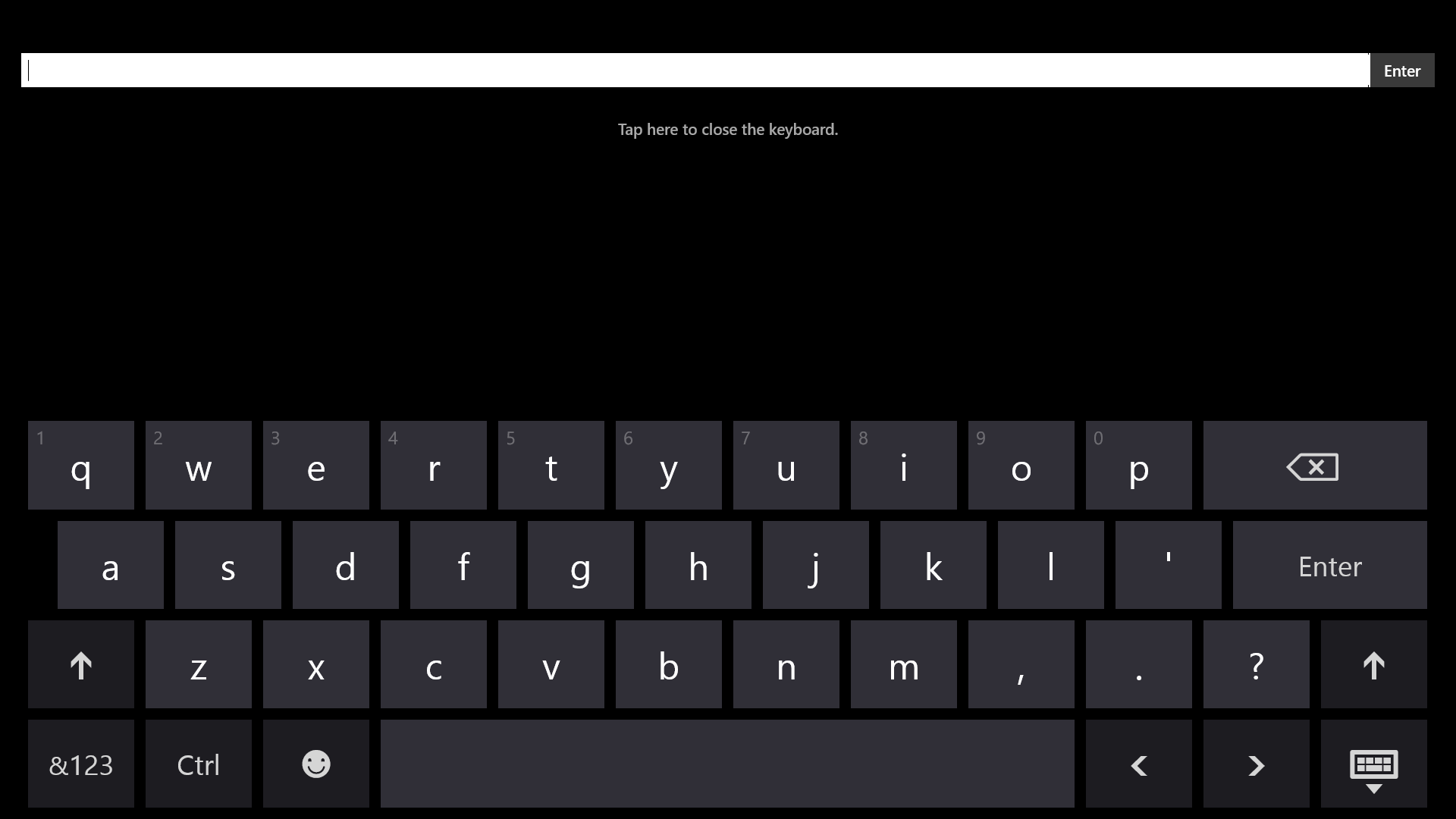
Text Entry Surface
Displayed when the console switches the current surface to the SmartGlassTextEntrySurface.