Users, Controllers, and Pairing: Identity on Xbox One
Published September 19, 2013
Xbox One provides a rich model for managing associations between users and forms of input. It’s up to your title to use this information to personalize gameplay experiences around your consumers. In this white paper, you will learn about the user and controller model on Xbox One, the APIs used to access their state, the system-provided methods for pairing them, and the best practices for managing who is playing your game. This document is intended for game designers and developers who want to learn the best practices and recommendations for basic identity integration, as well as those who are eager to take identity further to deliver deeply personalized experiences.
In this topic:
- Overview
- The user and controller model
- User and Controller APIs
- System-provided user-controller pairing
- Managing players in your Xbox One title
- Frequently asked questions
- Summary
- References
Overview
Xbox One is designed for multi-user experiences by embracing the dynamic nature of users and input across multiple games and apps. The system provides a holistic model and APIs for managing identity. Furthermore, it combines awareness of the room and of users’ sign-in intent to automatically bind users to their input. While the system provides the real-time state of this information, players expect a consistent experience in the title in which they’re playing that is resilient to the state changes that the system reflects. Therefore, successful titles leverage this system to establish and manage which users and input devices are participating in gameplay.
Compared to Xbox 360, Xbox One features many advances in how identity is managed across the system, and these are compared in the following table.
| Capability | Xbox 360 | Xbox One |
|---|---|---|
| User representation | dwUserIndex | User object that represents a signed-in user, which may be paired to one or more input devices |
| Input device representation | Gamepad input polled via XInput; human body input via NUI API | Controller object that represents any input device that can be paired to a user, with dedicated types for specific forms of input |
| Biometric identity | Title-managed | System-managed; consistent behavior across experiences |
| Automatic controller pairing | Not available | Detects who is holding supported input devices |
| Title callable sign-in UI | XShowSignInUI and XShowNuiSignInUI | ShowAccountPickerAsync |
This white paper provides foundational information about Xbox One’s identity model, the APIs used to access it, and the system-provided mechanisms that tie user and input identity together. Furthermore, it provides the guidance needed for your title to leverage the system’s identity state to provide a personalized, consistent, reliable experience for your consumers.
The user and controller model
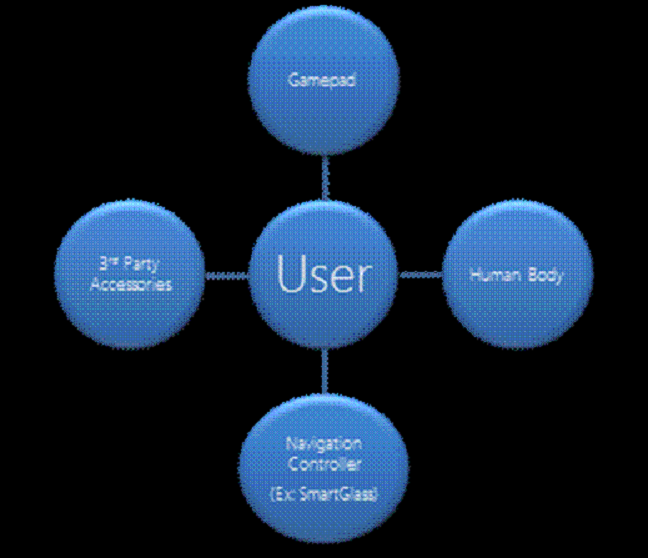
Xbox One manages identity through two concepts: users and controllers. A user represents a unique person who is signed into Xbox One. A controller represents any form of input used to interact with the system. The system supports many different types of controllers, including gamepads; navigation devices (for example, SmartGlass); human bodies tracked by Kinect; and third-party accessories. A user may be paired to any number of controllers to associate interaction with a particular user profile, but a controller may be paired to only one user at a time. The system also supports controllers that aren’t paired to a user, referred to as unknown controllers. Examples include a person who has just walked into the field of view of Kinect, a recently connected gamepad, and a SmartGlass device that has not been signed into the console.
Your title is responsible for associating progress, saved state, preferences, achievements, and other content with the appropriate user who has earned it, based on its paired controllers.
Figure 1. Managing identity through users and controllers.
Types of users
Xbox One supports two types of users: Xbox Live users and sponsored users.
Xbox Live users have full capabilities as users on the system. They are initially created by adding a new account in the account picker (a system-provided UI for signing users in). During account creation, they can optionally be biometrically enrolled. Subsequently, they can be signed in by Kinect sign-in (if they were biometrically enrolled) or by manual sign-in through the account picker. Xbox Live users persist on the console until they are explicitly removed through the Settings app.
Sponsored users are intended to allow guests to enjoy Xbox One for a single session on a console. They are created by choosing to play as a guest in the account picker, sponsored by another signed in Xbox Live user. They can also be biometrically enrolled for the session. Sponsored users persist until they sign out, the sponsoring Xbox Live user signs out, or the console is turned off.
User and Controller APIs
Properly handling user and controller state changes through the User and Controller APIs is the key to understanding who’s playing your game and attributing content correctly.
User
Titles can call User::Users at any time to get the set of User objects representing the users who are signed into the system. Additionally, the User::UserAdded and User::UserRemoved events allow titles to track changes to this set of users.
The CurrentUser property of Windows.Xbox.ApplicationModel.Core.CoreApplicationContext provides the recommended user context based on the originating app that activated your title. If your title was activated by Home, this value is set to the user whose Home content was being displayed. If no user’s content was being displayed, this value will be set to null.
Each User object contains a number of important properties, some of which are described in the following table.
| Property | Description |
|---|---|
| Id | A unique number that identifies the user, scoped to the console. |
| XboxUserId | A unique string that identifies the user across Xbox Live services. |
| Controllers | A list of controllers paired to this user. |
| DisplayInfo | A UserDisplayInfo object that contains common data that can be displayed about the user, including the user's gamertag. |
| IsGuest | A Boolean value that indicates whether the user is a guest. IsGuest is true for sponsored users; it is false for Xbox Live users. |
| Sponsor | Identifies a guest's sponsor, an Xbox Live user. This value is null if the user is not sponsored. |
For a demonstration of the User API, see User Management, a sample available from Samples on the Xbox Game Developer (XGD) site.
Controller
Controller::Controllers provides your title with the set of controllers being tracked by the system. In addition, specific controller types provide their own APIs to access them and their unique properties. For example, gamepad state can be polled by calling Gamepad::Gamepads. Human bodies tracked by Kinect are represented as body controllers and can be accessed through BodyController::BodyControllers. SmartGlass devices are represented as NavigationControllers. Like the User API, Controller provides a set of events when the state of controller tracking changes, including ControllerAdded, ControllerRemoved, and ControllerPairingChanged.
Every Controller object has a few common properties, described in the following table.
| Property | Description |
|---|---|
| Id | A unique number that identifies the controller on the console. |
| Type | A string that represents the type of controller. |
| User | The user paired to this controller. This value is null for unknown controllers. |
For a demonstration of the Controller API, see User Gamepad Pairing (Developer Education Materials > All NDA Samples), a sample available from Samples on XGD.
Note Even though the state of signed in users and tracked controllers can be polled at any time, we recommend that your title not poll them every frame because of the negative effect on performance. Instead, your title should cache the results at the beginning of execution, and only update the cached results when it encounters events for added, removed, or changed controllers.
System-provided user-controller pairing
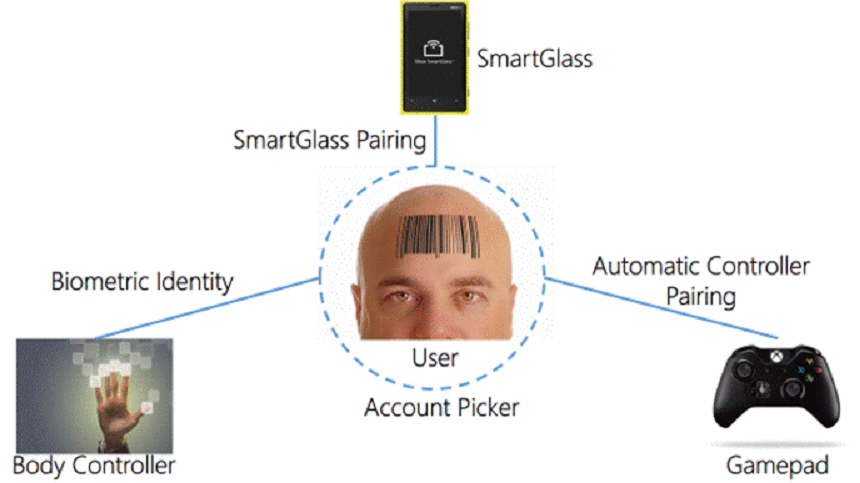
One of the defining properties of controllers is that each one can be paired with a user. Furthermore, each user can be paired with multiple controllers of any type. For instance, if you’re sitting on your couch playing Halo, you are paired to your body as well as the gamepad that you’re holding. Xbox One works on your title’s behalf to pair users to controllers consistently throughout the system. Pairing is facilitated in four major ways: biometric identity, automatic controller pairing, SmartGlass pairing, and the Account picker.
Figure 2. Pairing users to controllers.
In this section:
- Biometric identity and automatic controller pairing
- SmartGlass pairing
- Account picker
- XR: User-Controller Pairing
Biometric identity and automatic controller pairing
Xbox One uses biometric recognition to sign in users and pair them to their human bodies, tracked by Kinect. Rather than serving up randomly recommended game modes, biometric identity allows your title to recommend content based on the identities of the people within view of the Kinect sensor.
The system automatically attempts to biometrically identify every human body tracked by Kinect. When an identified human body engages by picking up a gamepad, holding out a hand toward the Kinect sensor, saying “Xbox”, or being in the Kinect sensor’s field of view when the console is turned on, the identified user is signed in and paired to the body controller. Subsequently, whenever that human body is re-identified, its body controller is automatically paired again to the identified user. The BodyController.BiometricUserId property is also set based on the user whom the human body has been biometrically identified as.
For demonstrations of these concepts, see Simple NUI Identity and NUI Identity Game, two samples available from Samples on XGD.
By tracking integrated hardware on Xbox One gamepads (and other supported accessories), the system will also pair these controllers to the appropriate user. This feature enables your title to implement scenarios such as awarding “assist” achievements, automatic button remapping (for example, inverted y-axis), and auto-split screen when a user picks up a controller.
The system automatically pairs a gamepad (and other supported accessories) to a user when a body that is paired to a user is detected to be holding that gamepad (or other controller). The controller remains paired to the user until one of the following occurs: it is handed off to another body that’s paired to a user, the controller is removed from the system, or the user signs out.
A body controller can be associated with up to 8 gamepads or other supported accessories. The collection of controllers that are associated with a body controller can be accessed through the BodyController.AssociatedControllerIds property. For more information about AssociatedControllerIds, see Frequently asked questions, later in this paper.
| Bodies | Gamepads & Accessories | |
|---|---|---|
| Event | ControllerPairingChanged BiometricUserChanged | ControllerPairingChanged AssociatedControllerAdded AssociatedControllerRemoved |
| Pairing Trigger | Biometric identification | A body controller paired to a user picking up a controller |
| Pairing Persistence | Pairing remains until:
| Pairing remains until:
|
| Correcting Pairing | User-initiated through the account picker:
| User-initiated through the account picker
|
| Limit | Up to 6 body controllers | Up to 8 wireless/wired controllers that are connected directly to the console |
SmartGlass pairing
SmartGlass allows users to navigate Xbox One by using their phone, tablet, or other supported device. Like gamepads and body controllers, SmartGlass devices can be paired to a user to associate interaction with a specific user profile. However, since users must sign in on their SmartGlass devices before using them to interact with a console, there are some important considerations to keep in mind while designing your title.
Users sign into their SmartGlass devices independently of signing in on a console. In fact, a user must be signed into their SmartGlass device before they can connect the device to a console. After a user has signed into their SmartGlass device and connected to their console, a navigation controller is added that represents this device. If the user who is signed into their SmartGlass device also signs in on their console, the SmartGlass device’s corresponding navigation controller will be paired to that user. If the SmartGlass user is not signed in on their console, then the SmartGlass device remains an unknown navigation controller. SmartGlass devices will never be paired with a user who is not signed in on the SmartGlass device.
This paper covers the generic remote aspect of SmartGlass input as a navigation controller; for more details regarding making a more customized control experience, another white paper will be released in the future.
Account picker
The account picker is title-callable UI that is used to sign in users, select or confirm user context for your title, and select or confirm user-controller pairing. The Windows.Xbox.UI.SystemUI namespace contains the ShowAccountPickerAsync method, which takes a controller and other options.
The account picker lists all users who have previously signed in on the console, and has an Add new button for signing in new accounts. Any of these user accounts may be selected, regardless of the user’s true identity. The system supports users choosing to play as other users in this way. The account picker also has an option for a user to play as a guest, allowing for the creation of sponsored users.
The main use cases for the account picker are:
- Signing in a user: If your title requires the user context of a controller that hasn’t been otherwise paired automatically, you can use the account picker to prompt the user to select an account. This will cause the selected user to be signed in.
- Establishing user-controller pairing: If your title needs to pair a controller to a user, it can pass the controller as input to ShowAccountPickerAsync. When a user is chosen, the specified controller will be paired to the selected user.
- Switching active users: There will be certain points in your title when you want to offer users a way to switch the active user in the experience. By offering an entry point to the account picker, your title can allow for switching users in a way that is consistent across the platform.
XR: User-Controller Pairing
User-Controller Pairing, an Xbox Requirement (XR), specifies that titles must use system APIs and events for tracking user-controller pairings. Your title cannot use NUI technologies on its own to discover the controller location and pair it to the user. Use the Account Picker to pair controllers to users.
Managing players in your Xbox One title
Xbox One maintains the true state of user-controller pairing in real time based on room awareness and explicit user intent to sign in. However, players expect a consistent, reliable gameplay experience that is resilient to some changes in user-controller pairing. Therefore, successful titles establish a subset of active users and controllers that are participating in the experience and cache their pairing state during gameplay. Then, as appropriate, this cache is updated to reflect the latest pairing state, thus ensuring that gameplay remains consistent and intuitive for users.
This section provides guidance for how to manage players in your title, based on the following guidelines:
Establish the player’s controller and user
When your title is launched, it should prompt for engagement and establish the first engaging controller as the player’s controller. Next, your title should establish the player’s user based on (a) the application activation context’s recommended user, (b) the engaging controller’s paired user, or (c) the user selected in the account picker.
Indicate the player’s user
Your players expect to know which user is receiving credit during gameplay. Before profile-related action is taken, your title should provide feedback to indicate who the player’s user is by displaying this user prominently in the title menu before gameplay begins.
Allow the player’s user to be switched
Before profile-related action is taken, your title should provide an entry point to the Account Picker to allow the player’s user to be switched.
Drive gameplay based on the player’s controller and user
Execute gameplay by listening to input from your previously established player’s controller. Associate saved state, achievements, statistics, and other content with the established player’s user.
Respond immediately to removal of the player’s controller or user
If a player’s controller is removed or his user is signed out, pause gameplay immediately until the player’s controller and user are re-established.
Update the player’s controller and user as appropriate
At discrete points during gameplay, such as resuming gameplay from pause or in-between levels, you may want to update the player’s controller or user.
Specific guidance for managing players is based upon the gameplay style of your title:
Single context apps
These apps establish a single shared user context to use throughout the entire experience, and accept inputs from all controllers and ignore controller exchanges and handoffs. Examples of single context apps from Xbox 360 include Netflix, Facebook, and Internet Explorer.
Non-joinable apps
Also called lobby apps, these apps establish and cache the active player(s) in a pre-game lobby screen. These titles listen to a subset of all controllers and optionally support multi-user experiences that are local to the console. Most Xbox 360 titles qualify as non-joinable apps, especially first person shooters (for example, Halo).
Joinable apps
These apps are similar to lobby apps but also allow new players to jump in mid-game. Examples include fighting games and local multiplayer party games such as Kinect Adventures.
Single context apps
The following table describes guidance for various scenarios involving single-context apps. Examples of single-context apps include Netflix and Facebook.
| Scenario | Guidance |
|---|---|
| Establish the player's controller and user | The player's user should be set to the app activation context's recommended user (CoreApplicationContext.CurrentUser). If the app activation context has not provided a recommended user, your title should launch the account picker and set the player's user based on the selection. |
| Indicate the player's user | Your title should display the player's user prominently. |
| Allow the player's user to be switched | Your title should provide an entry point to the account picker. |
| Drive gameplay based on the player's controller and user | Your title should accept input from all controllers, including those not operated by the player's user. |
| Respond immediately to removal of the player's controller or user | Since your title accepts input from any controller, there's no need to respond to controllers being removed. However, if the player's user is signed out, your title should re-establish the user by launching the account picker. |
| Update the player's user and controller as appropriate | If your title is resumed from being suspended, and the recommended user (specified by CoreApplicationContext.CurrentUser from the app's activation context) has changed, your title should immediately switch the player's user to the new recommended user. If your title is resuming from being constrained, it should listen for the CurrentUserChanged event and react accordingly to the CurrentUser change. |
Non-joinable (lobby) apps
The following table describes guidance for various scenarios involving non-joinable (or lobby) apps. Examples of non-joinable apps include first person shooters (for example, Halo) and most Xbox 360 titles with local multiplayer functionality.
| Scenario | Guidance |
|---|---|
| Establish the player's controller and user | Your title should display an engagement prompt (for example, "Press A to play!") and wait for a controller to engage. The player's controller should be set to the first controller that engages. The player's user should be set to the engaging controller's paired user. If the engaging controller isn't paired to a user, your title should show the account picker and set the player's user based on the selection. In the pre-game lobby screen, your title may establish additional players through similar engagement behavior. |
| Indicate the player's user | Your title should display all players' users prominently before any profile-related action is taken. |
| Allow the player's user to be switched | Your title should provide an entry point to the account picker from the pre-game lobby and at logical points during gameplay, such as in between levels. |
| Drive gameplay based on the player's controller and user | Your title should cache the player's controller and user when gameplay begins, driving the player's avatar through his controller's input and taking profile-related action on his user account. Your title should ignore controller handoff events (such as ControllerPairingChanged) and allow the newly paired user to play as the player. |
| Respond immediately to removal of the player's controller or user | If the player's controller is removed, your title should pause gameplay and re-establish a new controller based on engagement (for example, "Press A to continue"). If the player's user is signed out, your title should re-establish it by showing the account picker or by removing the player from the game. Be sure to check for these conditions when your title is resumed from being suspended. |
| Update the player's user and controller as appropriate | If your title is resumed from being suspended and the player's user is paired to a different controller, that controller should become the player's controller. Alternatively, your title can show the account picker to have the player re-select his or her user, and the system will pair the engaging controller to it. |
Joinable apps
The following table describes guidance for various scenarios involving joinable apps. Example of joinable apps include fighting games and local multiplayer party games (for example, Kinect Adventures).
| Scenario | Guidance |
|---|---|
| Establish the player's controller and user | Your title should display an engagement prompt (for example, "Press A to play!") and wait for a controller to engage. The player's controller should be set to the first controller that engages. The player's user should be set to the engaging controller's paired user. If the engaging controller isn't paired to a user, your title should show the account picker and set the player's user based on the selection. In the pre-game lobby screen and during gameplay, your title may establish additional players through similar engagement behavior. |
| Indicate the player's user | Your title should display all players' users prominently before any profile-related action is taken. |
| Allow the player's user to be switched | Your title should provide an entry point to the account picker from the pre-game lobby and at logical points during gameplay such as in between levels. |
| Drive gameplay based on the player's controller and user | Your title should cache the player's controller and user when gameplay begins, driving the player's avatar through his controller's input and taking profile-related action on his user account. When a controller handoff event is raised, your title should assume that the newly paired user is playing as the player, but it should allow the user to establish himself as a new player based on engagement (for example, "Press A to switch to gamertag"). |
| Respond immediately to removal of the player's controller or user | If the player's controller is removed, your title should pause gameplay and re-establish a new controller based on engagement (for example, "Press A to continue"). If the player's user is signed out, your title should re-establish it by showing the account picker or remove the player from the game. Be sure to check for these conditions when your title is resumed from being suspended. |
| Update the player's user and controller as appropriate | If your title is resumed from being suspended and the player's user is paired to a different controller, that controller should become the player's controller. Alternatively, your title can show the account picker to have the player re-select his or her user, and the system will pair the engaging controller to it. |
Frequently asked questions
Q: Why can’t I just update my player’s active user profile and controller in real time as they change?
A: Even though the system provide real-time information on user-controller pairing based on room awareness, players expect to enjoy a reliable experience that’s robust to certain changes in the environment. For example, during a single player game, users expect to be able to pass the controller to a friend to get their help on a certain section of gameplay. Without the concept of locking the player’s active user and controller, handing off the gamepad could cause a jarring experience for players, because of suddenly losing the user context when the transition happens.
Q: Does the system support controllers that aren’t paired to a signed in user? Can my title accept input from them?
A: Yes! It’s possible for controllers not to be paired to a signed in user. For example, unidentified human bodies are represented as BodyController objects that are not paired to a User object. Also, SmartGlass devices, acting as navigation controllers and operated by users who have not signed in to the console, are another example, and gamepads that can’t be correlated to a signed in user are also not paired to a User object. In all of these cases, titles can still accept input from these controllers. By adhering to the guidance, described earlier in this paper, on establishing and managing players, your title can gracefully facilitate pairing these controllers to users and drive your gameplay.
Q: What if the Kinect sensor is disconnected?
A: Since biometric identity and automatic controller pairing rely on bodies and gamepads being tracked by Kinect, these forms of system-provided user-controller pairing will not function if the Kinect sensor is disconnected. Players are still likely to sign in through the account picker on Home, pairing their gamepad to the selected user. By the time your title launches, it’s likely that gamepads are paired to users. Following the prioritized order of rules for establishing an active user will still allow you to establish players gracefully, with a fallback of using the account picker if the controller isn’t paired to a signed in user at the time.
Once gameplay begins, we recommend that your title follow the same guidelines. The absence of a Kinect sensor doesn’t change players’ expectations about how your title should function. Your title must drive gameplay based on the locked-in active user and controller. Your title must respond immediately if the active controller or user are removed. Your title must update the active controller and user at appropriate times based on pairing.
Q: What happens if someone chooses to play as me?
A: Players may choose to play as other users at the beginning of gameplay. During gameplay, players may hand their active controller to another user to play for them temporarily. The preceding guidelines account for both of these scenarios. First, by adhering to these guidelines, you offer the player a choice of switching profiles and confirmation of the selected profile before gameplay begins. During gameplay, your active user is locked despite another person holding the gamepad. This guarantees that no matter who is playing, the profile receiving credit remains consistent, providing a predictable, reliable experience for your players.
Q: What is the BodyController.BiometricUserId property?
In addition to automatically pairing users to their human bodies, the BodyController class contains a BiometricUserId property that can be used as a unique identifier of the human body based on its biometric identity. This value is initially set to 0 for bodies who haven’t been identified. Once recognition occurs, the value is set to the unique identifier of the biometrically enrolled user on that console. The BodyController.BiometricUserChanged event is also raised when recognition occurs.
While this property appears very similar to the user pairing, it offers a few unique advantages for your title. First, the system assigns the BiometricUserId property when the user is biometrically recognized, even if the user isn’t signed in at the time. Additionally, a user may choose to play as another user by selecting the other’s profile in the account picker (resulting in a pairing to that user). In this case, BiometricUserId provides a consistent and unique identifier for the user based on the player’s biometric identity. This makes it easier to facilitate fast-paced jump-in-jump-out experiences, where the title needs to track players as they leave and re-enter the field of view.
Q: What is the BodyController.AssociatedControllerIds property? And how is it different from User.Controllers?
The User.Controllers property returns the list of Controller objects paired to the User object while BodyController.AssociatedControllerIds returns the IDs of controllers associated with a BodyController object. These two lists will generally be the same for signed-in users: after a user picks up a gamepad, both his User object and his BodyController object will be updated to show the pairing of the gamepad.
These two lists differ when an unknown body controller, such as one belonging to someone who is not signed in, picks up a gamepad. For example, suppose Player A (who is signed in) hands his gamepad to Player B (who is not signed in). Player B, because she is not signed in, would only be represented as a body controller and not a User object. Upon picking up the gamepad, Player B’s BodyController.AssociatedControllerIds is updated to include the gamepad ID. However, Player A’s User.Controllers does not change, and Player A remains paired to this gamepad.
To summarize, BodyController.AssociatedControllerIds contains the direct association between a body and any controllers that person is physically using, regardless of User objects. In contrast, Users.Controllers maintains the pairing between User objects and the controllers to provide consistency and robustness against unknown controllers.
Q: What is the Kinect Split-Screen XR?
While not directly related to user and input identity, Kinect Split-Screen Play, an XR, depends on the technologies covered in this paper: controller and body controller tracking. This XR requires titles that have vertical, side-by-side split-screen to match the screen location relative to the user’s physical ordering in the playspace. For example, in two-player side-by-side split-screen, the user on the left should control the left part of the screen, and the player on the right should control the right part of the screen.
Titles can use Controllers::GetControllersOrderedLeftToRight to poll the order of players from left to right (ordered from the player perspective) and generate the initial screen ordering, and use the Controller::ControllerOrderchanged event to update the screen order. The ordered controllers can be filtered as TrackedAcessories (supported non-body controllers) or TrackedBodies (body controllers).
Summary
This white described the user and controller models on Xbox One, and how the system provides ways to pair them on your title’s behalf. It introduced the User and Controller APIs and how your title can use these APIs most effectively to manage their dynamic state. Finally, it provided guidance on driving gameplay based on established and active users and controllers, as well as on updating information about those active users and controllers when it makes the most sense for your experience. With these best practices and requirements, you have the information needed to maximize and personalize the impact of your experience. Xbox One unlocks new opportunities to provide deeply personalized experiences to your customers. By leveraging the Xbox One’s user and input pairing mechanisms, you can push the boundaries of how people expect to engage with modern entertainment.
References
- User-Controller Pairing
- User State
- Kinect Split-Screen Play
- User Management
- Simple NUI Identity
- User Gamepad Pairing