Configure Xbox Live stats and stat rules in Windows Dev Center
Note: This topic describes the features available only with proper permissions. For details, talk to your account manager or another contact at Microsoft.
This topic describes the procedures for adding and changing stat rules in the Dev Center service configuration for a title. Player stats are created and updated according to the stat rules triggered when a game sends events to the Xbox Live service.
For an intro to the Xbox Live service configuration, see Xbox Live service configuration. For an intro to data platform 2013, see How the Xbox Live data platform 2013 works.
Sections in this topic:
- What is a stat rule?
- Configure a stat rule
- Copy an existing stat rule
- Create a stat rule
- Change a stat rule
- Edit a stat rule
- Delete a stat rule
What is a stat rule?
Stat rules are triggered when an event with a particular name is received by the Xbox data platform service. Triggering of a stat rule (by sending an appropriate event) causes the service to create or update one or more player stats.
Player stats are defined by the developer, calculated by the Xbox Live data platform, and stored as name-value pairs on a per-user basis. Here are a few examples of player stats:
- Total number of zombies killed with a shotgun in hard difficulty
- Highest number of enemies defeated in a match
- Fastest time for completing a race
- Name of the car driven most recently
Player stats can be displayed on the player’s game hub UI as featured or hero stats, displayed in leaderboards, and used to unlock achievements.
Individual stat rules can be configured to produce one of the following:
- A single instance of a player stat
- Multiple instances of a player stat that’s based on a stat template
For info on stats and stat rules, see the following topics:
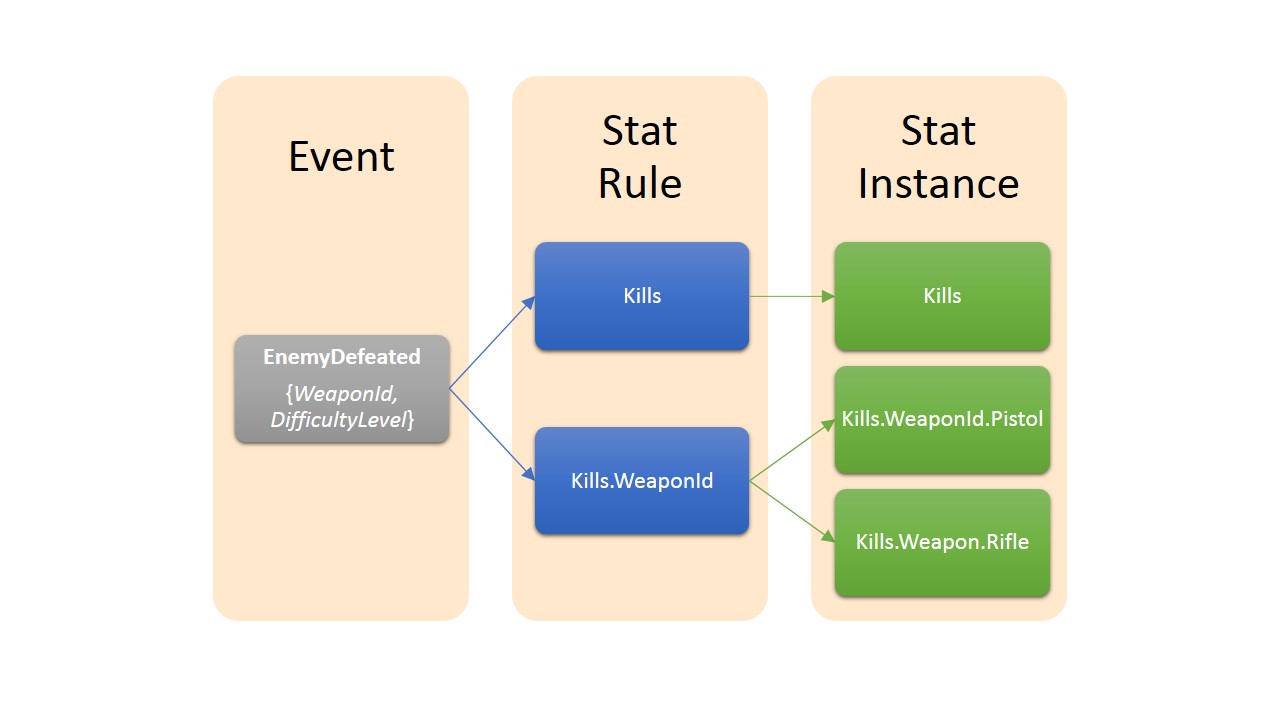
The following diagram demonstrates the flow of an event that triggers stat rules that update stat instances:
Configure a stat rule
-
Sign in with your account on Dev Center.
-
Select your title, and go to Services > Xbox Live.
-
Click the link to Stat rules.
-
On the Events and stat rules page, configure the events and the stat rules that are based on those events.
Because stat rules are based on events, you must create an event before you can create a stat rule. For details, see Configure Xbox Live events for data platform 2013 in Dev Center.
Create a stat rule
-
On the Events & Stat Rules page, click New stat rule.
-
In the Add Stat Rule dialog box, specify the values for the following fields:
-
Base event
In the drop-down box, select the base event that triggers this stat rule. - Event fields added to the stat rule
- This optional field lets you select fields included in the base event as part of the stat rule.
- In the drop-down box, select a field to be added to the stat rule. You can add multiple fields this way. The selected fields will be appended to the stat rule’s root name and separated by the dot character.
- To remove a field, click X next to its name.
-
Stat Rule Name
Specify a name that characterizes the stat rule and that you’ll easily remember and recognize. Names of stat rules are composed of a root name, optionally followed by one or more fields separated by the dot character. For the naming requirements of stat rule names, see User Stat Rules. -
Operator
Select one of the following operators:-
Sum
Increment the existing stat value by the value specified in the Parameter field. -
Min
Use the minimum of the existing stat value and the Parameter field’s value. -
Max
Use the maximum of the existing stat value and the Parameter field’s value. -
Replace
Replace the stat value with the value specified in the Parameter field.We do not recommend using the Replace operator for stats that drive achievements: events are not always processed in order, and this might cause an achievement to never unlock. Instead, use the SUM operator.
-
-
Parameter
Specify the value to be used in the operator selected in the Operator field.-
If you want to use a static number that you specify, select the literal radio button and specify the value in the box below the radio button.
-
If you want to use the value of a field, select the field radio button and, in the drop-down box below the radio button, select the field to be used.
-
-
Restrict other features like achievements and featured stats from accessing this info.
Select this check box to make the stat rule private. - Only allow changes to this stat from a server event. Client events will be ignored.
Select this check box to indicate that the stat rule is triggered only by events sent via the server-to-server API, not from game clients running on the console or PC.
-
-
After configuring all fields and values, click Save and close the dialog box.
Your new stat rule is now listed on the Events & Stat Rules page whenever the rule’s event is selected.
Change an existing stat rule
Important: After a title passes Final Certification, existing stat rules for an event in that title can no longer be changed or deleted.
-
In the Stat rules column on the Events and stat rules page for the product instance, click the stat rule you want to change.
-
Make the changes in the Update stat rule dialog box for the event.
-
Click Save.
Edit a stat rule
Editing of a stat rule takes place when a stat rule’s name or an event field has been removed, added, or reordered. This operation will be treated as a deletion and creation of a new stat rule. All stat instances will be deleted as part of editing, according to this definition.
Copy an existing stat rule
-
On the Events and stat rules page for the product instance, find the row with the stat rule you want to delete.
-
Click Copy in the Actions column on that row.
-
Make the changes in the Update stat rule dialog box for the event.
-
Click Save.
Delete an existing a stat rule
After a title passes Final Certification, existing stat rules for an event in that title can no longer be changed or deleted.
Deletion of a stat rule is a permanent action and can’t be undone or reversed.
Deleting a stat rule deletes any chained dependencies it might have. Before deleting a stat rule, be sure that you also want to delete all of its dependencies.
-
On the Events and stat rules page for the product instance, find the row with the stat rule you want to delete.
-
Click Delete in the Actions column on that row.
-
Click Delete in the Confirmation dialog box.