Xbox One Game Trials: Overview and Best Practices
Updated January 15, 2019
Introduction
Xbox One game trials allow a user to play a portion of a game before deciding whether or not to purchase the full version of the game. Trials are free to download and play, but they can be configured such that their availability is predicated on various conditions, such as Xbox Live Gold membership, presale purchase, or third-party subscription participation. The decisions around what game features to make available to players in trial mode are left in the hands of the publisher and developer.
A game’s trial is delivered to the user in the same package as the game’s full version. There is one catalog entry for them both, and therefore they share a Service Configuration ID (SCID), Title ID, and Product ID. Furthermore, because content updates for titles are applied at the package level, content updates apply to both the trial and full game together. Trials run on full game bits by using a trial license (as opposed to a full game license). When a user launches the game package, the Xbox One platform will determine whether or not the game can run in full or trial mode by examining the entitlements owned by signed-in users, the entitlements owned by users who have designated that particular console as their home, and the in-tray disc.
Trial configurations are configured through the Xbox Developer Portal (XDP) by creating additional availabilities marked as “trial.” Publishers can specify the date a trial is available and, optionally, the amount of time a user can play the trial. If you have configured multiple tiers of trial offerings, the Xbox Store will display the trial offerings to which a user has access. This enables you to make available, for example, an “enhanced trial” for users who have purchased a publisher subscription.
A player can obtain a trial in the Xbox Store by selecting the “Try It Now” button on the game’s page within the Store. If a trial tier has been configured to which the user does not have access (for example, if the user does not own the required subscription), the Xbox Store will not show this offering to the user.
The system does not enforce any functional limitations for trials. For instance, a trial can still grant achievements (although we do not recommend it), matchmake with other players, interact with Xbox SmartGlass and other companion experiences, and utilize all other technology available on the system. As such, there are no game trial–specific Xbox Requirements.
For the initial release of the game-trial functionality, all trials are tracked on a per-user basis, and they roam with the user from console to console. The duration of the trial is configurable and is left to the discretion of the publisher. Time-limited trials allow users to play the trial for a predefined length of time before they must purchase the full version. The Xbox One platform enforces time expiration. As soon as a game begins to run on a trial license, the timer countdown begins, and it continues while the game is running.
Because trial-availability configuration can be changed without altering game code, you can add or change a game’s trial offerings after Xbox One users have begun to acquire and play their trial licenses. For instance, changing the time limit for a game trial will not affect the time remaining for existing trial users, while users who subsequently get a trial license will be subject to the new time limit. It is important to note that a user can only receive one trial license for a title. A user who has already acquired a trial is not permitted to acquire another trial license for the same game. Additionally, after a user has acquired a trial, there is no way to give the user additional trial time, even if the publisher changes the offer that the user activated.
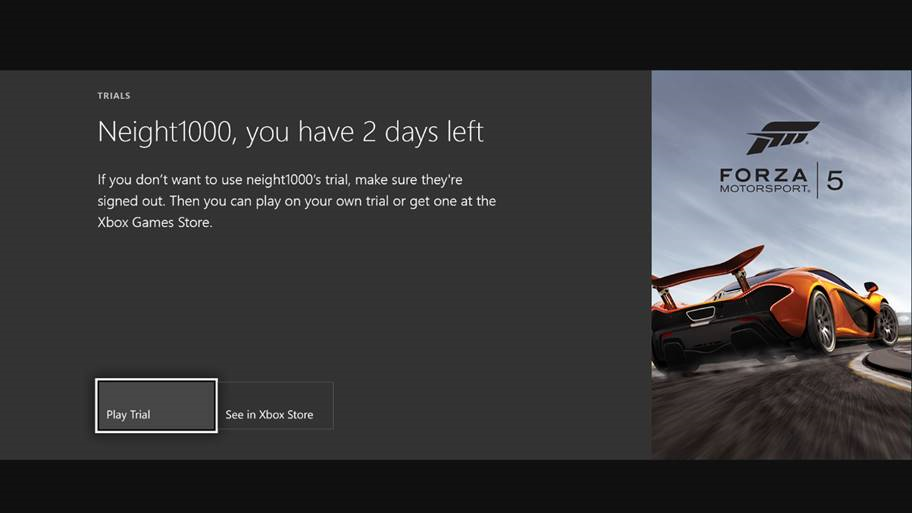
It should be noted that the Xbox Store is part of Xbox Live, and as such, it provides support for acquisition of trials and full-version upgrades. When a user launches a title, Xbox Live informs the console at runtime whether the game is in trial or full mode and, if the game is in trial mode, what the remaining time is. The console, in concert with the Xbox Live service, will enforce any time limits provided for the trial and inform the title that it is running in trial mode. Whenever the system detects that a game is running on a trial license, it automatically alerts the users that they are in trial mode and offers them the opportunity to purchase a full game license. Games do not need to take action to cause this notification and upsell to display.
Figure 1. Trial-mode notification.
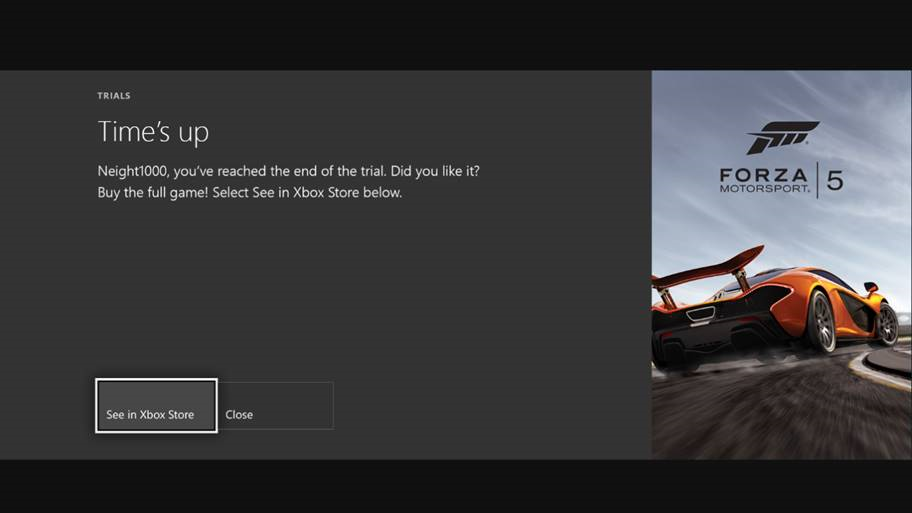
When the player has exhausted his or her allowed trial time, the game will suspend and the system will again encourage the player to purchase the full version.
Figure 2. ”Buy full game” prompt.
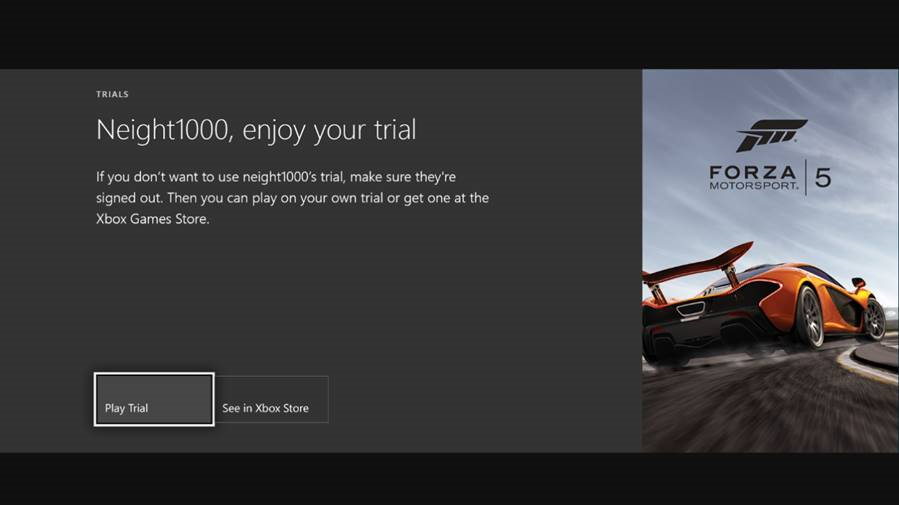
In addition to making your game trial time-based, you also have the option of configuring your trial as a self-managed, scenario-based one. In such cases, the burden of gating trial functionality will be entirely on the game developer to make sure that players are prevented from progressing beyond the trial experience without purchasing the full game. The system will still notify users that they are in trial mode when they launch the game or app, but it will omit any mention of a time limitation. Because an unlimited trial never runs out of time, the user will not see a “Time’s Up” message from the system.
Figure 3. Trial-mode prompt with no time limit.
Designing your trial
A trial can offer full game functionality limited by the amount of time a user can play, limited game functionality with unlimited play time, or a hybrid of both. This section describes these different options and provides suggestions to help you determine what kind of trial experience you want to build.
Time-based trials
A time-based trial is defined as a trial whose primary limitation is the length of time a user has played the title. Developers can choose to put additional restrictions in place, but for the purposes of this section, consider a time-based trial as one where most players exhaust their time allowance before reaching any other gameplay blockades. At its simplest, a time-based trial experience exposes the user to the same sequence of gameplay as it does to a full game owner. If there is a tutorial level, the trial will likely go through it on its way to the first level. The specifics of the trial’s functionality are up to the game developer.
When a time-based trial is launched with a valid trial license, the system will display a UI that indicates to the user the amount of time remaining on the trial. When a player has exhausted his or her trial timer, the system will suspend the title through the normal Process Lifetime Management (PLM) mechanism. At this point, the player’s trial license is invalid and can no longer be used to execute the game. The system displays a UI that tells the user the trial period is over and provides the opportunity for the user to purchase a full license. The system will not allow the game to be resumed until another valid license, either trial or full, is available. If another user who is also signed in on the console has a trial license with time remaining, the system will automatically switch to and begin using that user’s license. It will also display the UI indicating how much time is left on the trial.
Pros and cons of time-based trials
Some of the pros in favor of using time-based trials include the following:
- It requires a smaller development investment.
- It allows easy creation of multiple tiers of trial availability (for example, Xbox Live “free” members could receive 30 minutes, while Xbox Live Gold members receive 60 minutes).
- Games that configure trial tiers with a subscription prerequisite will be upsold in the Xbox Store. This means that the normal trial offer would be displayed below the “premium” trial offering that requires a subscription purchase.
Some of the cons against using time-based trials include the following:
- The experience could potentially be less compelling than a more tailored experience, making it likely to lead to fewer purchase conversions.
- There could be concerns about trial “time-sharing.”
- Players are at the mercy of the timer and might not understand all of the scenarios that start or stop the timer (for example, playing the game during a streaming installation experience, or opening a full-screen app over the game).
- Title logic might need to be added to avoid the trial-timer abuse scenario involving throw-away user accounts, which is explained in more detail under CurrentLicenseUserXuid later in this document.
Self-managed trials
Self-managed trial experiences are ones where the game has been crafted to give users a custom experience while in trial mode. Because self-managed trials are not time-based, the system will not suspend them after a certain amount of gameplay time. Instead, it’s up to developers to determine what the limitations of these trial experiences should be; the trial will end when the player has finished playing through the limited experience that you have defined.
Developers building a self-managed trial experience should consider configuring their title to opt out of PLM immediate-suspend behavior, as described in Process Lifetime Management and SuspendOptOut later in this paper.
Suggested restrictions for self-managed trials
Game trials run using your game’s full bits. Therefore, it is worth putting up some “walls” in your game to make sure that trial players can’t experience your whole game for free. What follows are some suggested restrictions you might consider putting in place in your trial.
Experience-level caps
If your game includes the concept of experience points or level progression, consider putting a cap in place. Regardless of what type of trial configuration you’re using, this will ensure that players can only get a taste of your game’s goodness. When a player hits the experience wall, their withheld progression can be used to entice them to make a purchase.
Starting as a powered-up character
Another option here is to not grant experience that will persist beyond the trial. This can be done in several ways without seeming to penalize the player. For example, you could have your trial start by giving the player some predefined experience level (such as Level 5). In this scenario, the trial could also ensure that players progress from Level 5 to Level 6 so they can access a brand-new awesome power or weapon. Alternatively, the trial could allow the player to progress through a certain point (such as your game’s third storyline or first boss battle). Either of these methods would enable players to experience what typical gameplay would be like once the game “gets rolling.”
For this scenario, no save state should persist when the player upgrades to the full game experience. That is, when users purchase the full game, they do not continue where the trial left off. Instead, they get to go through the beginning of the game and experience some of the game background/exposition.
Limiting matchmaking
For fighting games, multiplayer FPS, or sports titles, it might be sensible to place a limit on how many matches a player can participate in while in trial mode. Information about the user’s progression toward this maximum should be located in storage the user cannot delete or override, for instance, on the publisher’s own back-end service.
Player character restrictions
Depending on your game, it might make sense to make some character, weapon, or upgrade choices unavailable while in trial mode. This can be particularly effective in multiplayer games where the player has the opportunity to see that character or weapon in action.
Map restrictions
Another effective way to avoid needing to track experience points or time limitations is to have your trial consist of only one or two maps or levels of gameplay. After players have completed those experiences, their only options would be to purchase the full game or to restart and repeat the same experience.
Achievement withholding
As mentioned earlier, achievements can be unlocked during a trial gameplay. However, we do not have specific recommendations regarding whether games should award or withhold achievements that are earned in trial mode.
It is important to note that the Achievements service on Xbox Live will not know whether the user was in trial mode or was playing the full version of the game when he or she earned an achievement. Therefore, if you want your title to withhold achievements earned in trial gameplay, your game code must include all necessary data and logic to ensure this (for instance, adding a flag to track when the game is in trial mode). While the configuration of achievements and game events is outside the scope of this document, for games with achievements that track statistics (for instance, killing 300 zombies, collecting a certain number of magical orbs, getting 50 headshots, and so forth), developers should consider adding logic to withhold achievement events after the user has reached a certain threshold. This will prevent users from accessing achievements that are meant to be granted later in the game.
Pros and cons of self-managed trials
Some of the pros in favor of using self-managed trials include the following:
- The experience could be more compelling and, therefore, could result in a higher conversion rate.
- The game has as much time as necessary to up-sell the player.
- They are not subject to time-sharing issues.
Some of the cons against self-managed trials include the following:
- They might require a larger development investment (for instance, to ensure that the experience is appropriately walled).
- Offering different tiers of trials isn’t possible with this model.
- Implementing a self-managed timer mechanism could be difficult to secure.
Hybrid trial configurations
It’s also possible for a game trial to use both a timer mechanism and a highly customized gameplay experience. For the purposes of this document, hybrid configurations are considered to be more like self-managed trials than time-based trials.
As is true with any game trial, it’s up to publishers and developers to decide when to use a hybrid model. For instance, a hybrid experience might be appropriate when a publisher wants to be generous with giving players sufficient time to play through scripted experiences but doesn’t want to give unending access to the game’s trial scenarios. Open World and RPGs are both examples of game types for which it might be preferable to use a hybrid model to encourage time-consuming exploration over direct game progression. To benefit from the timer functionality in a hybrid trial, configure a timed trial to have a long duration. Within your title, take all necessary steps to curate the experience as desired.
Implementing trials within your game
This section describes how to make your game “trial-mode aware” and will cover suggested best practices for how to prevent users from accessing content outside the scope of the game trial. Keep in mind that some suggestions might differ between time-based and self-managed trials.
APIs and data structures
CurrentApp
Xbox One implements the CurrentApp class, which is provided within the Windows.ApplicationModel.Store namespace. Of specific interest for trials is the LicenseInformation property.
The CurrentApp class includes the following public properties:
| Name | Description |
|---|---|
| AppId | The ID of the app that is created by the Microsoft Store. |
| LicenseInformation | Gets the license metadata for the current app. |
| LinkUri | Gets the Uniform Resource Identifier (URI) of the app’s listing page in the web catalog of the Microsoft Store. |
LicenseInformation
The LicenseInformation class associated with the CurrentApp class provides access to the license state of the app through the IsTrial property.
The LicenseInformation class contains the following public properties:
| Name | Description |
|---|---|
| CurrentLicenseUserXuid | The XUID of the user whose license is being consumed. |
| ExpirationDate | Gets the license expiration date and time relative to the system clock. |
| IsActive | Gets the value that indicates whether the license is active. |
| IsTrial | Gets the value that indicates whether the license is a trial license. |
| ProductLicenses | Gets the associative list of licenses for the app’s features that can be bought through an in-app purchase. |
Games can query whether they are in trial mode by accessing the IsTrial property. This call does not cross the virtual-machine boundary and therefore does not suffer from any related performance penalties.
The following code excerpt illustrates this concept.
      void App::InitializeLicenseCore()
      {
          m_licenseInformation = CurrentApp::LicenseInformation;
          m_licenseInformation->LicenseChanged += ref new licenseChangedEventHandler(this, &App::OnLicenseChanged);
          OnLicenseChanged();
      }
      void App::OnLicenseChanged()
      {
          m_isTrial = (m_licenseInformation->IsActive && m_licenseInformation->IsTrial);
          m_game->UpdateGameConfig(m_licenseInformation);
      }
If the user’s trial license has expired, the IsTrial property will be set to true, but the IsActive property will be false.
CurrentLicenseUserXuid
This property enables the app to query whose license is currently being used by the system, which is important for limiting time-based trials to a specific user. This property will only be valid when an app is executing on a trial license. When using a full license, this property is invalid.
For time-based trials, it can be important to pay special attention to license transitions. Currently, the system cannot enforce that the user who is actively engaging with your game is the same one whose trial time is being used. This poses a potential abuse scenario for time-based trials. Depending on how you have configured your game’s trial availability, it might be possible for a user to create multiple accounts, acquire trials for all of those “dummy” accounts, and then consume the trial time for all of them using one account. The way the player could do this would be to sign in to his or her “real” account as well as one of the dummy accounts. The player would then activate your title and start consuming a trial license—and whose license it is doesn’t matter, because after the player is in your game, the platform cannot stop that user from playing the dummy account’s trial game with his or her real account. Using this mechanism, a fraudulent user could essentially get infinite trial time.
To prevent this abuse, we recommend using the CurrentLicenseUserXuid property. This property ensures that only the owner of the trial license can interact with the game while it is in trial mode, thus preventing users from being able to chain together many trials.
Using this property, you can also make sure that while the game is in trial mode it will access or write to only the license owner’s saved game data.
ExpirationDate
For timed trials, the ExpirationDate property represents the date and time that the user’s trial license would expire if the user were to play the game continuously from the time he or she launched the trial until all of the trial time had been consumed. The date and time is expressed as the count of 100-nanosecond intervals (called ticks) that have passed since January 1, 1601. To determine the time remaining in seconds of the user’s trial period, subtract the current DateTime from the ExpirationDate property and divide by 10,000,000.
The Xbox Live service is the source of truth for the amount of time remaining on a license, and the license time is not cached on the client. Trial time is consumed on the Xbox Live service in five-minute intervals, so it’s possible that a user who quits the game with 90 seconds remaining on their license will find that the license is expired the next time he or she launches the game.
For trials that are self-managed and are not timed, this property will be set to the maximum value of 12/31/9999 00:00:00:0000. When this is the case, the service is not counting down a trial timer.
The value of the ExpirationDate property is not absolute; it is an approximation of when a user’s license will end. The exact trial expire time can differ from the time returned from ExpirationDate by as much as 10 minutes, so the value of ExpirationDate should not be displayed in the UI to indicate to the user how much time is remaining in the trial. Instead, you can use it as an indicator that a user’s license might be expiring soon and trigger your game to display the appropriate upsell or other messaging to the user as desired. The value of the ExpirationDate property is most accurate right after the title is launched or resumed from a suspend event. After that point, you might see invalid results until the license data is refreshed from Xbox Live (every five minutes or so).
For a demonstration of this concept and the potential issues, run the Game Trials code sample and press the X button frequently to refresh the remaining time.
Process Lifetime Management and SuspendOptOut
PLM is a system component that manages system resources to ensure that active applications have the resources needed to run correctly. One function of PLM is to automatically constrain and/or shut down background applications so that applications in the foreground will run smoothly. A full discussion of PLM is beyond the scope of this document (refer to the white paper, Process Lifetime Management for Xbox One, for more information). However, there is PLM behavior specific to game trials you’ll want to consider.
PLM on Xbox One enables an active title to be hidden from view but still remain running in the background (Constrained state). This is what happens when a user is playing a game and decides to open another app on top of the currently running game. For instance, if the user is currently running a title and then opens the People app in full-screen mode to invite friends to play, this will constrain the active title and put it in the background. In this Constrained state, the title is loaded in memory and running with limited system resources. Normal PLM behavior is to keep a hidden, Constrained-state title running for up to 10 minutes without user input. At the end of the 10 minutes, if the title has still not received input, it will be put into Suspended state; that is, it will be loaded in memory but no longer running.
We have altered this PLM behavior for game trials to help protect users from accidentally losing time from their trial while the title is hidden. When a trial version of a game is hidden from view, it will automatically be suspended rather than constrained. This eliminates the 10-minute window during which the game would still be running in the Constrained state—time that would otherwise be subtracted from the user’s trial period.
Take note that this immediate-suspend behavior for trial licenses only affects titles that are not visible; it does not apply to a title that is constrained while still being visible. Snapping an app technically constrains the title, but because the app remains visible, it is not affected by the trial-specific PLM behavior. Likewise, pressing the Xbox button to return to Home will constrain the title, but as long as the title is visible, it remains active and continues to count against the trial timer.
This immediate suspension may be perfectly fine for some games, but for others, it can result in an unsatisfactory user experience. In a multiplayer session, for instance, immediate suspension of the game is likely to kick users from their match. For this reason, we have included functionality for opting out of this trial-specific PLM behavior.
The modification is made with the SuspendOptOut element in the AppXManifest configuration.
    <mx:PackageExtension Category="xbox.store">
      <mx:XboxStore>
        <mx:TrialLicense SuspendOptOut="true" />
      </mx:XboxStore>
    </mx:PackageExtension>
The SuspendOptOut element must be set to true to avoid the immediate PLM suspension behavior. Simply defining the element without assigning the value, or omitting the element entirely, will cause PLM to default to the immediate-suspend behavior when a title is running on a trial license. This value is recorded at installation time and will be checked by the license-manager system component when it sees that a title running on a trial license has been hidden from view. The value of the element can be added, changed, or removed through content updates.
This functionality lets you decide how you want the trial version of your title to behave when it’s put into the background. Just as users in a multiplayer scenario could be frustrated by the immediate-suspend behavior, users will not necessarily be aware that they could accidentally lose trial time by leaving their trial game running in the background. Developers should weigh the pros and cons of each approach and determine which behavior makes the most sense for the game experience they are building.
Detecting and tracking that you are in trial mode
During game execution, the system will always utilize a full game license if one is available through disc media, a signed-in user digital license, or a digital license shared through a user’s home console. A game will only execute on an available trial license when a full license is not present. On each license heartbeat, as well as on user-state changes, the system will check the status of game licenses available for signed-in users, including whether another trial license or a full game license is available. If the console goes offline and no full game license is available, the heartbeat will time out and the title will be suspended. The system will post a message to the player with the reason.
The following are suggestions for when to check whether the game is in trial mode.
Streaming installation
If you happened to have placed your “first playable” game marker in a location that allows a player to launch your game and then sit at a progress bar, consider alerting users that they are using their trial time. This is exceptionally important for two reasons. First, when a game is loaded, the system’s allowed bandwidth to download game chunks is throttled in favor of making sure the active game has bandwidth to conduct its own web traffic. This can result in the installation taking longer while the game is running. Second, when a game is running in trial mode, the system has no way of knowing whether or not meaningful gameplay is occurring. The user’s countdown timer begins as soon as the title begins executing game code and will continue for as long as the game is active.
On start and resume
When a game launches or when it resumes from being suspended, it should query to determine whether or not it is using a trial license. We encourage having games internally keep track of whether the license in use is a trial or a full license. Getting the LicenseInformation object incurs a license update check from the service. The LicenseChanged event is provided as part of the LicenseInformation object, which will fire immediately when a license state changes while the game is running.
The IsTrial check should be added to the game’s “resume from suspension” code path to confirm whether or not user-state changes have occurred.
On user-state changes
When the console’s user state changes, the system will reach out to the licensing service to verify that a license still exists and is available. User sign-in events can mean that a full game license is available or that a new trial license can be consumed. Conversely, sign-out events might mean that the full game or trial license is no longer available. In cases where no license is available, the system will suspend the game and display a message UI that presents an opportunity for the player to purchase the full license.
Detecting and handling license transitions
Games should track and react to changes in their license state so they can give users the experience appropriate to their purchase state.
License transition: going from trial to full
Even though a game can launch using a trial license, there are several things that can result in a transition to a full game license.
Your game can switch from a trial to a full game if the user does any of the following:
- Acquires a digital license for the full game by:
- Navigating to the Xbox Store and making a purchase.
- Buying the game through an in-game ShowPurchaseAsync purchase flow.
- Purchasing the full title on Xbox.com.
- Redeeming tokens either on the console or on Xbox.com.
-
Having another user who owns a digital license sign in on the console.
- Acquires a physical license by inserting the game’s disc.
Suggested behavior
Because this transition usually means that you’ve successfully enticed a user to make a purchase, you should give serious thought to how your game will handle this state change. Ideally, the user would be able to resume gameplay where he or she left off. For players who had previously reached the end of your trial, this wall should be removed and their progress maintained across the transition.
In some cases, preserving a user’s game state when converting to the full game doesn’t make sense. For titles where the trial is a carefully contrived scenario, the title can restart on itself and rely on the logic you have written to detect the trial state at launch. This should refresh any cached data about the user and his or her trial state.
License transition: going from full to trial
Just as a user can transition from a game trial to a full license during gameplay, it’s also possible to go from a full license to a trial license. This transition is more delicate than the opposite scenario because it could be an indication of potential abuse by a player. Additionally, using a full game license might have allowed the user to accrue value or progress that is locked or capped while in trial mode.
Your game can switch from a full license back to trial mode in any of the following scenarios:
- Loss of a digital license that would result when the user who owns the license signs out.
- If the full digital license is being accessed by players using the same console as their home and the user who owns the digital license designates a different console as his or her home console, the players would no longer be able to share the full license.
 Note This is a rare edge case.
 - Loss of a physical license that would result from ejecting the disc.
Suggested behavior
Titles should avoid caching the license status in saved game data both locally and on the server. If the user has a license to the full game, he or she is a valid owner regardless of how ownership was obtained. If the license is later lost (for example, if the player borrowed a disc from a friend, made progress, then returned the disc to the friend), the game should restrict the player to the trial scenario without deleting the progress he or she made in the full game. For games in which this situation could arise, it might be practical to maintain two saves: one for the full game and one for the trial. If a player has access to the full game and no full game save is present, migrate the trial save (if present) to a full save. However, be sure that your game doesn’t ever delete or overwrite the full game on subsequent license transitions.
License transition: going from one trial license to another trial license
In addition to transitions between full game and trial licenses, it is possible for the system to move between two different users’ trial licenses. The system will always consume the “oldest” trial license first. In this case, “oldest” is defined by the date when a user acquired the trial entitlement.
These transitions can happen under the following scenarios:
- One user’s trial time has been exhausted but another user who has available trial time is also signed in.
- The current trial license’s owner signs out but another user with available trial time remains signed in.
- A user who has an “older” trial license signs in, causing the system to consume that user’s trial time first.
Suggested behavior
When transitioning between two users’ trial licenses, consider restarting the trial and clearing save data so that the users must restart from the beginning. Also, to avoid the trial abuse scenario described earlier for timed trials, it might be appropriate to check the CurrentLicenseUserXuid property and enforce the requirement that only the trial license owner is permitted to interact in the game session.
License transition: exhausting a timed trial license
If a timed trial runs out and there are no additional trial licenses available for other signed in users, the game will be suspended by the system. Xbox One system UI will notify the user that the trial has ended and will offer the user an opportunity to purchase a full version.
Note that if a trial was granted while the player met a particular precondition (for instance, having a third-party subscription), and the user loses that precondition during the trial (for instance, the user’s third-party subscription expires), the system will not disable the player’s trial. If this case is important, the title must make the appropriate checks for the precondition (for instance, by calling the CheckPrivilegeAsync method to inspect the appropriate subscription privilege ID) and notify the user appropriately.
Suggested behavior
After a game trial has been suspended because the trial time has been exhausted, the game cannot be launched again without a new and valid license being present. User accounts can only acquire one trial license per title. But, as was mentioned previously, the system does not enforce that the account who owns the trial is the one actually engaging with the game after it’s been launched.
Alerting players that they are in a trial
Because Xbox One titles must be installed and/or downloaded before being played, and because players can share their games through disc or home-console sharing, it is possible for a user to accidentally launch a game in trial mode. The most common scenarios in which this might happen include when the user is roaming off the home console where the full license exists, when a user signs out while the game is suspended, or when the game disc is ejected. The console will still launch the game if it locates a trial license. Because of this, games should clearly notify users that they are playing in trial mode so that users who own the full game can rectify the issue.
The console is your partner in this endeavor. When the game launches on a trial license, the system will display a notification screen informing the players that the game is a trial. The notification will also indicate whose trial is being used. If multiple users are signed in and more than one user has a valid trial, users will not be able to choose whose trial time is consumed. However, a trial license will only be chosen if a full game license is not available.
Suggested behaviors
The following are suggestions for how to let users know they’re in a trial.
Top-level menu indicator
Your game’s first menu scene is a great place to let players know they are in a trial. This can be as simple as having this scene prominently display the words “Trial mode.” Another useful way to notify users that they are playing a trial is to replace your equivalent “Start new game” or “Load saved game” buttons with one that reads “Play trial.”
When loading game saves
If your trial allows the loading of saves, you should verify that the game save does not exceed what is allowed in your trial. If it does, we recommend that you not allow the save to be loaded and/or that you notify players that they will not be able to progress further while in trial mode. Best efforts should be made to protect users from losing game progress that might have been achieved while they had access to a full game license.
Additionally, this simple notification will be a gentle reminder and can help prevent the loss of game progress by users who actually own the game but for some reason do not have access to the full game license at the time (for example, if the game disc is not in the drive).
Encouraging users to purchase your game
Although there are no Xbox Requirements that apply specifically to game trials, games are emphatically encouraged to make it easy for their trial-mode players to purchase the full game from within the title experience. Games should make it immediately apparent to players that they are experiencing a trial and should use language indicating that the full game can provide even more enjoyment.
The following are suggestions for encouraging purchases.
Make it easy
Never will there be a stronger interest for players to purchase your game than when they are already playing it. Don’t make them exit the game, navigate to the Xbox Store and look up your title. Instead, place a button in your top-level menu, your pause menu, or in level-transition screens. If your self-managed trial implements a “your trial has ended” experience, that can be your best opportunity, so you should definitely make a purchase button part of that experience.
Tell them what they’re missing
Does your game limit functionality in some way while in trial mode? Consider “teasing” trial users by telling them what they’re missing out on. For example, you could show them an item they can’t use, a challenge they can’t try, or a map they can’t play without a full license. Make sure that users know they would have access to those features if they owned the game. Tempt them with screen shots or level maps on loading screens. If your game implements some sort of progression cap, inform players how much experience they could have gotten—and then grant that experience retroactively after they have purchased the full game.
Configuring trial availability for your game
Trial configurations, and Xbox Store configurations in general, are currently managed by the Xbox Business Operations team within Xbox. Until the toolset to configure this is made available externally, work with your developer account manager (DAM) to have your trial configured.
Testing trials
Game-trial licensing on Xbox One works similarly to the way it works in the Microsoft Store. Because trial licensing is tied directly to the game package on the console and in the Xbox Live catalog, there are implications and considerations to be mindful of when testing trials.
For simplicity’s sake and to avoid confusion, we recommend that you avoid setting a home console for your development accounts used for testing trials. On each development console (devkit) that you’ll be using to test trials, you can reset the home console in the Settings app under Developer Settings > Reset Home Console.
NEW! There are two ways to test trials. The original method described below continues to work but will require packaging and deploying the build. The Testing with License Override workflow will also work for this and will allow testing of trials using Push Deployment or Run from PC (i.e. without needing to package and sideload a package).
Packaging builds
Two particular functional areas of trials require packaging your build to test: testing the system’s UI that presents the user with the gamertag of the trial owner and their trial time remaining, and testing the CurrentApp::LicenseInformation property. The latter also requires that the game package be posted to your development sandbox on Xbox Live.
As was mentioned earlier, when the user begins playing on a trial license and the system verifies the license, the system will automatically notify users that they’re playing a trial and will show the time remaining (for timed trials) and the gamertag of the user whose license is being used. Testing the notification requires that the build be packaged and the ProductID and ContentID be set using Makepkg.exe to match the value specified in the Xbox Live catalog (found on XDP) for the title. If you don’t have that value handy, your DAM can send it to you.
Testing the trial license on custom builds and iterations
During development, it’s inconvenient to package the game and ingest it into Xbox Live for testing. Following the method below, you can set up a locally built package to run with the real trial license for your title and also debug into the title.
First you will need to submit and prop the initial version of your game to the Xbox Store in your sandbox. Then you can actually configure the trial-license availability for your main game package. After you have done this and are able to download your game and run it with a real trial license, you don’t have to re-prop new versions each time to test the trial-license flow. You can follow the steps outlined below to configure a locally created and deployed package to use the real trial license from the Xbox Store.
- Get the ProductID and ContentID from XDP, or contact your DAM for these values.
- Get the EKBIDs and package name values from the package on the Xbox Store. Because these values should remain constant, you should only have to do this once.
- Download the game’s package from the Xbox Store in your sandbox.
- Get the name of the full package by running this XDK command prompt and finding the name:
xbapp list - Get the package’s EKBIDs values:
xbrun /o reg query \"hku\S-1-5-21-2702878673-795188819-444038987-501_XBOX\software\classes\local settings\software\microsoft\windows\currentversion\appmodel\repository\packages\[Package Name]\XboxLive\" /s - Uninstall the package from the console with this XDK command prompt:
xbapp uninstall [Package Name]
Create, install, and change the new package to use the trial license
- Build the test version of your game using the /lt, /ContentID [ContentID] and /ProductID [ProductID] flags with the values obtained above (see, for instance, the makepkg command used to create the Game Trials code sample with its Product and ContentIDs).
makepkg pack /f chunks.xml /d ..\Durango\Layout\Image\Loose /pd ./packaged /lt /contentID 8054d603-2bfb-4f8c-845f-1b45af79df73 /productID 613925c8-e7f9-4ed4-bfc4-9187695284dd - Deploy the package to the console:
xbapp install [Package Name] - Update the EKBIDs registry value with the EKBIDs recorded from the propped package:
xbrun /o reg delete \"hku\S-1-5-21-2702878673-795188819-444038987-501_XBOX\software\classes\local settings\software\microsoft\windows\currentversion\appmodel\repository\packages\[Package Name]\XboxLive\" /f /v EKBIDs xbrun /o reg add \"hku\S-1-5-21-2702878673-795188819-444038987-501_XBOX\software\classes\local settings\software\microsoft\windows\currentversion\appmodel\repository\packages\[Package Name]\XboxLive\" /f /v EKBIDs /t REG_MULTI_SZ /d [EKBIDs value] - Run the title.
You can then set up Visual Studio to launch the test package with the debugger attached using the steps outlined in Debug Installed App Package Dialog on the Xbox Game Developer (XGD) site.
Summary
Gamers appreciate the opportunity to try the experiences offered in your game before they purchase. The trials technology offered on the Xbox One platform provides you with the flexibility you need to tailor the curated trial experience to your audience and build excitement with your customers.
Revision history
| Version | Date published | Comment |
|---|---|---|
| v1.0 | July 2014 | Original |
| v2.0 | September 2014 | Updated the instructions for packaging builds and for testing trial licenses on custom builds and iterations; updated the code excerpt for querying whether a game is in trial mode). |
| v3.0 | March 2015 | Added new section describing PLM behavior specific to game trials. |
| v4.0 | January 2019 | Added reference to override testing as alternate method for testing trials. |