Accessing Debug Memory
Important This content applies to the 1703 XDK or older XDKs, for the 1706 Developer Preview 1 or newer XDKs see Configuring and Accessing Extra Memory during Development.
Debug memory is extra memory that is made available to the Exclusive Partition for use during title development. On retail consoles, the Exclusive Partition is given 5 GB of memory, but more memory is often needed for various development scenarios. For example, a portion of debug memory is used by Microsoft tools such and PIX or PGO so the memory used by those tools is not taken out of the memory available to the title. A portion of debug memory can also be used by the title itself either as space to write data from custom profiling or logging tools, to store data that is needed only on debug builds, to make more space available so that your title can run better before it’s been tuned down to fit into 5 GB and so on.
The amount of debug memory available on development consoles is 1.25 GB. When debug memory is configured, the 1.25 GB is taken from the Shared Partition and given to the Exclusive Partition when the console boots. Because less memory is available to the Shared Partition, not all scenarios that require that partition are expected to work when using debug memory. For example, you can still use the tools you’ll need for development, including the NUI and Speech tools and PIX. The Home, Settings and Party applications can also be used. Other scenarios, including snapping an application, may cause the system to run out of memory.
Configuring Debug Memory
Debug memory is divided into two regions: a 512 MB region that is usable either by PIX or PGI (the runtime used when gathering training data for Profile Guided Optimiation), and a 768 MB region that can be used by the title itself. Three steps are required to configure debug memory. First, the ProfilingMode setting must be set to On using either xbConfig, the Xbox One Manager or the Developer settings page. Second, the DebugMemoryMode setting must be set. DebugMemoryMode can be set using either xbConfig or the Xbox One Manager. Finally, the console must be rebooted for the settings to take affect.
As described, debug memory is partitioned into a 512 MB region and a 768 MB region. The DebugMemoryMode setting is used to specify the owner of the first region and to describe how the memory in the second region will be accessed.
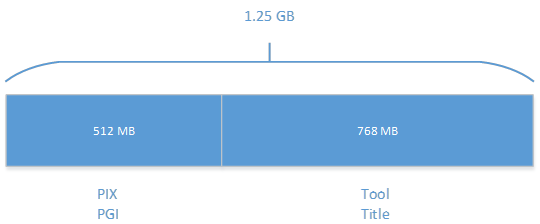
The valid values for the owners of the 512 MB region are PIX and PGI. The second region is owned by the title. The DebugMemoryMode setting for this region describes how the title will access that memory. The first option is “Tool”. In this mode, the title obtains the debug memory via a call to DebugMemGetRegion. In this scenario, a pointer is returned to the 768 MB region of memory. The second option is “Title”. When “Title” is specified, the 768 MB region appears as an extension to the amount of memory a title can access through typical means. So the title can use the same memory allocation routines it always has, but it has access to 5.75 GB of memory instead of 5 GB.
The DebugMemoryMode setting is used to configure both regions simultaneously. The valid values are:
| Value in xbConfig | Value in Xbox One Manager | Meaning |
|---|---|---|
| PIX | PIX Only | The 512 MB region is available to PIX. The 768 MB region is not available. Calls to DebugMemGetRegion will return null and a 0 size. |
| PIX_Tool | PIX and Tool | This is the default. The 512 MB region is available to Pix. The 768 MB region is available to titles by calling DebugMemGetRegion. |
| PIX_Title | PIX and Title | The 512 MB region is available to Pix. The 768 MB region appears as extra memory in the title space. The title has access to 5.75 GB of memory using standard memory allocation routines, including XMemAlloc. |
| PGI | PGI Only | The 512 MB region is available to PGI instead of PIX. The 768 MB region is not available. Calls to DebugMemGetRegion will return null and a 0 size. |
| PGI_Tool | PGI and Tool | The 512 MB region is available to PGI instead of PIX. The 768 MB region is available to titles by calling DebugMemGetRegion. |
| PGI_Title | PGI and Title | The 512 MB region is available to PGI instead of PIX. The 768 MB region appears as extra memory in the title space. The title has access to 5.75 GB of memory using standard memory allocation routines, including XMemAlloc. |
Debug Memory Scenarios
Different phases of the development cycle are likely to require different configurations for debug memory. For example, while the title is under active development, you’re likely to want to take advantage of both regions of debug memory. This configuration allows you to use Microsoft tools and to have access to the 768 MB region for the additional memory needs of your title.
As you get closer to release, you’ll want to test in an environment in which the title has access to only 5 GB of memory in order to match what will be available to the title on a retail console. You can turn off access to the 768 MB region by setting DebugMemoryMode to either PIX or PGI. In this mode, you can still run the Microsoft tools, but your title will only be able to access 5 GB of memory, not the 5.75 GB that is available if the system is configured to provide access to the maximum amount of debug memory.
The following table summarizes these options.
| DebugMemoryMode Setting | Owner of 512 MB Region | Access mode for 768 MB Region | Memory available to Title | Memory taken from System |
|---|---|---|---|---|
| PIX_Tool | PIX | DebugMemGetRegion API | 5.75 GB | 1.25 GB |
| PIX_Title | PIX | Directly in address space | 5.75 GB | 1.25 GB |
| PGI_Tool | PGI | DebugMemGetRegion API | 5.75 GB | 1.25 GB |
| PGI_Title | PGI | Directly in address space | 5.75 GB | 1.25 GB |
| PIX | PIX | Not available | 5 GB | 1.25 GB |
| PGI | PGI | Not available | 5 GB | 1.25 GB |
Note that even in the scenarios in the table above in which the title has access to the same amount of memory it will have on a retail console (5 GB), the Shared Partition will still have much less memory than it will at retail. If you need to test your title in a memory configuration that exactly matches retail you’ll need to turn ProfilingMode off and reboot your console. This configuration would be important if your title has any interaction with the Shared Partition, such as would be the case if you have a system companion app, for example.