Launching a Title for Debugging Using the Aumid Override Property
The Aumid Override property can be used to launch a title under the debugger when you do not have the corresponding Visual Studio project on your development PC.
Using the Aumid Override property
- To use the Aumid Override property, you’ll need to start by finding the Aumid of the title you’d like to launch under the debugger. Using the list command to the Application Management (xbapp.exe) tool is one easy way to do this. The output from xbApp list includes the Aumids for all titles installed on the console. A sample Aumid is circled in the following image.
Figure 1. Locating the Aumid number.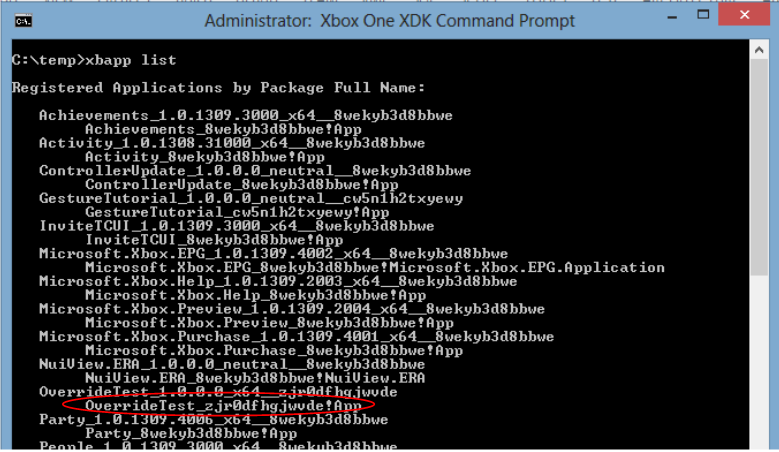 1. Create a dummy XBox One project in Visual Studio. This project will not get built or deployed. It is just a shell project used to launch your title.
 - Enter the Aumid of the title you would like to launch in the Aumid Override property. You will find this property under Configuration Properties/Debugging on the dummy project’s property page:
Figure 2. The Aumid Override Property.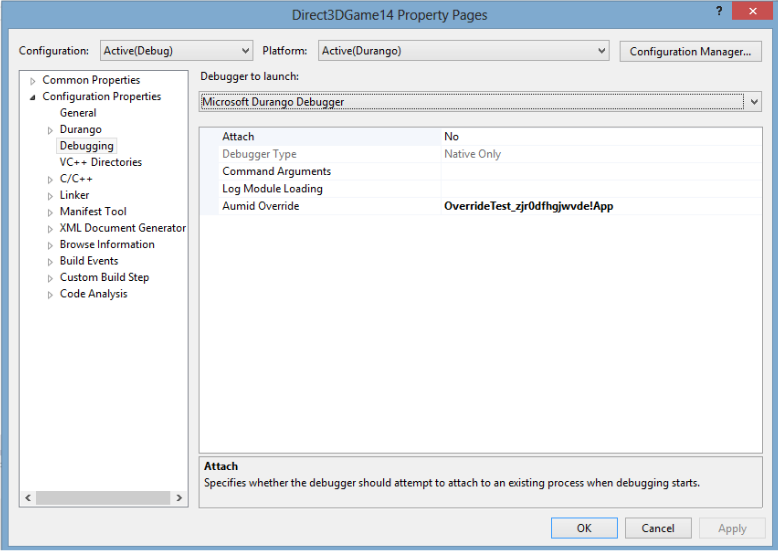 1. Set the Deploy Mode property under Configuration Properties/Xbox One/Deploy to External (Visual Studio not used for deployment). This prevents Visual Studio from deploying the contents of the dummy project:
Figure 3. Setting Deploy Mode.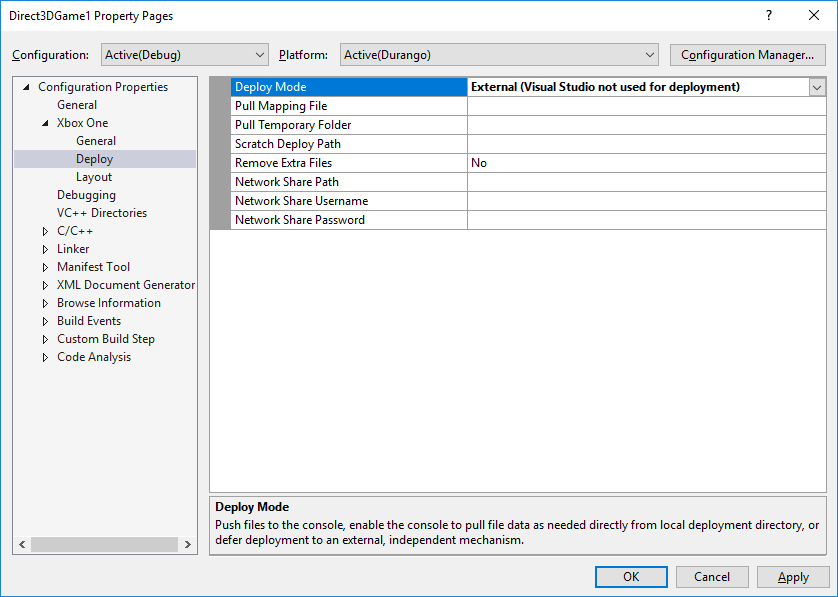 1. Hit F5 to launch the title identified by your Aumid under the debugger.
If you are using Windows8 you can also launch installed applications under the debugger using Debug Installed App Package Dialog.