Debug Installed App Package Dialog
The Debug Installed App Package dialog can used to debug any title that is installed on the console. Use of this dialog requires Windows 8 or higher.
Debugging any installed title is useful in a number of scenarios, including the following:
- Debugging a title without the corresponding project. There are likely to be scenarios in which you need to debug a title but you do not have the Visual Studio project for that title on your PC. The Debug Installed App Package dialog enables this scenario by letting you select your title from the list of titles installed on the console. This list includes titles that have been installed through any means, including Application Management (xbapp.exe), Deploy (xbdeploy.exe), F5 from Visual Studio and so on. Note that launching the debugger in this way is an alternative to using the Aumid Override property.
- Debugging your protocol activation handler. Using the Debug Installed App Package dialog is the only way to reliably debug your protocol activation handler. Applications and titles can be activated by protocol (see Deep Linking in Xbox One). The Debug Installed App Package dialog includes an option to cause the Visual Studio debugger to attach whenever the title or application is activated, including by protocol.
- Debugging under the current user. When you launch an app using the Visual Studio debugger, the current logged in user does not get set properly. Using the same “delay attach” option that enables you to debug your protocol activation handler also enables you to debug under the current logged on user. Delaying the attach, then launching your title from the shell, will result in the current user being configured correctly when the debugger attaches.
Using the Debug Installed App Package dialog
- The Debug Installed App Package dialog can be accessed under the Debug menu in Visual Studio. The following dialog will be displayed:
Figure 1. The Debug Installed App Package dialog.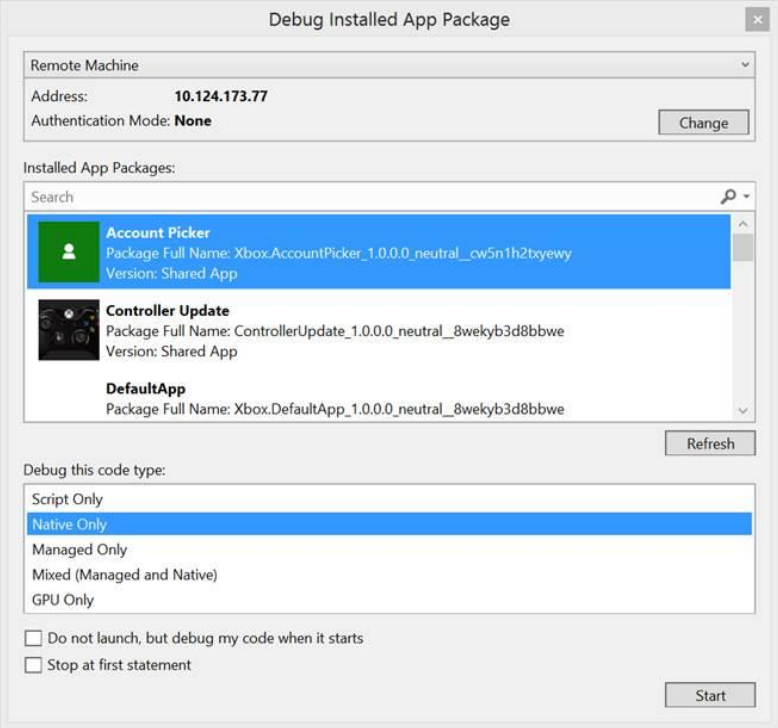 1. To connect to your console, select Remote Machine from the dropdown (the dropdown will say Local Machine the first time you bring it up). When the Remote Debugger Connections dialog appears, enter the IP address of your console (not the Tools IP) in Address field, set Authentication Mode to None, and hit Select.
Figure 2. Entering the IP address to Remote Debugger Connections.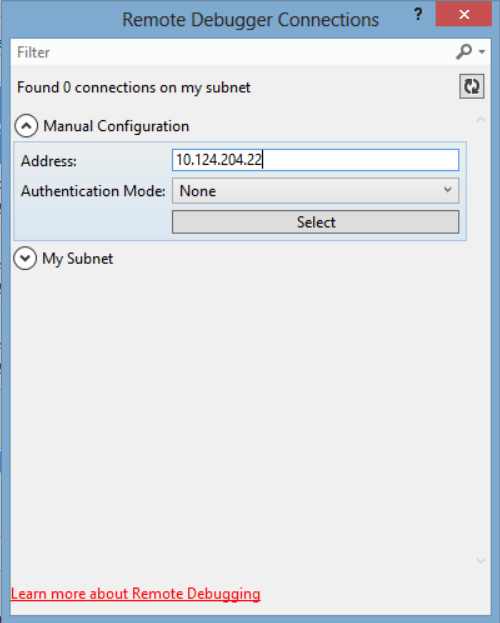 1. The main dialog will now be populated with all apps and titles that are installed on your console. Select the one you’d like to launch and choose Start.
 - Select the Do not launch, but debug my code when it starts checkbox to delay attach until your title starts. This is the option that is used to debug your protocol activation handler or to delay attach until the current user is set up properly when launching from the shell.