PIX Custom Visualizations
You can add custom visualizations into the Resources view in PIX.
To create your own visualization, place an HLSL pixel shader with the .FX extension in the %DurangoXDK%bin\TextureShaders directory. The shader will be runtime-compiled by PIX when your visualization is selected and used to render the resource contents in the PIX UI. You can also optionally provide an XAML UI implementation with a .XAML extension and matching name to supplement the visualization with custom PIX UI. The following listings show the ToneMap visualization that is provided with the XDK. Also refer to the comments in the NANandINF example (provided with the XDK) for another example of how to produce your own.
The following code shows ToneMap.fx:
//
// input source texture
//
Texture2D<float4> sourceTexture : register(t0);

SamplerState defaultSampler
{
    Filter = MIN_MAG_MIP_LINEAR;
    AddressU = Wrap;
    AddressV = Wrap;
};

//
// Parameters which are bound to custom UI (Tonemap.xaml).
// XAML x:Name must match variable name in Parameters cbuffer
//
cbuffer Parameters : register(b0)
{
    float   Exposure;       //  binds to Tonemap.xaml Slider named  x:Name="Exposure"
    float   Gamma;          //                                  ... x:Name="Gamma"
    bool    ShowClipped;    //                    ... Checkbox  ... x:Name="ShowClipped"
};

//
// tonemap
//
float4 main(float4 screenPosition : SV_POSITION) : SV_TARGET
{
    int x = (int)screenPosition.x;
    int y = (int)screenPosition.y;
    float4 color = sourceTexture.Load(int3(x, y, 0));

    color *= pow(2.0, Exposure);
    color = pow (color, Gamma);

    if (ShowClipped)
    {
        if (color.r>=1.0f && color.g>=1.0f && color.b>=1.0f)
            return float4(1.0f, 0.0f, 0.0f, 1.0f);

        //
        // grayscale pixel
        //
        float grayscale = dot(color.rgb, float3(0.3, 0.59, 0.11));
        return float4(grayscale, grayscale, grayscale, 1.0f);
    }

    return float4(color.r, color.g, color.b, 1.0f);
}
The following listing shows ToneMap.xaml:
<Page
    xmlns="http://schemas.microsoft.com/winfx/2006/xaml/presentation"
    xmlns:x="http://schemas.microsoft.com/winfx/2006/xaml">

    <!--
        Implements the custom UI for the texture shader "Tonemap.fx"
        The "Parameters" cBuffer in tonemap.fx contains variables which are bound by name
        to elements in this XAML file.

        Both the FX file and the XAML file are compiled on-the-fly when the user selects
        them in the visualization dropdown.
    -->

    <Grid Margin="10,5,10,5">
        <Grid.ColumnDefinitions>
            <ColumnDefinition/>
            <ColumnDefinition/>
        </Grid.ColumnDefinitions>
        <Grid.RowDefinitions>
            <RowDefinition/>
            <RowDefinition/>
            <RowDefinition/>
            <RowDefinition/>
        </Grid.RowDefinitions>

        <TextBlock Grid.Row="0" Grid.Column="0" Text="Exposure" VerticalAlignment="Center"/>
        <Slider
            x:Name="Exposure"
            Grid.Row="0" Grid.Column="1" AutoToolTipPlacement="BottomRight" AutoToolTipPrecision="2" Minimum="-4.0" Maximum="4.0" Width="200" Height="25" Value="0" SmallChange="0.1" LargeChange="0.5" TickPlacement="BottomRight" TickFrequency="0.2" IsSnapToTickEnabled="True"/>

        <TextBlock Grid.Row="2" Grid.Column="0" Text="Gamma" VerticalAlignment="Center"/>
        <Slider
            x:Name="Gamma"
            Grid.Row="2" Grid.Column="1" AutoToolTipPlacement="BottomRight" AutoToolTipPrecision="2" Minimum="0.0" Maximum="2.0" Width="200" Height="25" Value="1.0" SmallChange="0.025" LargeChange="0.2" TickPlacement="BottomRight" TickFrequency="0.1" IsSnapToTickEnabled="True"/>

        <CheckBox
            x:Name="ShowClipped"
            Grid.Row="3" Grid.Column="0" Grid.ColumnSpan="3" IsChecked="false" Content="Highlight clipped values" HorizontalAlignment="Center"/>

    </Grid>
</Page>
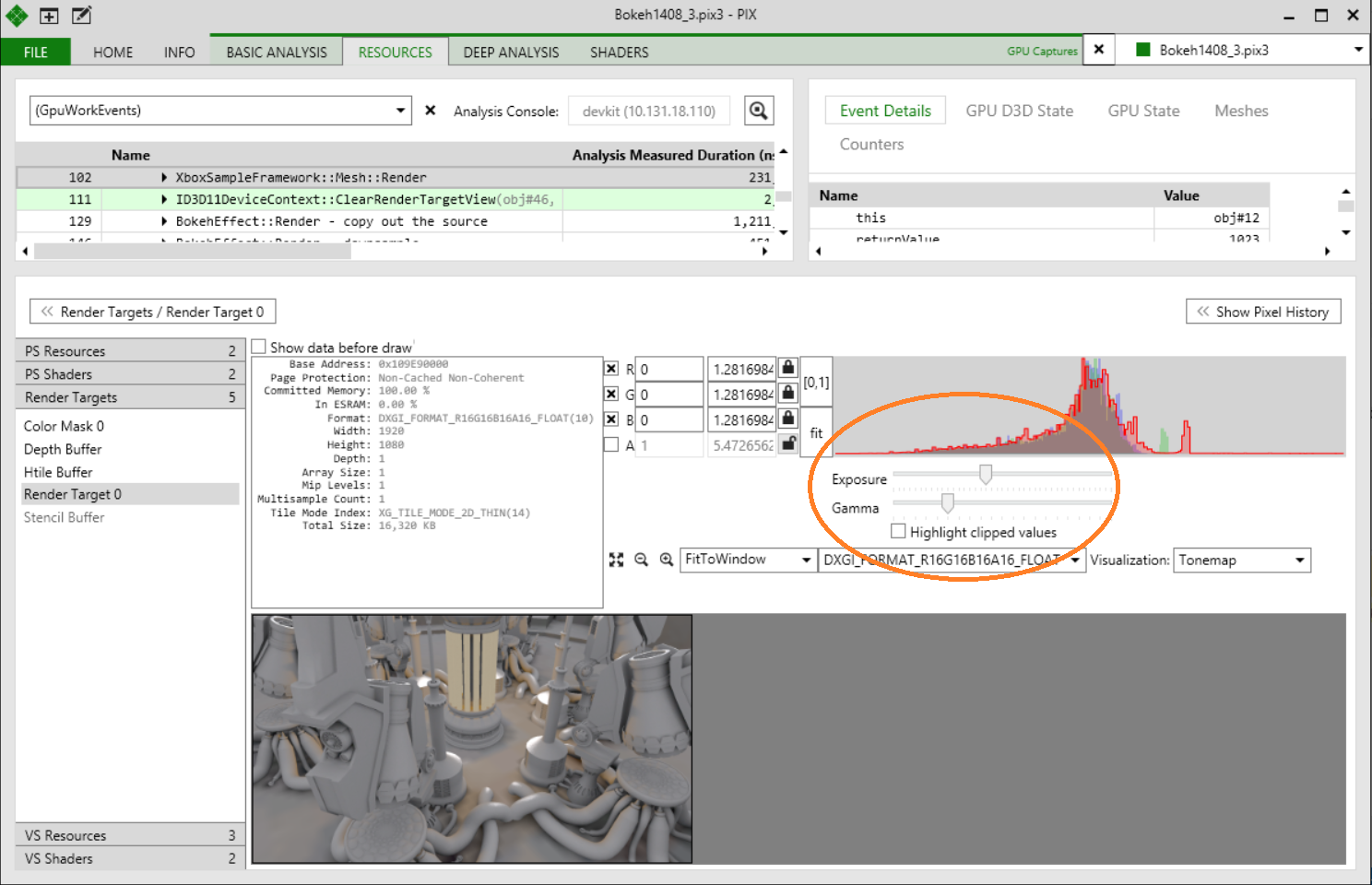
Note the custom sliders (“Exposure” and “Gamma”) and checkbox (“ShowClipped”) in the following PIX image: