Removing DirectX SDK Dependencies from Your Tool Chain
The DirectX SDK has been retired, and is now part of Windows SDK for Windows 8. We recommend that you, as an Xbox One developer, think about migrating your PC-side components, such as content processors, exporters, light mappers, and so on, from DirectX SDK. Keep in mind that although you can still install and use the DirectX SDK, Microsoft has stopped servicing it; all future feature updates, bug fixes, and servicing will only happen to Windows SDKs. This topic provides important information to help make the transition easier.
This process is easier than you might expect. Your updated code will have better serviceability, since Microsoft is committed to service the Windows SDKs. In addition, compared to D3DX, the replacement components are now mostly shared source libraries, which are much more transparent—you know what’s going on under the hood.
Setting up Windows SDK for Windows 8
If you have Visual Studio 2012 installed, you already have the Windows SDK for Windows 8; the SDK is included with Visual Studio 2012. This applies also to Visual Studio 2012 on Windows 7. As an Xbox One developer, you already have the Windows SDK for Windows 8; Visual Studio 2012 is the required environment for developing Xbox One titles.
You can also get the Windows SDK for Windows 8 as a standalone package for machines that have only Visual Studio 2010. You can download it from Windows Software Development Kit (SDK) for Windows 8, on MSDN.
To find out quickly if you have the SDK installed, check for the following directory: %ProgramFiles(x86)%\Windows Kits\8.0
Note The Windows SDK for Windows 8 includes the developer runtime components for Windows, including the Direct3D 11 debug layers, the Direct3D reference devices, and the Direct2D debug layers.
Correctly referencing Windows SDK for Windows 8
Windows SDK for Windows 8 and DirectX SDK contain many header and library files with the same base names-for example, d3d11.h and d3d11.lib. As you migrate projects from the DirectX SDK, be sure that your project actually references headers and libraries from the Windows SDK instead of the DirectX SDK.
The easiest way to do this is to uninstall the DirectX SDK. You can also change the name of the root directory of the DirectX SDK on your system to ensure that your project does not accidentally reference anything in it. The DirectX SDK is typically installed in %ProgramFiles(x86)%\Microsoft DirectX SDK (June 2010).
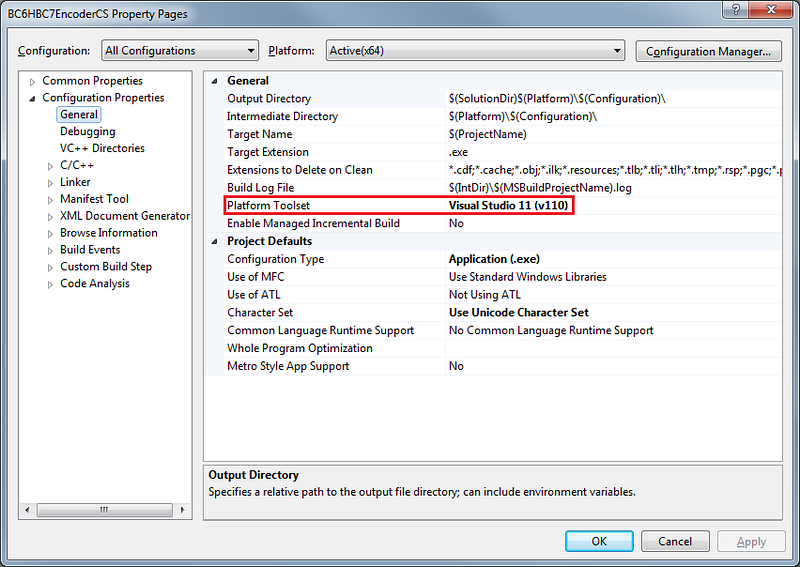
When Visual Studio 2012 is used for development, the Windows SDK for Windows 8 is referenced by default if Platform Toolset, a property of the project, is set to Visual Studio 11 (v110).
Figure 1. An example of the properties page for a project in Visual Studio 2012
If, instead, you are using Visual Studio 10 with the independent installation of the Windows SDK for Windows 8, you must manually ensure that your project references the Windows SDK for Windows 8, rather than the DirectX SDK or the Windows SDK for Windows 7.
Figure 2. Setting Include Directories for a project in Visual Studio 2010
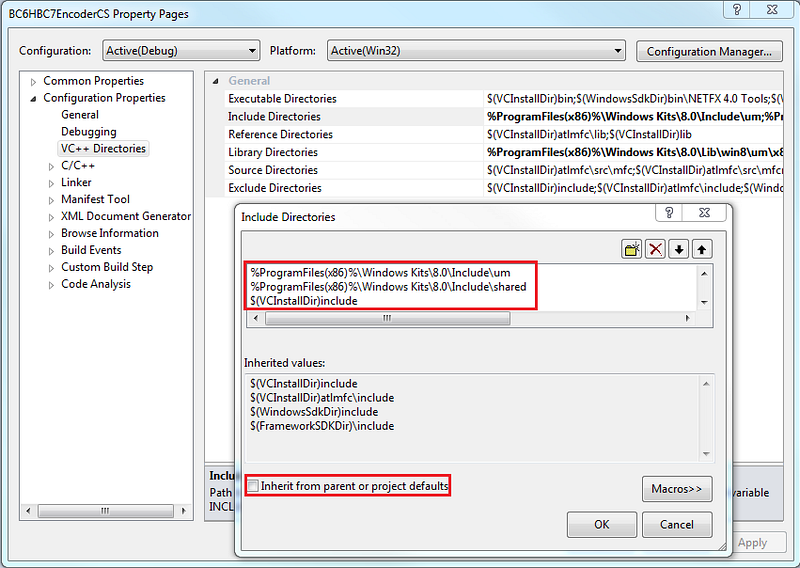
In addition to setting Include Directories to the directories for the Windows SDK for Windows 8, as shown in Figure 2, also clear the Inherit from parent or project defaults check-box. This option includes directories from Windows SDK for Windows 7; including these directories can cause conflicts when you explicitly reference the Windows SDK for Windows 8. Library directories should be set in the same way.
Note that a new Platform Toolset option is coming for Visual Studio 2010 that allows you to reference the Windows SDK for Windows 8 more easily. When this option becomes available, you won’t have to change the directory settings manually; you’ll be able to select that option just as easily as you do in Visual Studio 2012. However, you will need to remove DXSDK_DIR, an environment variable in your header and library path references, to make sure the DirectX SDK is not referenced.
Correctly setting global macro _WIN32_WINNT
A global macro, _WIN32_WINNT, selects which version of the Windows runtime to target. When you work with the Windows SDK for Windows 8, this macro defaults to 0x602, a value that specifies Windows 8. Other values include 0x601 for Windows 7 and 0x600 for Windows Vista.
Because the default value of _WIN32_WINNT specifies Windows 8, even when you use the SDK on Windows 7, there is a potential for surprise when you can build your project with the default value of _WIN32_WINNT—but not be able to run it because it requires the Windows 8 runtime.
An example of this predicament: suppose you leave _WIN32_WINNT set to the default value of 0x602, while your project uses the DLL for the Direct3D shader compiler. This DLL internally uses the CreateFile2 function, which is available only in Windows 8. Running the project on Windows 7 would result in an error, function entry not found. If you see similar errors for missing functions, check that _WIN32_WINNT is set correctly in your project’s property settings.
Removing dependency on D3DX
The core DirectX SDK headers and libraries are in the Windows SDK for Windows 8, but the headers and libraries for the Direct3D extension (D3DX) are not. Fortunately, there are alternatives for almost all D3DX functionality, and most of them are better than their D3DX counterparts:
| D3DX Technology | DirectX 11 Solution |
|---|---|
| Shader Compilation; for example, D3DX11CompileFromFile | D3DCompiler from Windows SDK for Windows 8; for example, D3DCompileFromFile |
| D3DXMath | DirectXMath from the Windows SDK for Windows 8 |
| Texture Loading and Conversion | DirectXTex |
| Effects (FX) | Effects 11 shared source in DirectX SDK |
| Font | DirectWrite from the Windows SDK for Windows 8 or SpriteFont from DirectXTK |
| Line | Direct2D from the Windows SDK for Windows 8 |
| Sprite | DirectXTK |
DirectXTex in one minute
DirectXTex is much easier to use than it might seem. Read through the following list, and you will have enough understanding of DirectXTex to upgrade your texture code from D3DX to DirectXTex:
- DirectXTex doesn’t need a Direct3D device to process textures, as D3DX does. It stores textures entirely on the CPU by using a class structure called ScratchImage.
- Think ScratchImage in DirectXTex as a texture resource in Direct3D.
- Think Image in DirectXTex as a texture subresource in Direct3D.
- Think of TexMetadata in DirectXTex as D3D11_TEXTUREyD_DESC (with y being 1, 2 and 3) in Direct3D.
- Use LoadFromDDSFile, LoadFromTGAFile, or LoadFromWICFile to load textures stored in files into ScratchImage.
- Once you have a ScratchImage, do the following:
- Use Convert to convert to another pixel format;
- Use Resize to resize the texture’s dimension by using a specified filter;
- Use GenerateMipMaps(3D) to generate mipmaps;
- Use Compress and Decompress to encode and decode to and from block compressed textures.
- Use CreateTexture to convert ScratchImage to D3D texture resource.
- Use CaptureTexture to convert Direct3D texture resource back to ScratchImage.
- Use SaveToDDSFile, SaveToTGAFile, or LoadFromWICFile to save ScratchImage to files.
The key thing to remember is that DirectXTex is primarily intended for implementing texture tools and content pipelines. It can be compiled to run on Xbox One, Microsoft Store applications, and Win32-based desktop applications for Windows Vista, Windows 7, and Windows 8. Aspects of the library are useful at run time for some scenarios-notably the software block compressors-but there are lightweight alternatives for the texture I/O. For these alternatives, see the next section.
DirectXTK in one minute
The DirectXTK library is a run-time helper library for writing Direct3D 11 applications for Xbox One, Microsoft Store applications, and Win32-based desktop applications. It includes the following features:
- SpriteBatch: A 2D sprite rendering class.
- SpriteFont: A bitmap-based text renderer.
- Effects: The 5 built-in shaders from XNA Game Studio 4, including BasicEffect, AlphaTestEffect, DualTextureEffect, EnvironmentMapEffect, and SkinnedEffect. These are provided as C++ headers, so no I/O of shader blobs or compilation are required.
- GeometricPrimtives: Cube, Sphere, Cylinder, Torus, and Teapot.
- DDSTextureLoader: A light-weight run-time .DDS file loader that doesn’t implement any run-time conversions.
- WICTextureLoader: A lightweight loader, based on the Windows Imaging Component (WIC), for bitmap files that uses Direct3D 11 automatically generated mipmaps.
XInput and XAudio2
Windows 8 includes XInput 1.4 and XAudio 2.8 as part of the operating system, and the Windows SDK for Windows 8 includes the appropriate headers for using them. To support Windows 7, you can use the older XInput 9.1.0 or XInput 1.3 or XAudio 2.7 from the DirectX SDKs.
For more information about XInput and XAudio2 on Windows 8, see References, below.
DLL deployment
When the DirectX SDK or its redistribution package, DirectSetup, is installed, two DLLs are installed to the system32 and SysWOW64 folders: D3DCompiler_xx.dll and D3dcsx_xx.dll. This is not the case for the Windows SDK for Windows 8. If your project uses functions from any of these DLLs, you are responsible for distributing them with your executable. We recommend that you set up a custom post-build event to copy the required DLLs from the SDK from %ProgramFiles(x86)%\Windows Kits\8.0\bin to the target directory of your binary build.
References
D3DCompiler Reference on Dev Center, MSDN
Direct3D 11 Textures and Block Compression, Chuck Walbourn, May 2012 on MSDN Blogs.
DirectX Tool Kit, Chuck Walbourn & Shawn Hargreaves, May 2012 on CodePlex.
DirectXMath on Dev Center, MSDN.
DirectXTex texture processing library, Chuck Walbourn, June 2012, on CodePlex.
HLSL, FXC, and D3DCompile, Chuck Walbourn, May 2012, on MSDN Blogs.
Living without D3DX, Chuck Walbourn, August 2013, on MSDN Blogs.
Where is the DirectX SDK? Chuck Walbourn, March 2012, on MSDN Blogs.
Where is the DirectX SDK?, on Dev Center, MSDN.
XAudio2 and Windows 8, Chuck Walbourn, April 2, 2012, on MSDN Blogs.
XINPUT and Windows 8, Chuck Walbourn, April 25, 2012, on MSDN Blogs.