Changing from Retail to Dev Kit Mode
The Xbox One dev kit has two modes, Retail Mode and Developer Mode. In Retail Mode, the console is in the state that any customer or user of an Xbox One console would use: you can play games and run apps as a user. In Developer Mode, you can develop software for the console.
Setting up Your Dev Kit
Use these steps to convert your console to Developer Mode.
Note Your asset manager must complete the steps in the Activating Your Dev Kit topic before you will be allowed to enable Developer Mode.
- Set up and turn on your new console. Configuration will happen automatically—no input will be required unless it is required to setup Wi-Fi, or an error occurs when trying to apply a dev kit certificate. Your kit may be required to take a system update to the latest recovery version. After a few minutes the kit will boot to Dev Home. Congratulations, you have configured your device in Developer Mode!
- Ensure that the sandbox identification (ID) is either XDKS.1 (the default) or your own development sandbox identification. You can set the sandbox ID on the Developer settings page in the Settings app on the console, or by using Xbox One Manager or Configuration (xbconfig.exe).
- Follow the steps in Flashing the OS Recovery onto Your Dev Kit and Configuring Dev Kit Settings.
Refer to the Activating Your Dev Kit topic if you are unable to select Developer Mode.
Switching Back to Retail Mode
Use the Settings tab within Dev Home to switch back to Retail Mode.
- Launch Dev Home.
- Go to the Settings tab.
- In the Console settings tile, select Leave Dev Mode.
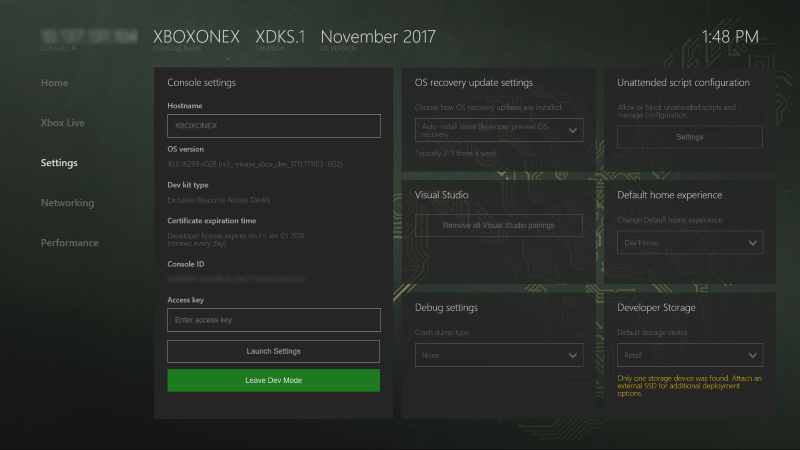
- Restart your console.
Returning to Developer Mode from Retail Mode
To return to Developer Mode from Retail Mode you need to bring up the Developer settings button using the following procedure.
- Go to the Home page.
- Open My games & apps.
- Select Apps, then select Settings.
- Go to System in the left pane and then select Console info in the right pane.
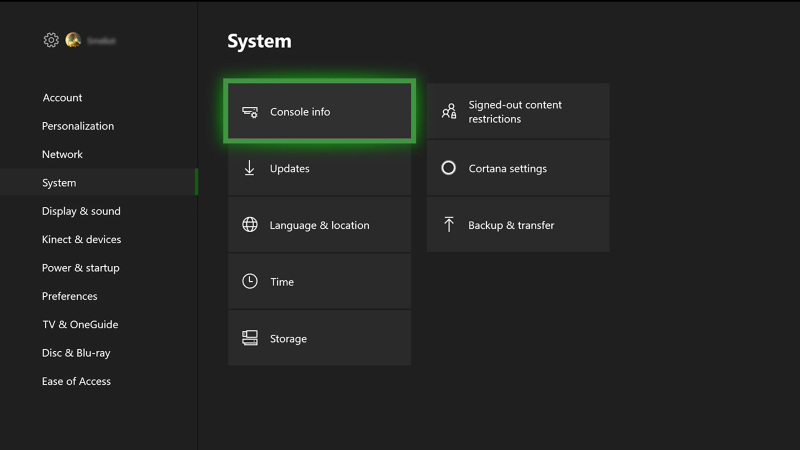
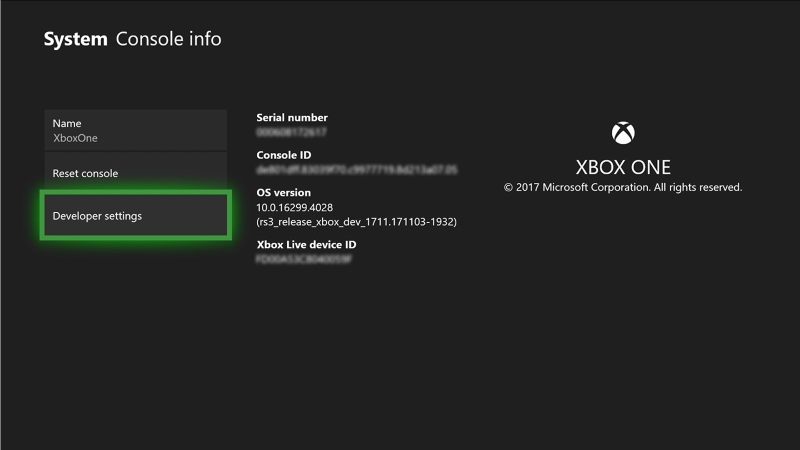
- Press, in order, the left bumper, the right bumper, the left trigger, then the right trigger to bring up the Developer settings button. Select it.
- Check the Developer mode box.
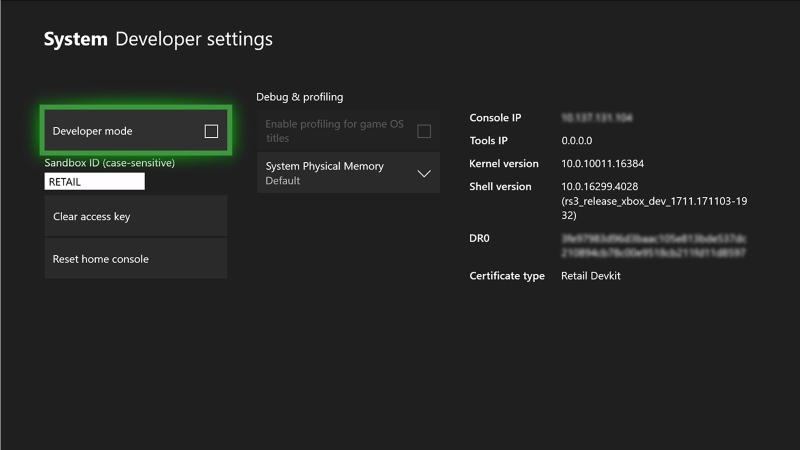
- Restart your console.
- After the console has restarted, you will see the Dev Home page.