Sample-based Profile Guided Optimization for Xbox One Titles
Note SPGO requires Visual Studio version 15.6 or newer (Professional or Enterprise editions). At the time of the release of the February 2018 XDK, Visual Studio version 15.6 is in Preview. See the Visual Studio blog for instructions on downloading the Preview.
Sample-based Profile Guided Optimization (SPGO) is a runtime optimization technology that leverages profiling data collected while running important or performance centric user scenarios to build an optimized version of the title.
SPGO performs many of the same optimizations that traditional Profile Guided Optimization (PGO) does, however, SPGO is much simpler and more usable and has a significantly lower barrier to adoption.
The optimizations SPGO can perform have significant advantages over traditional static optimizations as they are based on how the title is likely to perform in a production environment. The optimizer will favor speed for code paths corresponding to common user scenarios and will favor size for uncommon user scenarios, resulting in faster code for common scenarios and smaller code for less frequently used scenarios.
Traditional PGO relies on instrumented profiling technology while SPGO uses sampling technology. The use of sampling offers two primary benefits in terms of ease of use. First, while PGO requires a fully instrumented build, SPGO can be used with your normal release build configuration. There is no need to create a build configuration specifically for SPGO. In addition to the savings in build time, you also avoid the need to redeploy and run an additional build. The second benefit of using sampling technology to collect profiling data is that much less overhead is introduced to your running title. The overhead introduced by traditional PGO can become so great that the title can’t be run at a practical frame rate to gather training data.
However, the profiling data gathered using a sampling approach is not as comprehensive as the data gathered using traditional PGO. When using SPGO, the compiler and linker will have a less-complete set of the data on which to base their optimizations. As a result, the performance gains you can expect to achieve using SPGO are less than the potential gains from traditional PGO. Our measurements show that the performance gains provided by SPGO are generally about 80% of the gains from traditional PGO. We’ll continue to try to push this percentage higher in future XDK releases.
Using SPGO to Optimize your Title
The following steps are required to optimize your title using SPGO:
-
Create a set of Sample Profile Database (SPD) files. An SPD file is a database of the code paths in your title. The linker outputs this file when creating the build you’ll use for training, typically your standard release build. You’ll have one SPD file for each binary you’d like to optimize with SPGO.
-
Deploy and run your title. Deploy your title to the console and launch it using the standard XDK deployment and activation techniques.
-
Collect the training data. With your title running, you’ll use a script contained in the XDK to collect the CPU samples that are the basis of the training data. The resulting data is written to a Sample Profile Trace (SPT) file and copied back to your development PC.
-
Apply the training data to the SPD file(s). The training data is merged into the SPD files you created in step 1 using a command line utility contained in the XDK.
-
Rebuild your title. The optimized version of your title is created by rebuilding it, passing the SPD file(s) to the linker. The linker uses the data in the SPD files to perform the binary-level optimizations.
The following sections explain these steps in more details.
Creating SPD Files
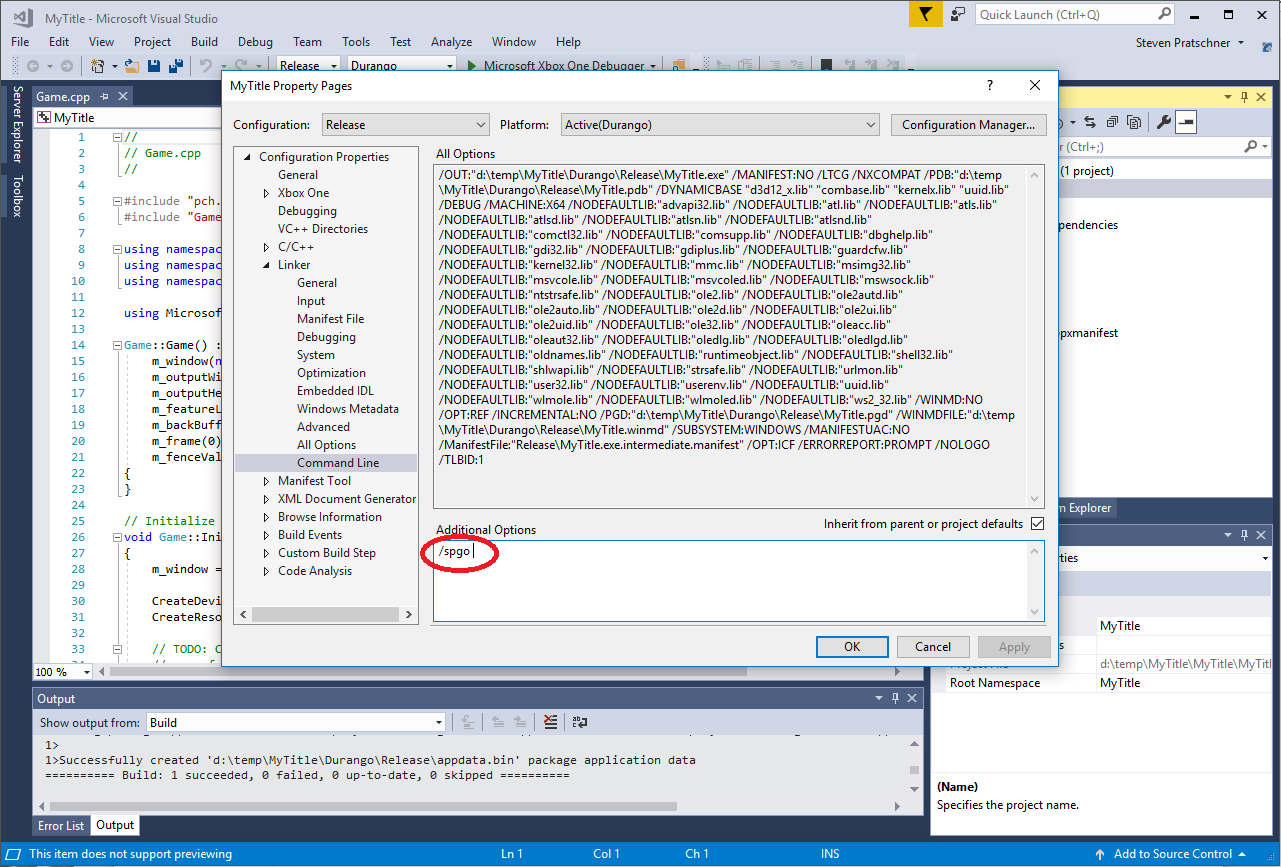
SPD files are created by passing the /spgo flag to the linker when creating your release build. The /spgo flag must be specified on the command line manually as there is no Visual Studio property currently defined that sets this flag. You must also build with Link Time Code Generation (LTCG) to use SPGO.
The name of the SPD file created by the linker defaults to “binary name”.spd. If you are building from Visual Studio, the spd file will be moved from the output directory to the Layout directory by default. You can prevent Visual Studio from moving the spd file to the Layout directory by adding “*.spd” to the Exclusion Filter property:
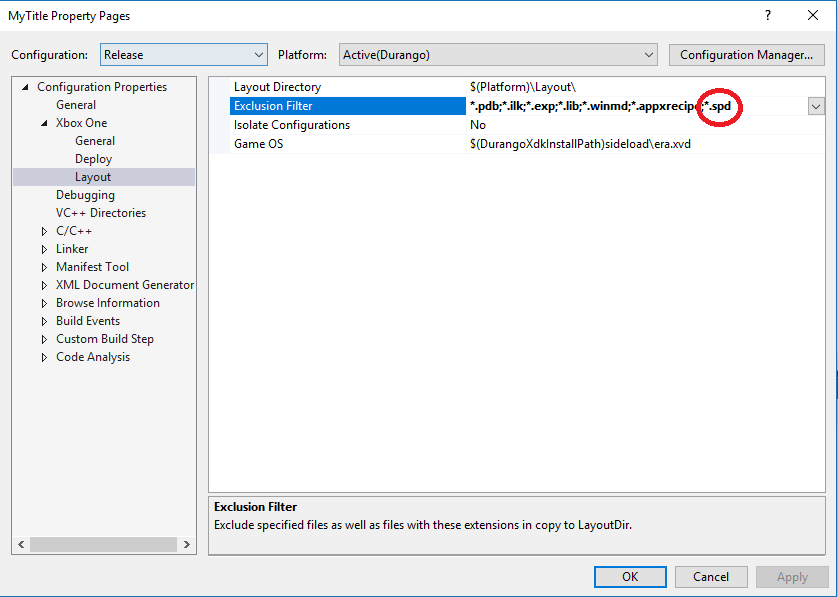
The name and location of the spd file can overridden with the /spd:”file name” switch.
Collecting Training Data
Training data is collecting using a script named TakeSPGOTrace.cmd which is installed to the %DurangoXDK%\bin\SPGO directory by XDK setup.
You must launch your title before invoking TakeSPGOTrace.cmd to take a trace. TakeSPGOTrace.cmd takes the following command line options:
| Option | Description | ||
|---|---|---|---|
| /f:"file name" | Overrides the name and location of the resulting spt file. | ||
| /v | Provides verbose output. Verbose output adds additional information about the commands used to start and stop the sample collection. | ||
| /X[:]address[+<accesskey>] | Specifies the host name or address (shown as Tools IP on the console) of a targeted console, but does not change the default console. For information about setting a host name for a console, see Setting a Hostname for the Console IP Address.If you do not use this option, the default console (previously set by Connect (xbconnect.exe)) is used.Accesskey is a string that you can use to restrict access to a console to only those people who know the access key. Set the access key by using the command xbconfig accesskey=your-key; then, restart your console to make the access key effective. To access a console that is configured with an access key, you must include a plus sign (+) and the access key after the IP address or host name of the console. For more information about access keys, see xbconfig accesskey.
|
 Note
Note Traces will be taken on the default console unless you use the /x switch to TakeSPGOTrace.cmd.
If tracing started successfully you’ll see a message stating that sampling is active:
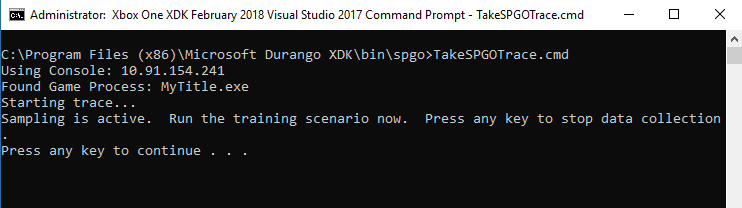
Hit any key in the command window to stop the tracing after you’ve profiled the portion of the title you’re interested in.
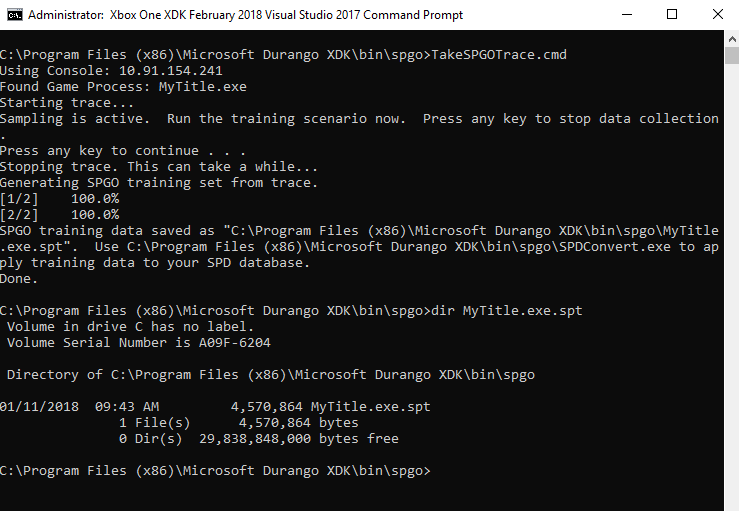
After tracing stops an spt file for your game’s process will be created and copied back to your development PC from the console. By default, the spt file will be placed in the directory from which you ran the script. The file will be named “binary name”.spt. Use the /f option to TakeSPGOTrace.cmd to override the name and location of the spt file.
Apply Training Data to the SPD Databases
The sample-based training data is merged into the SPD file(s) and then used as input to the linker on a subsequent build to create an optimized binary. The merging is done by a tool called SPDConvert.exe that is installed by XDK setup. You’ll find SPDConvert.exe in %DurangoXDK%\bin\SPGO.
The SPT file produced by TakeSPGOTrace.cmd contains training data for all modules in your title. To extract the data for a module, specify the SPD file corresponding to the module on the command line to SDPConvert.exe. For example, the following command extracts the training data for MyTitle.exe and merges it into the SPD file for MyTitle.exe:
SPDConvert.exe d:\MyTitle\Durango\Release\MyTitle.spd MyTitle.exe.spt
Invoke SDPConvert.exe once for each module for which you’d like to extract and merge training data. For example, the following two commands will apply the training data for MyTitle.exe and for util.dll:
SPDConvert.exe d:\MyTitle\Durango\Release\MyTitle.spd MyTitle.exe.spt
SPDConvert.exe d:\MyTitle\Durango\Release\util.spd MyTitle.exe.spt
SPDConvert.exe can also apply the data from multiple training runs at once. To apply data from multiple runs, specify a list of SPT files on the command line separated by a space:
SPDConvert.exe d:\MyTitle\Durango\Release\MyTitle.spd MyTitleJan10.exe.spt MyTitleJan11.exe.spt MyTitleJan12.exe.spt
Sample Coverage
A key factor is SPGO’s ability to significantly optimize your title is the amount of coverage the collected samples provide. If the samples that are merged into the SPD are considered sparse, SPGO will have limited data with which to determine the full set of potential optimizations.
SPDConvert.exe includes a sample coverage indicator. Each time a new SPT is merged into an SPD, if the resulting merged profile is considered sparse, SPDConvert.exe will provide a message like the following to use as a guideline for determining when sample coverage is adequate:
Compiler may be conservative on some hot functions due to sparse sample coverage.
SPGO is estimated to optimize better if sample density is increased to 5.4x of current level.
Sample density can be increased by sampling for longer period, or increasing sample rate.
Retiring Previous Training Sets
It’s common practice to merge multiple sets of training data into a single SPD file. This is often done by updating a single SPD file with training data based on daily or weekly profiling runs. For example, you may create a new SPD file once a week but update it with training data each day. In this way, the accuracy of the training increases over time as multiple training runs are accumulated.
When multiple training sets have been merged, SPGO will weight the training data based on it’s age. Training data that has been merged more recently is weighted more heavily in the optimization calculations than older data is.
SPGO performs the weighting calculation automatically but you can customize the algorithm using the /retire switch to SPDConvert.exe. /retire takes a value from 0 to 16 that controls how aggressively SPGOConvert.exe ages out counts. A value of 16 will cause all previous counts to be aged out during the merge. A value of 0 causes no previous counts to be aged out. The default value is 8.
Creating the Optimized Binary
After merging the training data into the SPD file, that SPD file will be used as input to the linker to create an optimized binary on a subsequent build.
By default, the linker assumes the name of the SPD file to be the name of the binary with an .spd extension (example: MyTitle.spd). You can change the name and location of the SPD file using the /spdin switch. /spdin must be specified on the command line manually as there is no Visual Studio property currently defined that sets this switch. Also remember that you must build with Link Time Code Generation (LTCG) to use SPGO.
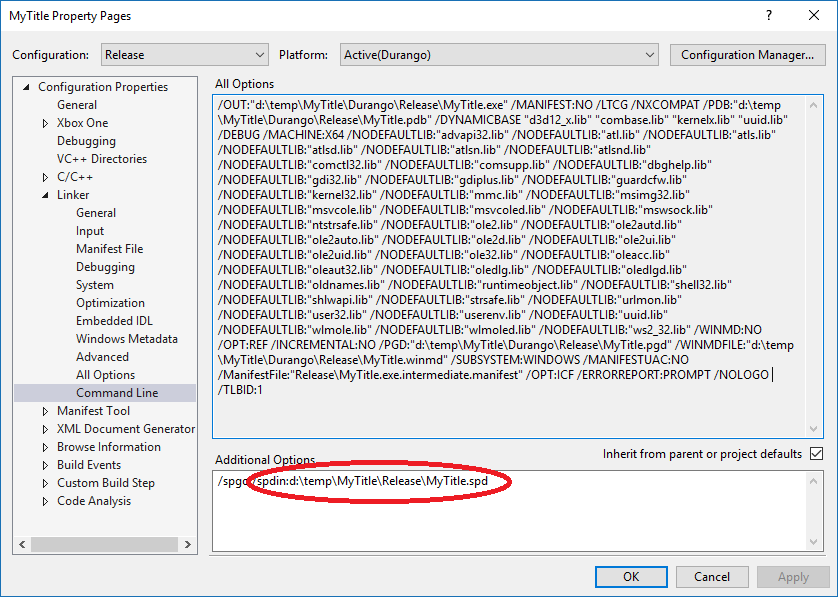
The linker emits output that describes the percentage of functions that were compiled for size vs. speed based on the training data.
Generating code
Reading SPD file: MyTitle.spd
60 of 1226 ( 4.89%) profiled functions will be compiled for speed, and the rest of the functions will be compiled for size
Over time it’s likely that code changes you’ve made to your title since the last time you generated an SPD will cause the database of code paths captured in the SPD to become stale. The linker outputs the percentage of the functions in your title that it was able to identify and optimize based on the training data.
1226 of 1226 functions (100.0%) were optimized using profile data
Finished generating code
To obtain maximum performance from SPGO (e.g. for official release of a title), try to keep the % as close to 100% as possible.