Xbox One Dynamic Resolution
This document covers the Xbox One hardware, APIs, and best practices for dynamically scaling a title’s resolution in order to achieve a smooth frame rate while handling variations in scene-rendering complexity. This technique, referred to as dynamic resolution, allows a title to render wide vistas at their best while still enabling it to accommodate potentially large numbers of dynamic objects.
Introduction
Few things are as likely to ruin a player’s experience as a frame rate that stutters. Although minor glitches such as unwanted aliasing or the occasional player’s hand extending through a wall are distracting, they don’t completely upset the player’s entire field of view, and they rarely affect gameplay.
Traditional techniques for maintaining a smooth frame rate include level-of-detail (LOD) adjustments to geometry, shaders, and textures, and limiting scene-art budgets such that the worst-case frame can be rendered smoothly. Each of these techniques has shortcomings.
Shader and geometry LODs are certainly appropriate in some cases, but such techniques require additional work from the developer and artist. Additionally, it is often difficult to hide the transition from one LOD to the next when objects are close to the front in the player’s field of view.
Limiting the art budget on a title to keep the worst-case frame within budget can end up setting a low bar on what can be shown in an average frame. Consider the scene in Figure 1, for example. Limiting the scene-art budget to accommodate the possibility that several characters might occupy the vista during a highly interactive part of the game could unnecessarily restrict the view of the wide vista when few or no characters are present.
Figure 1. A typical LOD scenario

This white paper examines a third way to handle typical variations in scene-rendering complexity on Xbox One, referred to as dynamic resolution. This technique, which can be used in conjunction with both LOD adjustments and art-scene restrictions, takes advantage of the fact that modern rendering is often heavily bound by pixel shading. When excessive frame times are anticipated or perceived, a title can dynamically lower its resolution, resulting in a smaller total amount of GPU work for the same scene. Varying the resolution dynamically during gameplay allows the title to render wide vistas at their best while still enabling it to accommodate potentially large numbers of dynamic objects.
DXGIX_FRAME_STATISTICS and the anatomy of a frame
The following figures shows an example of a typical frame represented on the CPU, GPU, and display timelines.
Figure 2. A single frame on three timelines
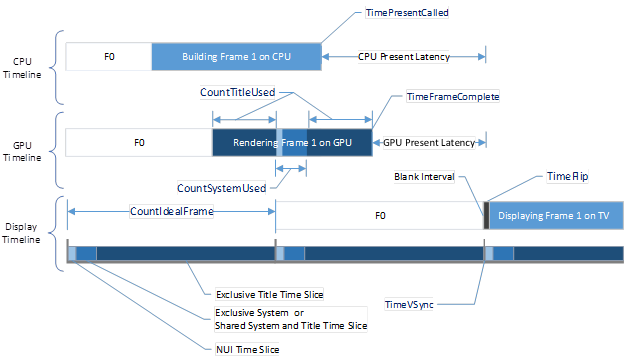
The February 2015 Xbox One XDK includes significant enhancements to the DXGIX_FRAME_STATISTICS structure. These enhancements are specific to the Xbox One platform, and are reflected throughout this document. The following code shows the members of the DXGIX_FRAME_STATISTICS structure, as well as some useful defines.
C++
typedef struct _DXGIX_FRAME_STATISTICS
{
    // CPU timeline
    UINT64 CPUTimePresentCalled;
    UINT64 CPUTimeAddedToQueue;
    UINT32 QueueLengthAddedToQueue;

    // GPU timeline
    UINT64 CPUTimeFrameComplete;
    UINT64 GPUTimeFrameComplete;
    UINT64 GPUCountTitleUsed;
    UINT64 GPUCountSystemUsed;

    // Display timeline
    UINT64 CPUTimeVSync;
    UINT64 GPUTimeVSync
    UINT64 CPUTimeFlip;
    UINT64 GPUTimeFlip;
    UINT64 VSyncCount;
    FLOAT  PercentScanned;

    VOID*  Cookie[2];
} DXGIX_FRAME_STATISTICS;

#define D3D11X_XBOX_GPU_TIMESTAMP_FREQUENCY ( 99750000 ) // 100 MHz * .9975
#define D3D11X_XBOX_VIRTUAL_REFRESH ( 59.94f )           // 59.94 MHz
A note on clock rates and counts
Many member names in the DXGIX_FRAME_STATISTICS structure start with either “GPUTime” or “CPUTime.” These prefixes do not specify which timeline the data is gathered from. Instead, they specify which clock domain was sampled for the given statistic. In fact, for many statistics we return the time sampled from both the CPU and GPU clock domains for convenience. The “CPUTime” and “GPUTime” prefixes were intentionally omitted in Figure 2 because either clock domain can be used in calculations.
The Xbox One console will dynamically vary its clock rates in order to save power, but when a title is running, the clock rates are set to maximum in order to ensure the best performance and responsiveness. The maximum CPU clock rate is 1750 MHz, and the maximum GPU reference clock rate (the time-stamp clock rate) is 100 MHz. Note that the Xbox One GPU core clock runs at 853 MHz, but the time value reported back by the frame statistics uses the GPU’s 100 MHz counter.
It’s interesting to note that the clocks actually don’t run at exactly 1750 MHz or 100 MHz. This is because regulatory bodies, such as the Federal Communications Commission (FCC) in the United States, require that devices not emit specific frequencies. For the console to be compliant with such regulations, a small amount of jitter must be introduced. The exact frequency of the CPU is easily obtained using a call to the QueryPerformanceFrequency function, and the exact frequency of the GPU time-stamp counter is defined by the #define D3D11X_XBOX_GPU_TIMESTAMP_FREQUENCY.
Frame statistics with “Count” in the variable name refer to either a count of a number of clocks or a count of an event such as the vertical sync versus a “Time” value on a timeline.
The Cookie (one for each enabled plane) is simply passed in by the title at present time, making it possible to associate a specific statistic to a specific call to the DXGIXPresentArray function.
CPU timeline
The commands that are used to render a frame are generated on the CPU. TimePresentCalled denotes the time that a title called DXGIXPresentArray on the CPU, and copy denotes the time when the frame is added to the internal present queue.
You can subtract a frame’s TimeAddedToQueue from its TimePresentCalled to obtain the amount of time that Direct3D throttled the CPU. QueueLengthAddedToQueue tells how backed-up or empty the present queue was when DXGIXPresentArray was called. This member records the time after the wait (if any), not before the wait.
The total number of CPU clocks spent building a frame (not including Direct3D throttling time) can be calculated by subtracting the previous frame’s TimeAddedToQueue from the current frame’s TimePresentCalled; the resulting value can be converted into seconds by dividing it by the CPU frequency.
GPU timeline
The GPU timeline represents the duration of time between when the GPU consumes the commands sent over from the CPU and when it produces a rendered frame. TimeFrameComplete denotes the time at which the GPU finishes the completed image to be swapped. The total time spent rendering the frame (including any GPU time spent waiting for the swap chain) can be calculated by subtracting TimeFrameComplete from the corresponding value for the previous frame. The resulting value can be converted into seconds by dividing it by the GPU time-stamp frequency.
GPUCountTitleUsed represents the number of GPU clocks within a given frame that were used by the title. GPUCountSystemUsed represents the number of GPU clocks within a given frame that were used by the system for shared applications or NUI (natural user interface) workloads. These two values are best understood in the context of the display timeline; in particular, how shared-application and NUI workloads are time-sliced in with the title’s workload.
Display timeline
The final timeline is the display timeline. Regardless of the actual resolution and refresh rate of a player’s TV, the title always presents to a 1080p virtual display (1920×1080 pixels at 59.94 Hz). At the beginning of each frame there is a vertical sync where the next frame is scanned out to the device; TimeVSync reports the time for this event. The pointer to a given frame is swapped during the blank interval unless immediate-mode rendering is done; TimeFlip gives this time. VSyncCount represents the vertical-sync “id” that the frame was presented on. It will increment by one for 60 Hz rendering, by two for 30 Hz rendering, and so on, if no frames are dropped.
Finally, a PercentScanned value is returned that tells what percent of the frame was scanned when the driver flipped to the current frame. For fixed 30 Hz or 60 Hz rendering, this value will always be zero because no tearing is allowed. For immediate-mode rendering, or for rendering with a non-zero PresentImmediateThreshold, this value can be non-zero.
A note on time slices
At the beginning of each displayed frame, up to 8.5% of the GPU is potentially reserved for system usage. Note that this a reduction from the 10% that was reserved for system use at the time of the Xbox One launch.
There are four time slices: NUI, Exclusive System, Shared System and Title, and Exclusive Title.
- If the NUI GPU reservation is enabled, a fixed 4.5% of the GPU is reserved for the NUI GPU workload in the NUI time slice. If the system DisableKinectGpuReservation property is true, the NUI time slice is disabled.
- If the GpuAvailability manifest flag is set to fixed, the Exclusive System time slice is enabled and a fixed 4% of the GPU is reserved; the Shared System and Title time slice is disabled in such instances.
- If the GpuAvailability manifest flag is set to variable, the title must respond to ResourceAvailabilityChanged event notifications. When the ResourceAvailability enumeration is set to ResourceAvailability.FullWithExtendedSystemReserve because of the presence of a snapped application, the Exclusive System time slice is fixed at 4% and the Shared System and Title time slice is disabled. When ResourceAvailability is ResourceAvailability.Full, the Exclusive System time slice is disabled but the system can use up to 3% of the Shared System and Title time slice for notifications or other tasks.
- The Exclusive Title time slice is used solely for title rendering.
- The NUI and Exclusive System time slices begin every 60 Hz, at VBlank time. The optional NUI time slice is first, followed by the Exclusive System or Shared System and Title time slice, followed finally by the Exclusive Title time slice. Therefore, a short title GPU frame that starts soon after the beginning of the Exclusive Title time slice cannot be interrupted by any system or NUI work. However, a longer GPU frame (for 30 Hz rendering), starting just before VBlank, can potentially be interrupted by either of the System time slices or the NUI time slice, at two separate times.
Title-used and system-used counters
The next thing to look at is how the percent-used counters work. The GPUCountTitleUsed counter will always report back for a given GPU frame on the GPU timeline how many GPU clocks were taken while rendering the title’s frame. The GPUCountSystemUsed counter will report back for a given GPU frame on the GPU timeline how many GPU clocks were reserved or used by the system or NUI.
Also note that the percent-used counters are not the same as the “% busy” counter shown in PIX. The GPU busy counter in PIX does not count the amount of time that the GPU is stalled while waiting on a fence. GPUCountTitleUsed and GPUCountSystemUsed do include stall times because we are measuring the actual time taken or “used” versus the time the GPU is “busy” doing useful work.
Using the frame statistics for dynamic scaling
The following code demonstrates a few simple calculations using the frame statistics that return several interesting values that are useful for dynamic resolution.
C++
struct DERIVED_FRAME_STATISTICS
{
    double IdealFrameTimeInMs;

    double PercentCPUUsed;
    double CPUFrameTimeInMs;
    double CPUTimeLeftInMs;
    double PresentLatencyInMs;

    double PercentGPUUsedBySystem;
    double PercentGPUUsedByTitle;
    double PercentGPUUsedTotal;
    double GPUFrameTimeInMs;
    double GPUTimeLeftInMs;
    double FrameCompleteLatencyInMs;

    bool FrameDropped;
};

void CalculateDerivedFrameStats(
    const DXGIX_FRAME_STATISTICS& Current,
    const DXGIX_FRAME_STATISTICS& Last,
    const UINT PresentInterval,
    DERIVED_FRAME_STATISTICS& DerivedStats)
{
    ZeroMemory(&DerivedStats, sizeof(DerivedStats));

    LARGE_INTEGER CpuFreq;
    QueryPerformanceFrequency( &CpuFreq );

    // assume interval 1 "target" for immediate mode rendering
    UINT32 Intervals = PresentInterval == 0 ? 1 : PresentInterval;

    double CPUCountIdealFrame =
        double(CpuFreq.QuadPart) / D3D11X_XBOX_VIRTUAL_REFRESH * Intervals;

    double GPUCountIdealFrame =
        double(D3D11X_XBOX_GPU_TIMESTAMP_FREQUENCY) / D3D11X_XBOX_VIRTUAL_REFRESH * Intervals;

    DerivedStats.IdealFrameTimeInMs =
        CPUCountIdealFrame / CpuFreq.QuadPart * 1000;

    if(Last.GPUTimeFrameComplete != 0 && Current.GPUTimeFrameComplete != 0)
    {
        DerivedStats.CPUFrameTimeInMs =
            double(Current.CPUTimePresentCalled - Last.CPUTimePresentCalled) /
            CpuFreq.QuadPart * 1000.0;

        DerivedStats.PercentCPUUsed =
            double(Current.CPUTimePresentCalled - Last.CPUTimeAddedToQueue) /
            CPUCountIdealFrame * 100.0;

        DerivedStats.GPUFrameTimeInMs =
            double(Current.GPUTimeFrameComplete - Last.GPUTimeFrameComplete) /
            D3D11X_XBOX_GPU_TIMESTAMP_FREQUENCY * 1000.0;

        DerivedStats.PercentGPUUsedBySystem =
            Current.GPUCountSystemUsed / GPUCountIdealFrame * 100.0;

        DerivedStats.PercentGPUUsedByTitle =
            Current.GPUCountTitleUsed / GPUCountIdealFrame * 100.0;

        DerivedStats.PercentGPUUsedTotal =
            DerivedStats.PercentGPUUsedBySystem + DerivedStats.PercentGPUUsedByTitle;

        if(Last.VSyncCount != 0 && PresentInterval != 0)
        {
            DerivedStats.CPUTimeLeftInMs =
               ((Last.CPUTimeAddedToQueue + CPUCountIdealFrame) - double(Current.CPUTimePresentCalled))
                / CpuFreq.QuadPart * 1000.0;

            DerivedStats.GPUTimeLeftInMs =
                ((Last.GPUTimeVSync + GPUCountIdealFrame) - double(Current.GPUTimeFrameComplete))
                / D3D11X_XBOX_GPU_TIMESTAMP_FREQUENCY * 1000.0;
        }
    }
    if( Current.VSyncCount != 0 )
    {
        DerivedStats.PresentLatencyInMs =
            double(Current.CPUTimeFlip - Current.CPUTimePresentCalled) /
            CpuFreq.QuadPart * 1000.0;

        DerivedStats.FrameCompleteLatencyInMs =
            double(Current.CPUTimeFlip - Current.CPUTimeFrameComplete) /
            CpuFreq.QuadPart * 1000.0;
        DerivedStats.FrameDropped =
            (Current.VSyncCount - Last.VSyncCount) > Intervals;
    }
}
For 60 Hz rendering (present interval 1), the values of both CPUCountIdealFrame and GPUCountIdealFrame are approximately 16.67 milliseconds in CPU or GPU clocks, respectively. For 30 Hz rendering (present interval 2), they are twice this. When the present interval is immediate, the code sets the interval to one for an ideal target of 60 Hz.
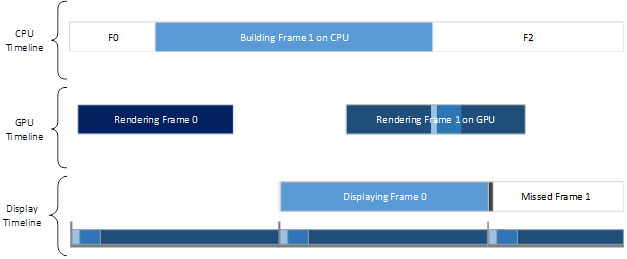
If the title is spending too much time building commands on the CPU (as illustrated in Figure 3), the result of the PercentCPUUsed calculation will be greater than 100% and the value of CPUTimeLeftInMs will go negative. In this case, lowering the GPU resolution is not going to help and the title needs to take action to lower the amount of CPU work it is doing. Using Direct3D 11.x Fast Semantics helps significantly with building command buffers on the CPU, and Direct3D 12.x will be faster still.
Note that the PercentCPUUsed calculation assumes automatic Direct3D throttling at present. It will need to be modified if the title throttles elsewhere, either manually (such as by waiting on a fence) or implicitly (such as by waiting on a query). Also, PercentCPUUsed will not detect whether the title is CPU-bound on a core other than the one where the immediate context resides.
Figure 3. Title is not submitting frames quickly enough from the CPU
If the title is spending too much time on the GPU (as depicted in Figure 4), a missed frame can occur as signaled by the FrameDropped flag in DERIVED_FRAME_STATISTICS. The result of the PercentGPUUsedTotal calculation will exceed 100%, and the value of GPUTimeLeftInMs will go negative.
Figure 4. Title is bound by GPU workload
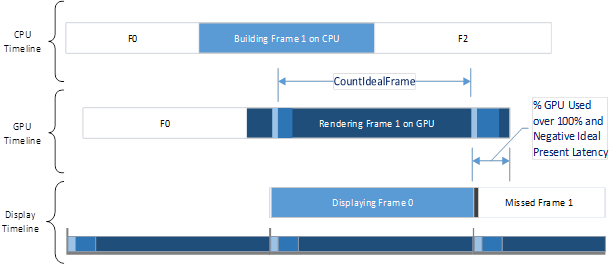
As the title’s GPU workload increases, PercentGPUTotal will go up and GPUTimeLeftinMs will go down as GPUTimeFrameComplete gets closer and closer to TimeVSync.
Calculating GPUTimeLeftinMs is perhaps most useful for maintaining a consistent frame rate while dynamically scaling the resolution. If the result of this calculation is greater than zero plus some margin of safety, the title can render more or increase frame resolution. If it is close to or less than zero, the title can render less or decrease frame resolution. Note that margins are used in practice in order to handle spikes in the workload and to prevent visual scaling artifacts. For more information, refer to the When and how to scale, best practices, and hints from the field section in this document.
Scaling the image
Given a downscaled back buffer, we are left with how to scale it up to the native 1080p resolution we plan to present.
We recommend rendering the title’s UI on a separate full-resolution plane that is blended with the upscaled main scene rendering. The UI rendering often contains text and other elements that don’t scale naturally, and UI rendering is rarely expensive in terms of GPU clocks. Use of a fully separate UI plane does, however, incur the cost of clearing the UI plane for rendering—or at least clearing the sections of the UI plane that change from frame to frame.
Another way to scale the main scene image is to simply use a shader that implements a high-quality but fast upscale. This method has the advantage of working across platforms, and it allows for the recommended rendering of UI elements at full resolution after the upscale and after any main scene post-processing or anti-aliasing is done.
On Xbox One, a potentially faster and more efficient way to scale the main scene image is to take advantage of the custom hardware on the platform.
Taking advantage of Xbox One upscale hardware
Xbox One has specific fixed-function hardware that dynamically scales and blends up to two planes submitted from the title. The hardware was intentionally designed for this scenario. The hardware supports fully programmable ten-tap horizontal and six-tap vertical hardware upscaling and the blend of the two presented planes in fixed-function hardware. Two swap planes are presented with the DXGIXPresentArray function. Many filter options are available, including high-quality sync and Lanczos filter variants.
Note that several changes were made to the February 2015 Xbox One XDK to improve the quality of the hardware scaler. Specifically, an off-by-one pixel error was corrected and proper fractional pixel-offset filter adjustments are now made when resizing the image.
Pre-multiplied alpha with multiple present planes
In single-plane rendering, the alpha-blended elements of the UI are rendered from back to front with standard alpha blending, as shown in Figure 5.

Figure 5. Composition of main scene and UI elements in traditional single back-buffer rendering
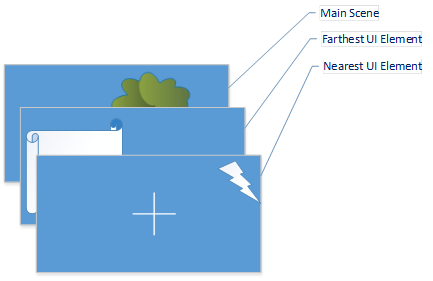
However, because a title’s UI components are put on a separate plane on Xbox One, the alpha blending must be done in a slightly different way that still gives the same results. The main scene plane is rendered first, and the UI plane is rendered separately. The two planes are then composited.
Figure 6. Separate UI and scene plane composition
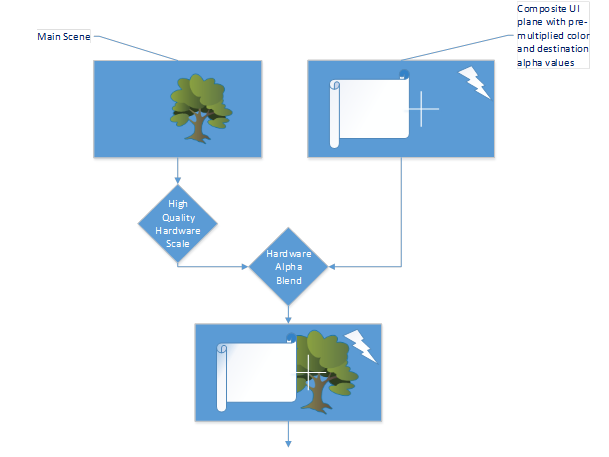
A little math will show how to separate the main scene plane rendering from the UI plane rendering and how to composite the two using the Xbox One fixed-function output plane scaling and blending hardware. The mathematical concepts behind this plane rendering are shown in the Derivation section in this document.
Note DXGIXPresentArray uses hardware plane one to denote the background and hardware plane zero to denote the foreground.
The derivation in the following section will be of particular interest to developers who are doing non-traditional alpha blending on the UI plane and want a deeper understanding of the math in order to correctly fit their own solutions.
Derivation
First, consider two iterations of the standard alpha-blending equation and refactor it into a form suitable for the new UI plane and main scene plane:
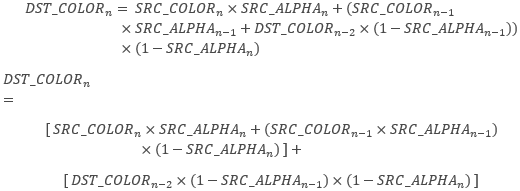
The first bracketed term is independent of the destination color. For the purposes of this discussion, this term is defined to be the UI_COLOR using the following matching recursive relationship:

The second bracketed term can be expanded again and again, without requiring any source colors, by using the following product relationship:

Also, the main rendered scene (DST_COLOR0) is considered to be already finished, and DST_COLOR0 is considered to be the final image:
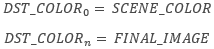
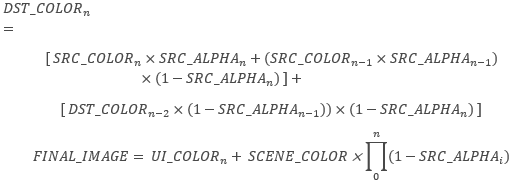
Substituting UI_COLORn, SCENE_COLOR, FINAL_IMAGE, and BLENDED_SCENE_COLORn back into the original alpha-blending equation results in the following solution for the FINAL_IMAGE:
The Xbox One blend hardware uses the following calculation and assumes pre-multiplied alpha:

For this example, the main scene plane is set to plane one and the UI plane is set to plane zero. Also, the UI plane’s alpha channel is set to plane zero’s alpha channel (called UI_ALPHAn below).
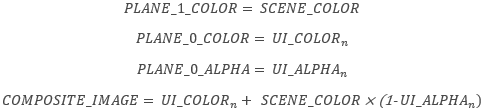
Next, FINAL_IMAGE is set to be equal to COMPOSITE_IMAGE. Solving for UI_ALPHAn yields the following result:
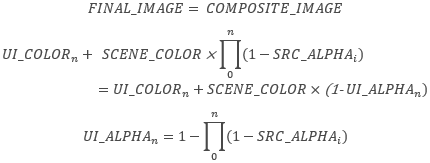
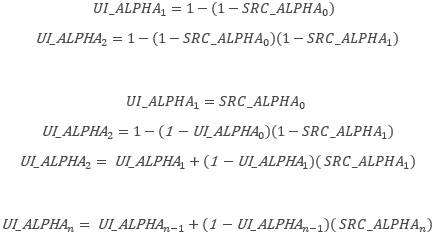
With a few iterations, the recursive relationship is derived. It shows how to properly accumulate the UI plane’s alpha values so that the UI plane is properly blended with the main scene plane:
Procedure
Gathering a few results together produces the final solution and procedure:
- Render the main scene to hardware plane one in the usual fashion.

-
Clear hardware plane zero to black. Note that you need to clear only the portions of the plane that contain UI elements in every frame. Next, render the UI elements in the usual fashion.
 Accumulate the UI alpha values into hardware plane one’s alpha channel.
 The following code demonstrates how to render the UI plane.
 C++
D3D11_RENDER_TARGET_BLEND_DESC RTUIDesc = {0}; RTUIDesc.BlendEnable = TRUE; // DST_COLOR = SRC_COLOR*SRC_ALPHA + DST_COLOR*(1-SRC_ALPHA) RTUIDesc.BlendOp = D3D11_BLEND_OP_ADD; RTUIDesc.SrcBlend = D3D11_BLEND_SRC_ALPHA; RTUIDesc.DestBlend = D3D11_BLEND_INV_SRC_ALPHA; // DST_ALPHA = DST_ALPHA + (1- DST_ALPHA)(SRC_ALPHA) RTUIDesc.BlendOpAlpha = D3D11_BLEND_OP_ADD; RTUIDesc.SrcBlendAlpha = D3D11_BLEND_INV_DEST_ALPHA; RTUIDesc.DestBlendAlpha = D3D11_BLEND_ONE; RTUIDesc.RenderTargetWriteMask = D3D11_COLOR_WRITE_ENABLE_ALL; - Present both planes using the PresentImmediateThreshold parameter of the DXGIPresentArray function. The hardware will handle the final blend when it is configured for pre-multiplied alpha using the DXGI_ALPHA_MODE.DXGI_ALPHA_MODE_PREMULTIPLIED flag.

A note on immediate and maximum-threshold rendering when using the scaler
The hardware cannot change scaler parameters unless the display is inside a vertical blank region. This is because the line buffers and hardware setup must be consistent within a frame. As a result, immediate-mode rendering will default to present interval one and the value of the PresentImmediateThreshold parameter of the DXGIPresentArray function will default to zero whenever the scaler parameters (such as filter type or input buffer size) are changed. Put another way, a title’s rendering cannot tear on the same frame on which a new input size or filter type is selected.
When and how to scale, best practices, and hints from the field
The following notes and best practices were derived from implementing dynamic resolution in sample code and shipping titles.
Preferred horizontal scaling
We recommend scaling only in the horizontal direction, for several reasons. First, the Xbox One hardware scaler supports more taps in the horizontal direction than in the vertical direction, resulting in higher-quality horizontal scaling. Second, the natural camera motion in most titles varies mostly in the horizontal direction as players scan the horizon, so horizontal changes in this direction are less noticeable.
When not to scale
In order to minimize visible artifacts, we recommend tying updates to the input scene size to times of scene motion. This includes times when the camera is moving or times of heavy scene activity.
We also recommend that titles don’t continuously scale their resolution at all times. After a target resolution is chosen and adjusted to, a small amount of performance should be left over so the title can maintain the target resolution for a specified amount of time to avoid jittery visuals or otherwise excessive changes in resolution.
Preemptive tuning of the scaling parameters
Any game-engine logic that is used to predict scene complexity can be fed into the “how much to scale” function early. For example, if it is known that the rendering solution is about to be taxed by the introduction of a large explosion or a large number of characters, then the resolution can be proactively dropped early.
A title can also factor in the ResourceAvailabilityChanged event notification into its scaling decision.
Different UI and main scene refresh rates
A 60 Hz title can render the UI plane at 30 Hz in order to save some GPU time. This is achieved by setting the UsePreviousBuffer field to true in the UI plane’s DXGIX_PRESENTARRAY_PARAMETERS structure and then only filling in the UI back buffer every other frame.
A 30 Hz title can render the UI plane at 60 Hz also if smooth UI updates are required. This is achieved by setting the UsePreviousBuffer field to true in the main scene plane’s DXGIX_PRESENTARRAY_PARAMETERS structure.
Missed-frame safety margins
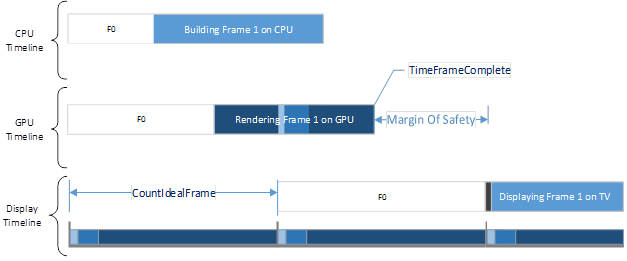
A delicate balance needs to be maintained between the amount of GPU left in reserve to handle unexpected spikes in GPU utilization and the amount available for overall average utilization. If too much GPU is left in reserve for spikes, then average scene complexity suffers. If too little is kept in reserve, more dropped frames will result. This delicate balance is highly game-specific and might even differ for different scenes and levels within a title.
Note that for dropped frames, it might be more desirable to allow the next frame to tear (using the PresentImmediateThreshold parameter of the DXGIPresentArray function) rather than stall. Also, it might be worthwhile to drop the resolution several steps as soon as possible in the case of a dropped frame.
Figure 7. GPU workload margin of safety
Using DXGIXSetFrameNotification with DXGIX_FRAME_STATISTICS
The sooner you can diagnose your actual frame rate, the sooner you can take action and avoid dropped frames. It is possible to query for frame statistics using the DXGIXGetFrameStatistics function before the frame is completely scanned out.
Titles can also poll for results using DXGIGetFrameStatistics. Timeline data is valid when the criteria listed in the following table are met.
| Timeline | Results are valid… |
|---|---|
| CPU | Immediately after present is called. |
| GPU | When the value of either CPUTimeFrameComplete or GPUTimeFrameComplete becomes non-zero. |
| Display | When the value of either CPUTimeVsync or GPUTimeVsync becomes non-zero. |
Titles can use the DXGIXSetFrameNotification function to receive notifications for events listed in the following table.
| NotificationType value | Description |
|---|---|
| FRAME_NOTIFICATION_QUEUED | The queued notification is signaled when a frame is queued after present and after any CPU stalls are introduced (if any). The CPU timeline portion of the frame’s DXGIX_FRAME_STATISTICS structure is guaranteed to be valid after this queued event is signaled. |
| FRAME_NOTIFICATION_COMPLETED | The completed notification is signaled when the GPU is finished rendering a frame. The GPU timeline portion of the frame’s DXGIX_FRAME_STATISTICS structure is guaranteed to be valid after the completed event is signaled. |
| FRAME_NOTIFICATION_FLIPPED | The flipped notification is signaled when a frame is flipped to be displayed out. The display timeline portion of the frame’s DXGIX_FRAME_STATISTICS structure is guaranteed to be valid after the flipped event is signaled. |
In short, the entire frame does not need to be scanned out before useful data about it is available. Calling the DXGIXGetFrameStatistics function early helps to minimize the margin of safety and maximize the number of pixels rendered for the average frame.
Summary
This document has presented you with key details about how frames are rendered on Xbox One and also about how the Xbox One scaling hardware and APIs work. You’ve also seen how to query for specifics regarding your title’s GPU utilization and latencies to determine when to scale rendering resolution dynamically. Several Xbox One titles have already shipped using early forms of dynamic resolution, so the principles and techniques set out in this paper are well proven.