Kinect Studio Interface
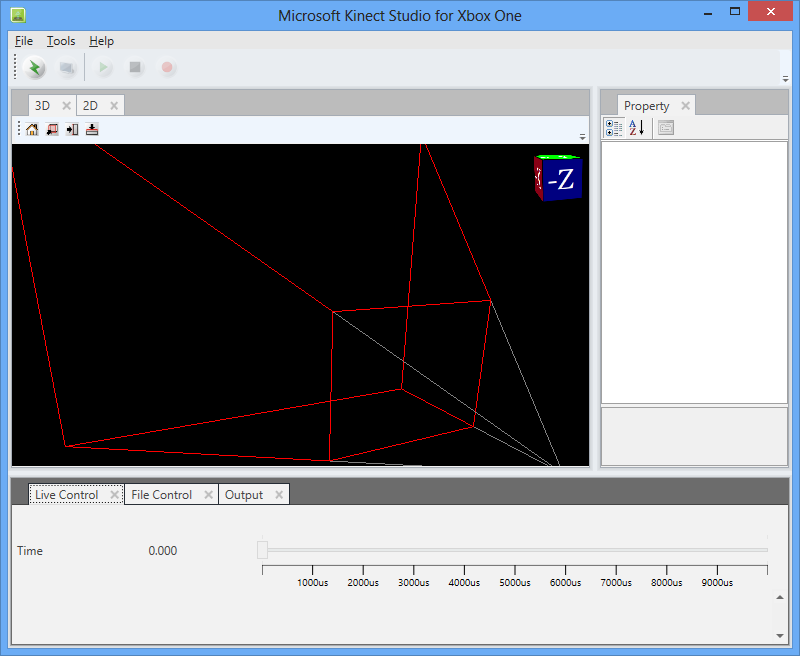
The Kinect Studio interface is used to preview sensor data, record and play Xbox Event File (XEF) files, control the timeline position, select 2D or 3D view, and other Kinect Studio operations.
The following sections describe features of the Kinect Studio interface.
Figure 1. Kinect Studio Main Window
Application Menus
Kinect Studio provides the following menus.
File
The File menu provides the following commands.
Open…
Opens an Xbox Event File (XEF). For more information about opening an XEF file, see Loading Data.
Open from Repository
Opens an Xbox Event File (XEF) from the repository on the console.
Import to Repository
Imports the opened Xbox Event File (XEF) from the development computer into the repository on the console. If no file is opened from the development computer, this item will be disabled.
Export from Repository
Exports the opened Xbox Event File (XEF) from the repository on the console to the development computer. If no file is opened from the repository on the console, this item will be disabled.
Close
Closes the current Xbox Event File (XEF).
Exit
Closes Kinect Studio.
Tools
The Tools menu provides the following command.
Reset Layout
Resets the main window layout to its default state. This includes the rotation in the 3D window, and the position of windows that were dragged to new anchor locations.
Select Development Kit…
Sets which dev kit to use. Opens the Select Development Kit dialog box.
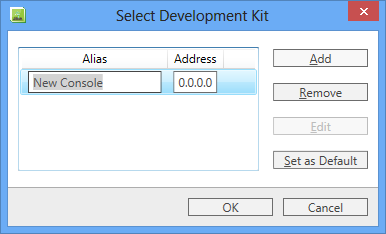
To add a console, click the Add button.
Help
The Help menu provides the following command.
About…
Shows version and copyright information for Kinect Studio.
Toolbar
The Kinect Studio toolbar contains the following buttons.
| Button | Function | Description |
|---|---|---|
 |
Connect/Disconnect | Toggles the connection to the development console. For more information about connecting to the development console, see Connecting to the Development Kit. |
 |
Turn Monitor On/Off | Turns the Kinect Studio monitor preview on and off, for both 3D and 2D views. For more information about preview mode and playback mode, see Viewing Live Data Streams and Playing Data. |
 |
Play/Pause | Starts or pauses playback of recorded event data. For more information about playing back data, see Playing Data. |
 |
Stop | Stops recording or playback. When playback is stopped, the timeline cursor resets to the beginning of the playback range. |
 |
Record | Starts recording data from the sensor array. For more information about recording data, see Recording Data. |
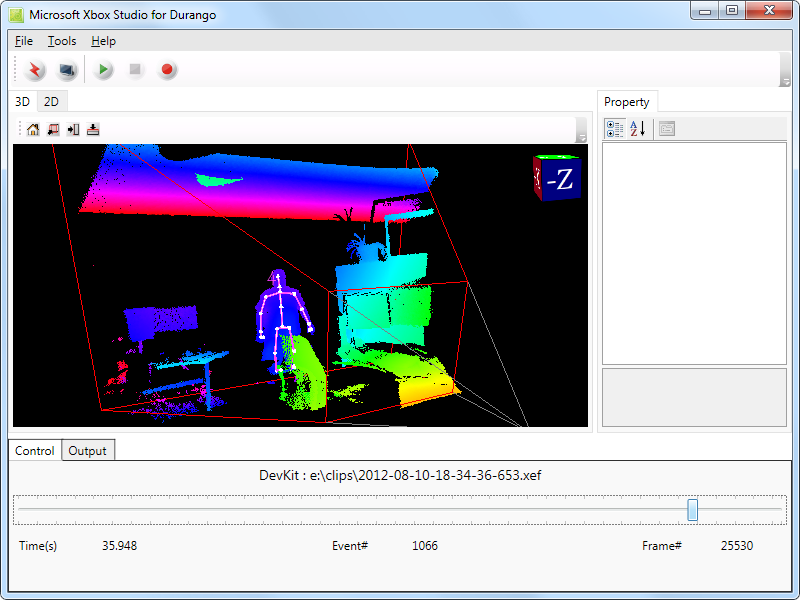
Figure 2. Kinect Studio Connected and Displaying an XEF File
Live Control and File Control Timelines
The Live Control tab and its timeline shows information for live (real-time) preview using data coming in from the sensor.
The File Control tab and its timeline shows information for the previously recorded XEF file that is currently opened in Kinect Studio.
Each timeline shows the timing, frame, and event information in the data streams received from the sensor array. The File Control timeline shows and controls the current position of playback of the file.
The cursor in the timeline tracks the current playback position.
When playback is paused or stopped, you can use the timeline cursor to change the current position.
- Click and drag the timeline cursor to select the current position.
- Click to the left of the cursor to step back one frame.
- Click and hold to the left of the cursor to repeatedly step back single frames.
The File Timeline shows the entire file range.
3D View
The 3D view displays a 3-dimensional view of either the depth or IR sensor data. Select 3D view by clicking the 3D tab.
In depth display mode, depth data is shown as a 3D viewspace. In IR display mode, active IR data is shown, projected into 3D space.
The 3D view can also display the body frame data, the Kinect and Xbox One view frustums, and the orientation cube.
You can rotate the 3D view by dragging in the 3D window. The 3D orientation indicator cube in the upper right of the window shows the current orientation. To reset the view rotation, click Reset Layout from the Tools menu.
Right-click in the 3D window to toggle body frame display, select IR mode, select accessory overlay displays, or change the depth display mode. The Accessory right-click menu contains the menu items:
- Durango View Frustum - Displays or hides the gray & red lines indicating the Durango frustum.
- Kinect View Frustum - Displays or hides the gray & teal (blue-green) lines indicating the Kinect frustum.
- Orientation Cube - Displays or hides the +/- X, Y, Z cube in the upper right.
- Floor Plane - Displays or hides the floor plane indicator.
3D Depth Display Modes
The 3D view can display depth data in four modes: Color Point Cloud, Grey Point Cloud, Surface with Normal, and Texturable Surface.
- In Color Point Cloud mode, object depth is indicated by color. Objects closest to the sensor are orange. As objects increase in distance from the sensor, they are displayed in a spectrum from orange to violet, and then as red at maximum distance.
- In Grey Point Cloud mode, object depth is indicated in greyscale. Objects closest to the sensor are white, and objects farthest away are black.
- In Surface with Normal mode, objects are colored in greyscale based on their surface normal relative to the viewer, regardless of depth.
- In Texturable Surface mode, surfaces are displayed as pure white (which would permit texturing if the stream data was being read by a title).
2D View
The 2D view displays a 2-dimensional view of either the depth or IR sensor data. Select 2D view by clicking the 2D tab.
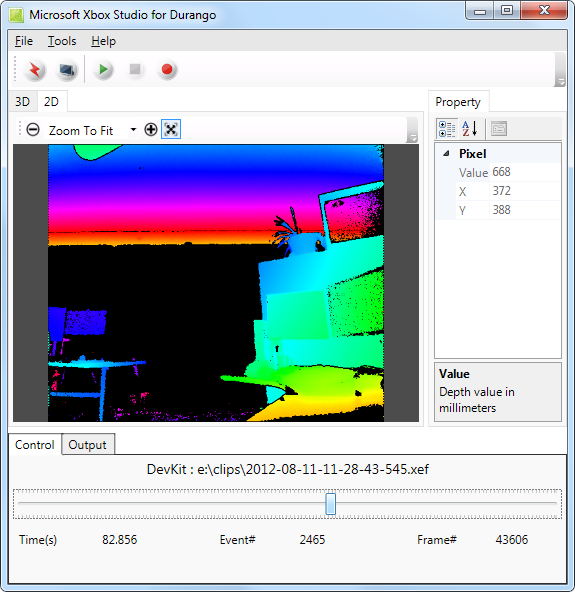
Figure 3. 2D View, Depth Color Ramp
2D Depth Display Modes
The 2D view can display depth data in two modes: Color Ramp and Grey Ramp.
- In Color Ramp mode, object depth is indicated by color. Objects closest to the sensor are orange. As objects increase in distance from the sensor, they are displayed in a spectrum from orange to violet, back to red, and then orange at maximum distance.
- In Grey Ramp mode, object depth is indicated in greyscale. Objects closest to the sensor are white, and objects farthest away are black.
Property Tab
In 2D view, the property tab shows the X and Y position of the mouse cursor within the 2D window, and displays the data value of the pixel that is under the cursor. Active IR data values range from 0 to 65535. In depth mode, the data value displayed is the depth (and not the color under the cursor).
To change the amplification and gamma values used to the display the data graphically in the 2D window, alter the Amplification and Gamma properties. You may find it easier to turn the preview monitor off (using the Turn Monitor Off toolbar button) before altering the property values.
The property tab is located, by default, to the right of the 2D view window.
XEF Repository
The Xbox Event File (XEF) repository resides on the Xbox console. Recorded sessions are saved into the repository, and can be opened for viewing or exported to the development computer. Local XEF files can also be imported into the repository from the development computer.
To open an XEF file, in Kinect Studio, click the File menu, then click Open from Repository. The Repository Browser window appears, listing the XEF files that are on the console.
Figure 4. Repository Browser Window
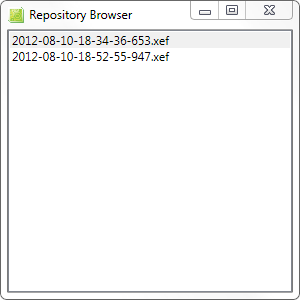
Select an XEF file.
The timeline displays the full path and file name of the currently open XEF file, and indicates whether it is local to the development computer or located on the console (dev kit).
Files in the repository are lost whenever the console’s hard drive is erased (such as when performing a full recovery).