PIX Customizing Timing Captures
This section covers graphing custom data, or performance monitoring counters, in timing captures.
Custom values
Timing captures include the ability to add an extra swim lane to the timeline on which you can graph any data that is of interest to your title. Examples of the types of data you may want to graph are the values of CPU, L2 Interface, or Northbridge Performance Monitoring Counters (PMCs), or any data created by your own custom profiling or logging systems. The ability to graph arbitrary data in this way enables you to correlate the data with other events occurring in your title. For example, you can use this capability to graph Northbridge PMCs such that you can see memory bandwidth utilization over time correlated with other events happening on the GPU or CPUs.
The data you wish to graph in Timing Captures can come from one of two sources:
- A preconfigured set of PMCs that get recorded with every dynamic PIX bracket you add using Function Summary or Callgraph captures (see PIX Function Summary Captures).
- Any custom data you pass to the PIXSetMarker API.
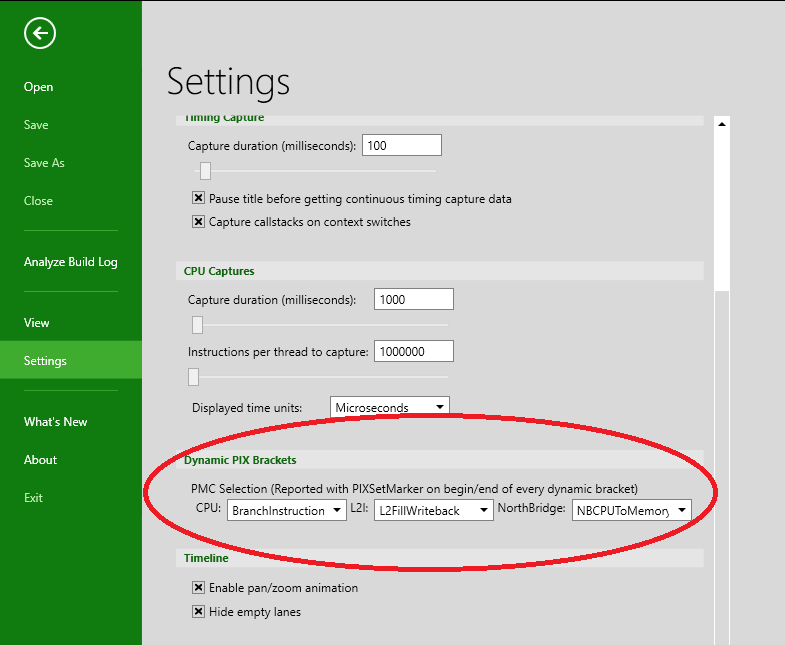
The Dynamic PIX Brackets section of the Settings page in PIX can be used to specify which PMCs you’d like to graph. You can choose one CPU, one L2 Interface and one Northbridge PMC to graph.
Figure 1. Setting the Dynamic PIX Brackets
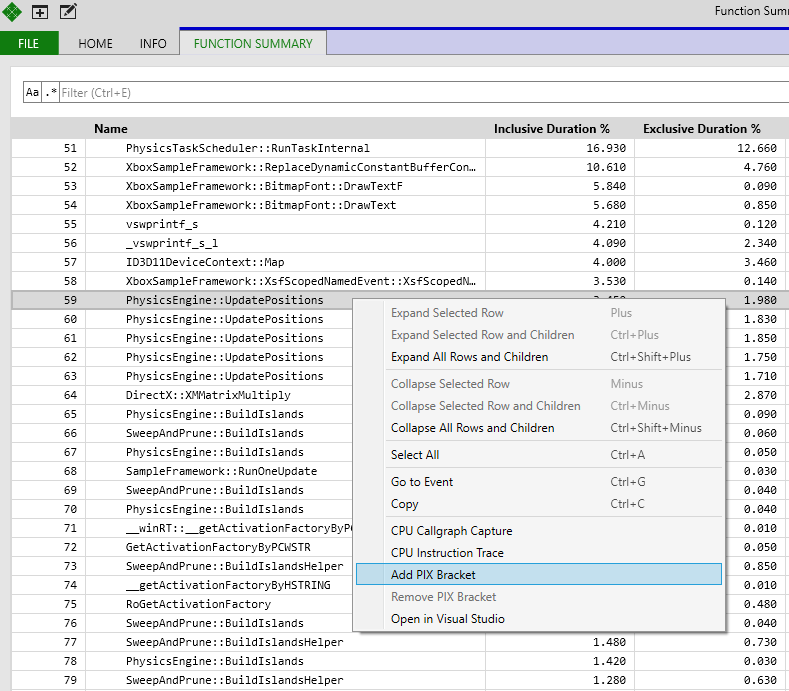
After you’ve selected which PMCs to record, take a Function Summary or a Callgraph capture and add dynamic PIX brackets to the functions you’d like displayed in the Timing Capture. To add a dynamic PIX bracket, find the function you’re interested in, right click and choose Add PIX Bracket.
Figure 2. A dynamic PIX bracket is added to the UpdatePositions function.
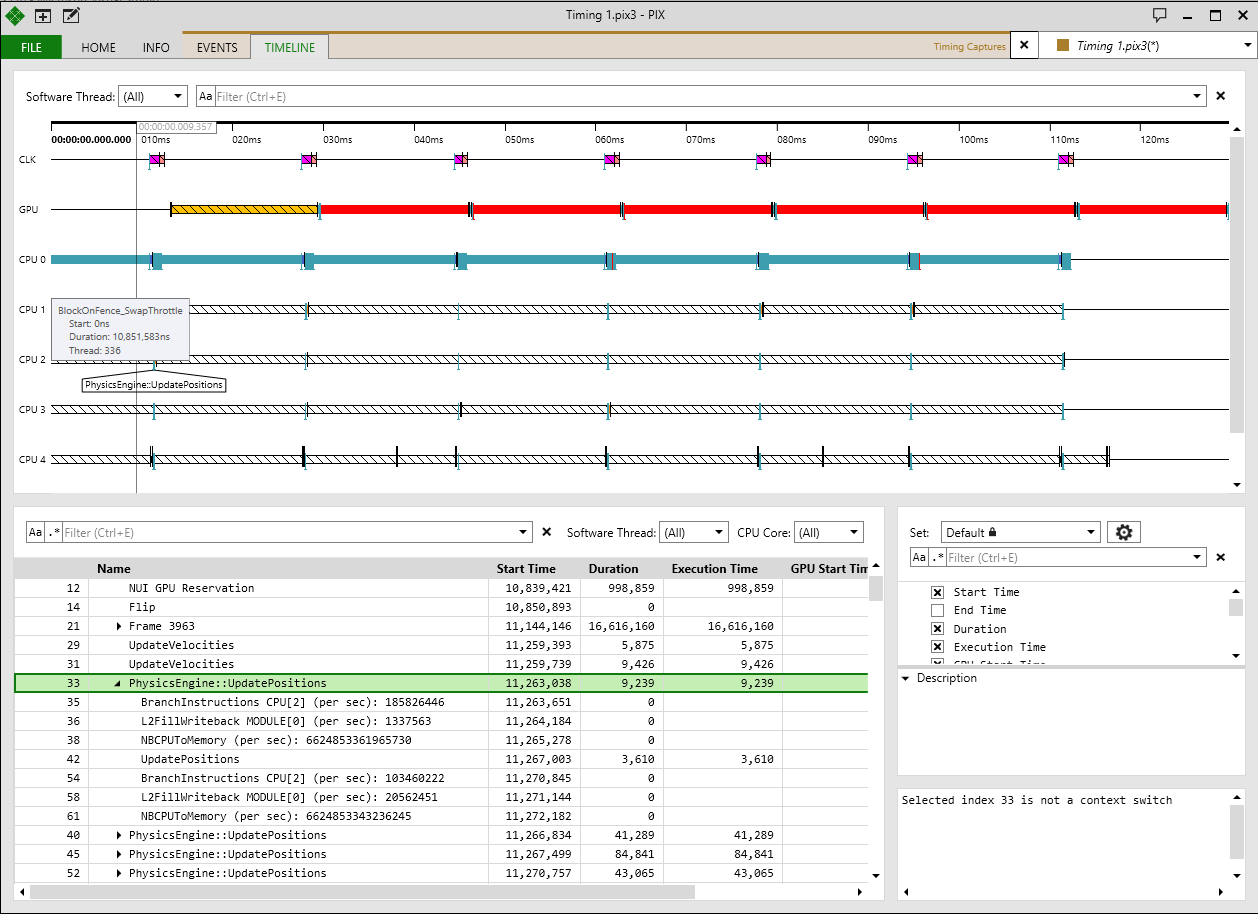
The data for the PMCs you selected will now be added to the events list along with the functions for which you’ve added dynamic PIX brackets.
Figure 3. The values of the BranchInstructions, L2FillWriteback, and NBCPUToMemory PMCs along with the dynamic PIX bracket for the UpdatePositions function.
Before you can graph the PMC values on the timeline, you must extract the data from the entry in the Name column. Extracting the data into a separate column has the additional advantage of making it easy to copy the data and paste it into any other program for analysis, such as Excel.
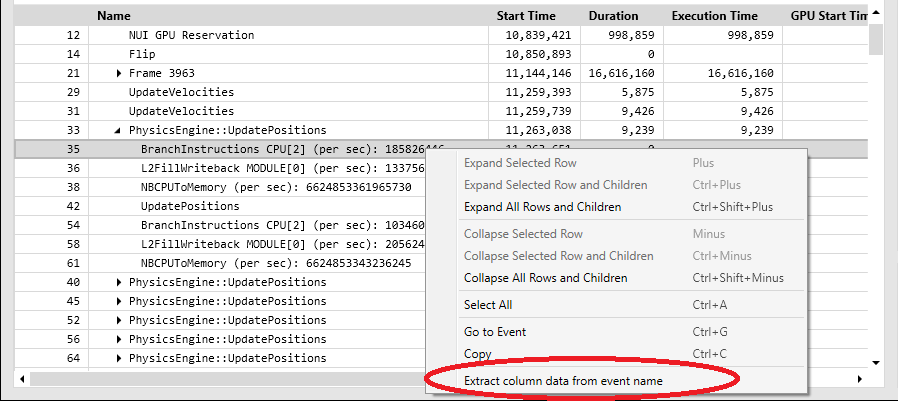
To create a new column containing the PMC values, right click on the event containing the value.
Figure 4. Choose Extract column data from event name
The following dialog is displayed:
Figure 5. The Extract Column Data dialog.
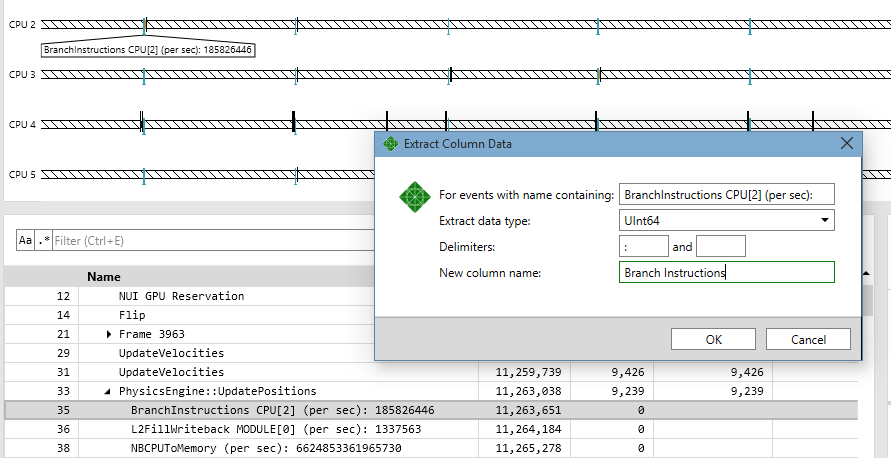
The Extract Column Data dialog provides options for you to specify which events contain the data to be extracted, what the delimiters that separate the data from the event name are and so on. The example above instructs PIX to extract data from an event that contains the string “BranchInstructions CPU[2]):”. The data starts after the “:” and is extracted to a new column named Branch Instructions.
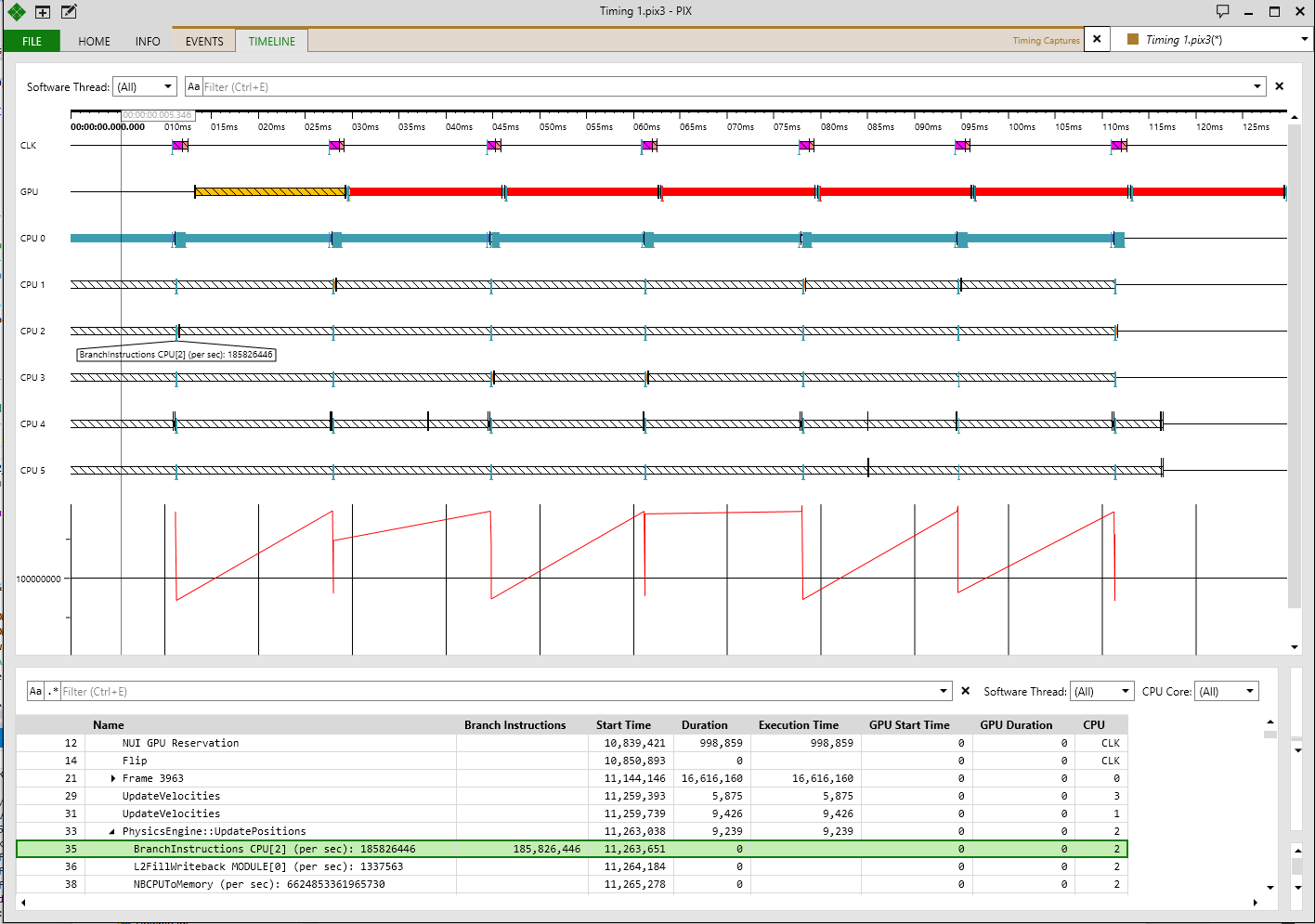
Figure 6. After closing the dialog, you’ll now see the new column containing your data along with the data graphed on the timeline.
The data to display on the timeline can also come from your own calls to PIXSetMarker. The following call records the value of a title’s internal value called numObjsMoved.
C++
PIXSetMarker(EVT_COLOR_POSITIONS, L"numObjsMoved:{ %d }", numObjsMoved);
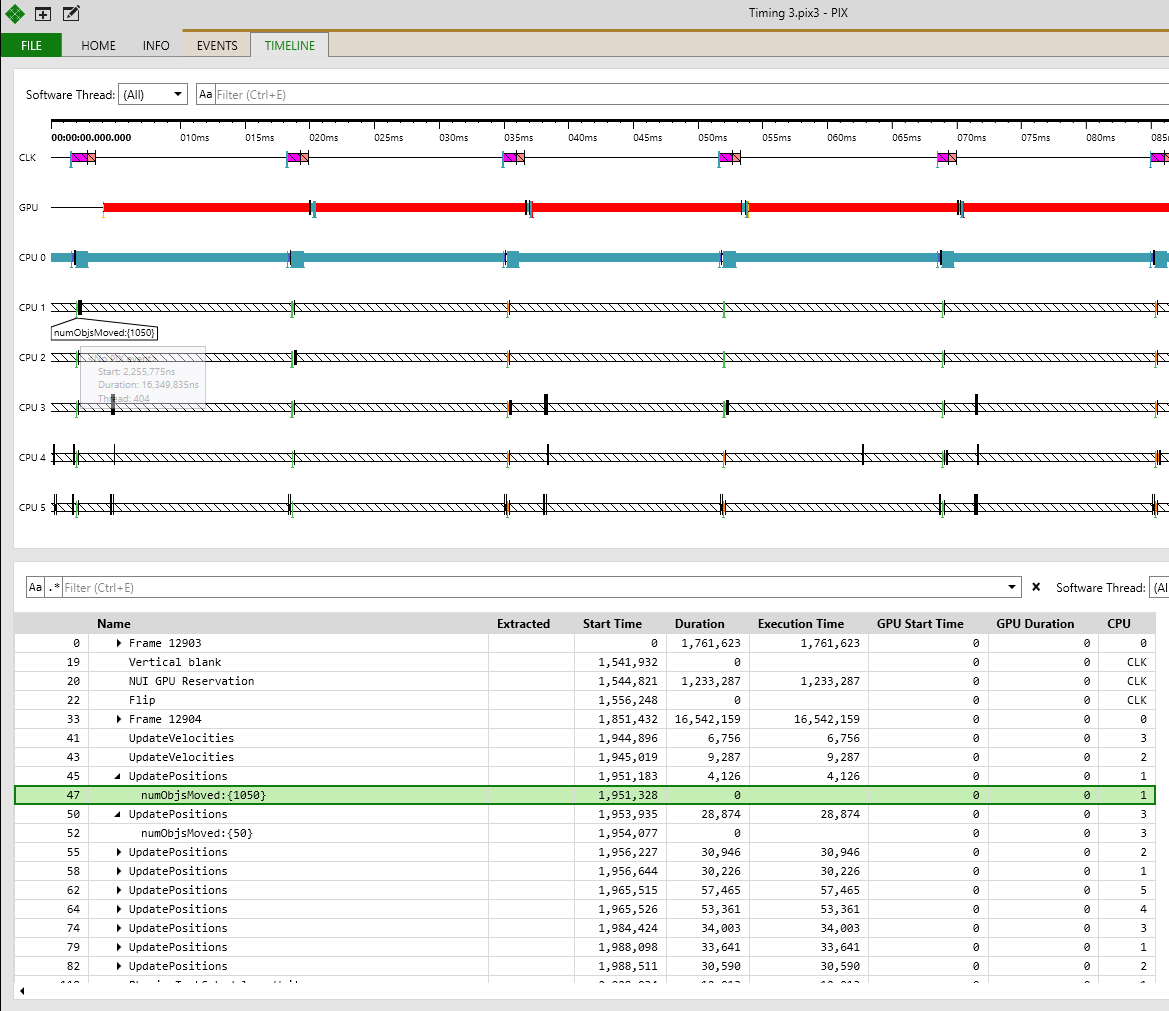
Timing captures will now include these values in the events list as shown in the following figure.
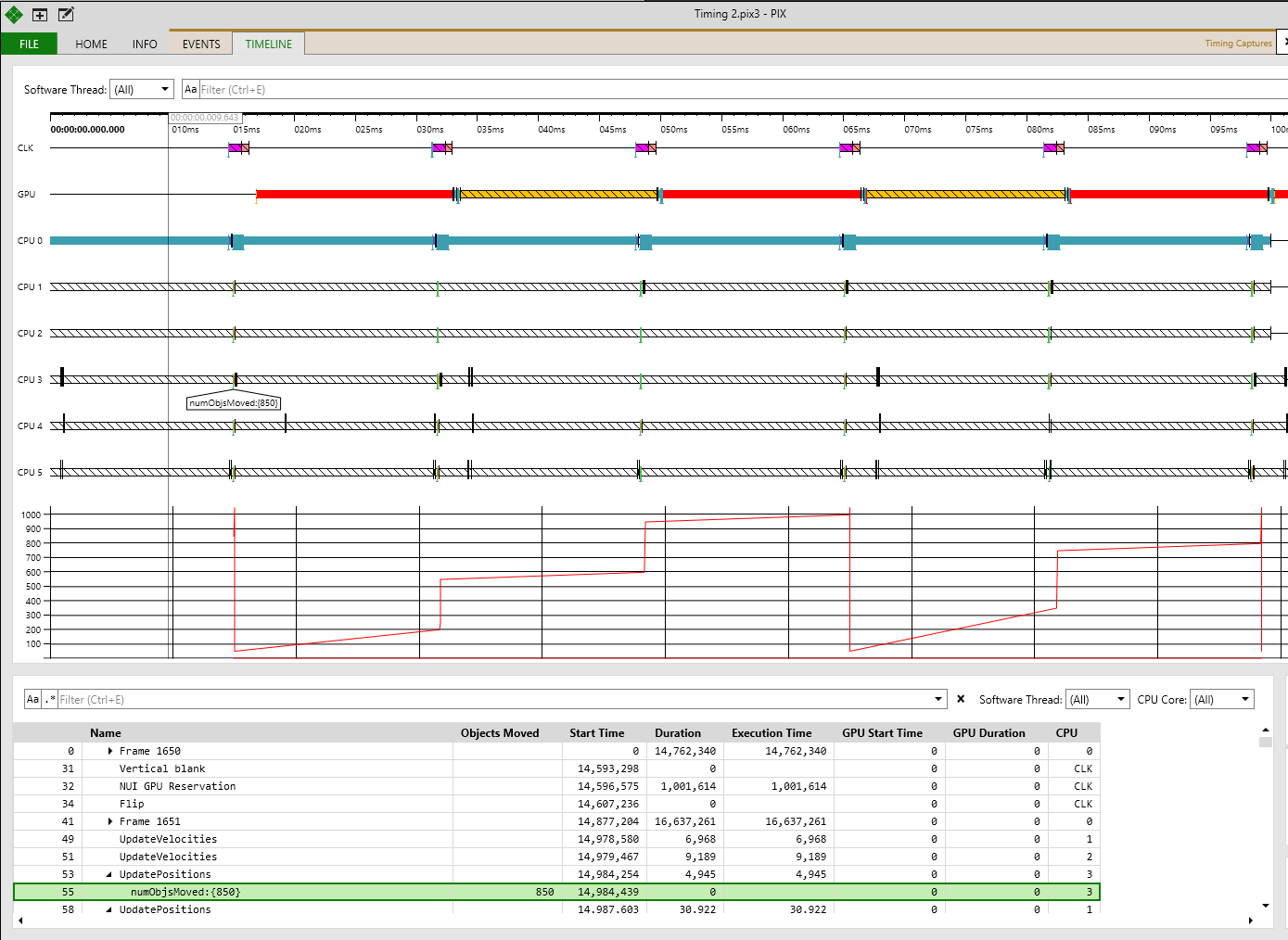
Figure 7. Note the numObjsMoved marker for CPU 1.
To graph the values of numObjsMoved, extract the data into a new column by right clicking on the row in the events list and bringing up the Extract Column Data dialog. In the following figure, a new column called Objects Moved is created based on the data for events named numObjsMoved.
Figure 8. The data is delimted by a starting and ending brace.
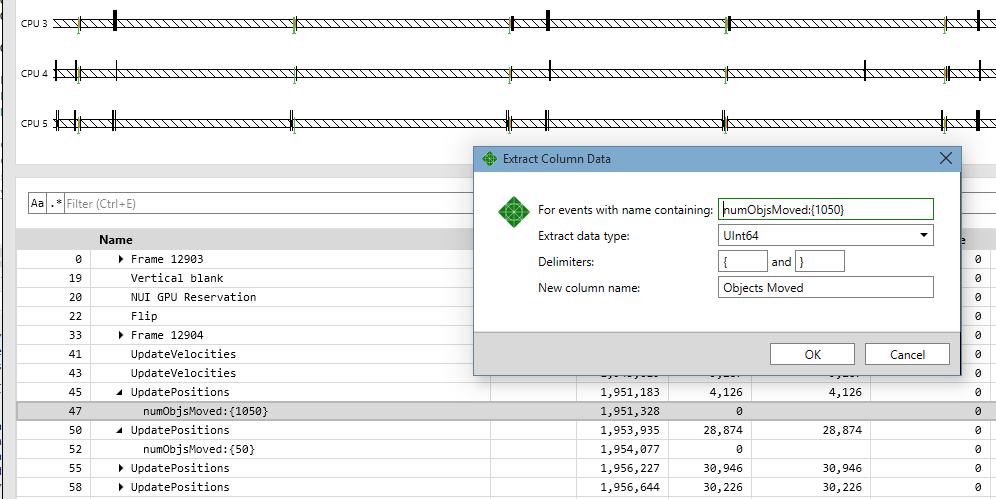
Figure 9. The data for numObjsMoved is now displayed in its own column and graphed on the timeline.