PIX Mesh Viewer
You can use the Mesh Viewer in PIX to compare PIX’s rendering to expected output and quickly locate discrepancies. For example, you can spot vertices that are dramatically out of bounds. Variances in density or shape of the overall mesh can be clues to content problems or problems with the rendering setup for the associated draw call.
Features of the PIX Mesh Viewer
The Mesh Viewer in PIX supports meshes with the following features.
- Position semantic can come from any vertex buffer bound to the device.
- Supported position semantics: POSITION, POSITION0, SV_POSITION, SV_POSITION0.
- Supported position formats: FLOAT1, FLOAT2, FLOAT3, FLOAT4, HALF1, HALF2, and HALF4.
- Supported primitive types: triangle list/strip, line list/strip, point list, RECT_LIST.
- Supported draw calls: Draw, DrawIndexed, DrawInstanced, DrawIndexedInstanced.
- Hidden-Line rendering is the default rendering mode.
There are some restrictions for the meshes that can be viewed.
- No user defined position offset and stream index.
- No INT/UINT position.
- No primitive types with adjacency.
- No primitive types for tessellation.
- No DrawAuto, DrawIndirect.
Opening and viewing the Mesh Viewer
Open and view the Mesh Viewer in PIX as follows.
- Start PIX and connect to a console, as described in PIX Setup and Getting Started.
- In the PIX (Auxiliary Window), click the RESOURCES tab.
- In the right half of the window, click the Meshes tab/button. If the PIX analysis is not running, the Mesh Viewer shows an empty area.
- Start the analysis if it is not already running. Then select a draw event to visualize the mesh. There is no selection of a mesh, as there is one and only one mesh per draw call.
Figure 1. Selected draw call and resulting mesh.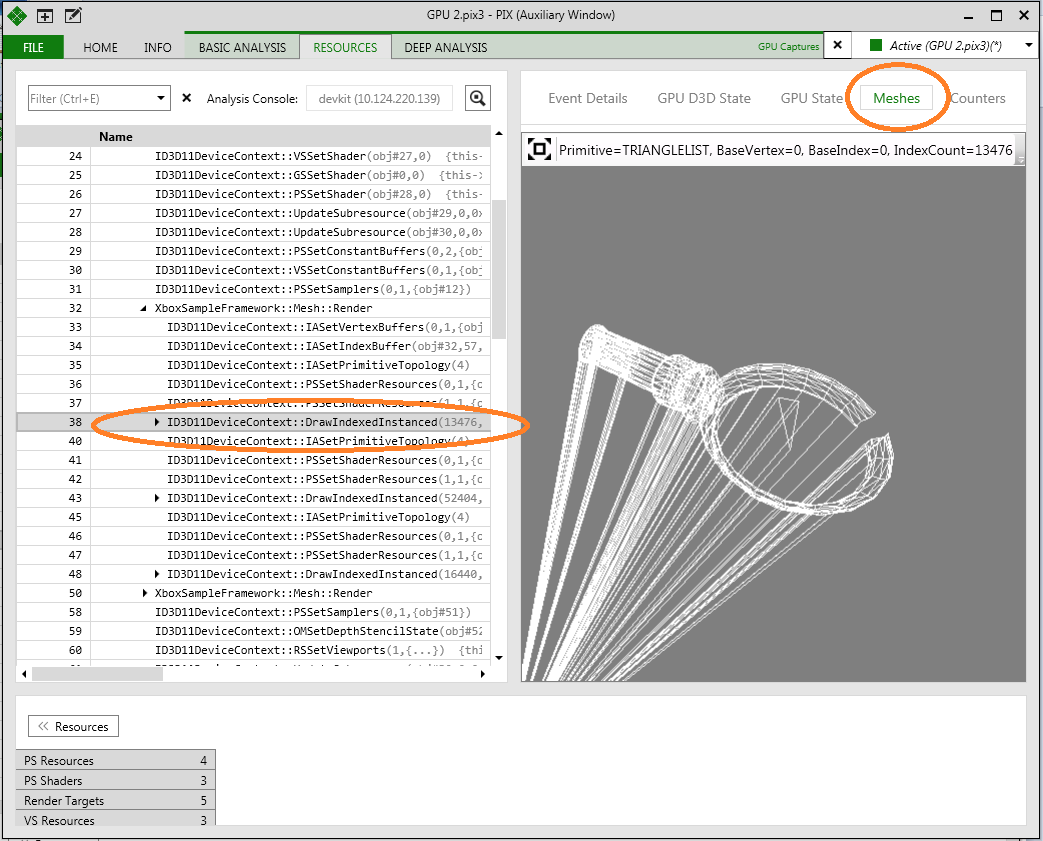 1. Use the mouse to manipulate the view of the mesh.
- Press and hold the left mouse button to rotate the mesh.
- Press and hold the right mouse button to pan the mesh.
- Use the mouse wheel to zoom.
- If necessary, select the reset icon to reset the mesh viewport.
Figure 2. Resetting the viewport.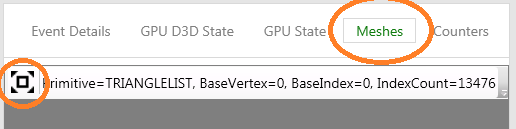
Supported Formats
The Mesh Viewer supports the following formats.
| Format |
|---|
| DXGI_FORMAT_R32G32B32A32_FLOAT |
| DXGI_FORMAT_R32G32B32A32_UINT |
| DXGI_FORMAT_R32G32B32A32_SINT |
| DXGI_FORMAT_R32G32B32_FLOAT |
| DXGI_FORMAT_R32G32B32_UINT |
| DXGI_FORMAT_R32G32B32_SINT |
| DXGI_FORMAT_R16G16B16A16_FLOAT |
| DXGI_FORMAT_R16G16B16A16_UNORM |
| DXGI_FORMAT_R16G16B16A16_UINT |
| DXGI_FORMAT_R16G16B16A16_SNORM |
| DXGI_FORMAT_R16G16B16A16_SINT |
| DXGI_FORMAT_R32G32_FLOAT |
| DXGI_FORMAT_R32G32_UINT |
| DXGI_FORMAT_R32G32_SINT |
| DXGI_FORMAT_R16G16_FLOAT |
| DXGI_FORMAT_R16G16_UNORM |
| DXGI_FORMAT_R16G16_UINT |
| DXGI_FORMAT_R16G16_SNORM |
| DXGI_FORMAT_R16G16_SINT |
| DXGI_FORMAT_R32_FLOAT |
| DXGI_FORMAT_R32_UINT |
| DXGI_FORMAT_R32_SINT |
| DXGI_FORMAT_R8G8B8A8_UNORM |
| DXGI_FORMAT_R8G8B8A8_UINT |
| DXGI_FORMAT_R8G8B8A8_SNORM |
| DXGI_FORMAT_R8G8B8A8_SINT |
| DXGI_FORMAT_R10G10B10A2_UINT |
| DXGI_FORMAT_R10G10B10A2_UNORM |
| DXGI_FORMAT_R16_FLOAT |
| DXGI_FORMAT_R16_UNORM |
| DXGI_FORMAT_R16_UINT |
| DXGI_FORMAT_R16_SNORM |
| DXGI_FORMAT_R16_SINT |
| DXGI_FORMAT_R8G8_UNORM |
| DXGI_FORMAT_R8G8_UINT |
| DXGI_FORMAT_R8G8_SNORM |
| DXGI_FORMAT_R8G8_SINT |
| DXGI_FORMAT_R8_UNORM |
| DXGI_FORMAT_R8_UINT |
| DXGI_FORMAT_R8_SNORM |
| DXGI_FORMAT_R8_SINT |